Table of Contents >> Show >> Hide
- Before We Start: What “Galaxy Watch Apps” Really Means in 2026
- Best Galaxy Watch Apps for Health
- 1) Samsung Health: Your Health HQ (And Yes, It’s Actually Good)
- 2) Strava: For People Who Think in Miles, Splits, and “One More Hill”
- 3) Google Fit: Simple Health Tracking That Plays Nicely With Google
- 4) Sleep as Android: Sleep Tracking for the “I Want Details” Crowd
- 5) Calm: Stress Relief in Two Minutes (Because Sometimes That’s All You’ve Got)
- 6) C25K (Couch to 5K): A Training Plan That Doesn’t Hate Beginners
- Best Galaxy Watch Apps for Productivity
- 1) Todoist: Tasks That Live on Your Wrist (So Your Brain Can Chill)
- 2) Google Keep: Notes, Lists, and “Don’t Forget This” Moments
- 3) Microsoft Outlook: Email and Calendar Without Getting Sucked Into the Inbox Abyss
- 4) Google Maps: Turn-by-Turn Directions Without Constant Phone Checking
- 5) Google Wallet: Tap-to-Pay Convenience That Feels Like the Future
- 6) Google Home: Smart Home Control Without Hunting for Your Phone
- 7) Spotify (and Friends): Soundtrack Your Focus
- 8) Facer (Watch Faces): Productivity Starts With What You See
- How to Choose the Right Mix (Without Turning Your Watch Into a Junk Drawer)
- Setup Tips That Make These Apps 10x Better
- Real-World Experiences: What Using These Apps Feels Like (A 7-Day Snapshot)
- Conclusion
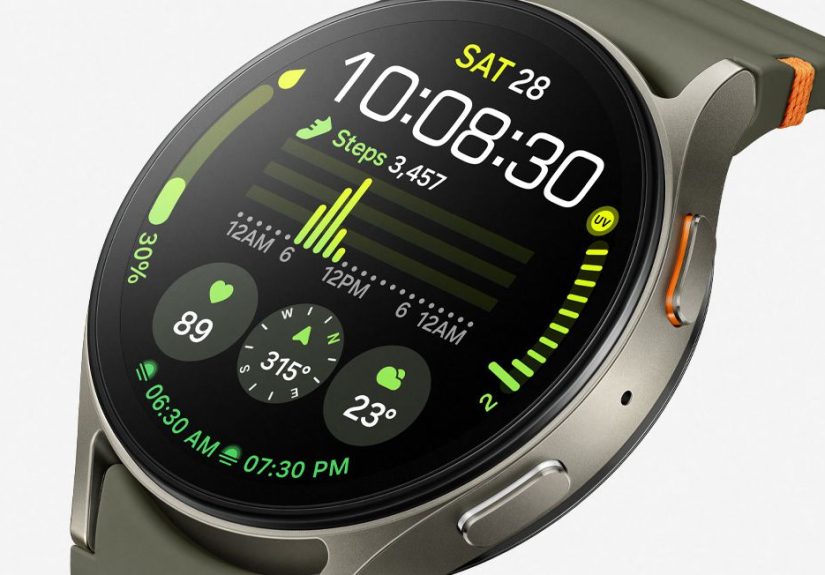
A Galaxy Watch is basically a tiny computer you wear on your wristexcept it’s the only computer that politely vibrates instead of sending you a 47-email thread titled “Quick Question.”
The problem isn’t what your watch can do. The problem is deciding what you should install so it does the right things (health, focus, organization) without turning your battery into a daily cliffhanger.
This guide rounds up the best Galaxy Watch apps for health and productivity, with real-world use cases, setup tips, and a few “learn from my mistakes”
momentswithout the keyword confetti or copy-paste vibes. Think of it like a menu: you don’t need everything, but you do want the right combo.
Before We Start: What “Galaxy Watch Apps” Really Means in 2026
Most modern Galaxy Watches run Wear OS, which means you can install apps directly from the Google Play Store on your watch (or from your phone and push them to the watch).
In plain English: you’re not stuck with whatever came in the box. You can build your own “wrist toolkit.”
Two practical notes before you go on an app-installing spree:
- Watch apps are best when they’re “glanceable.” If you need three minutes and a magnifying glass, that’s a phone task.
- Tiles and complications matter. The best apps aren’t just installedthey’re one swipe away or living on your watch face.
Best Galaxy Watch Apps for Health
1) Samsung Health: Your Health HQ (And Yes, It’s Actually Good)
If your Galaxy Watch were a gym, Samsung Health would be the front desk, the trainer, and the person who quietly judges your 2 a.m. snack choices (lovingly).
It’s the best starting point because it ties together your core metrics: activity, heart rate, workouts, recovery, and sleep insightswithout forcing you to build a Frankenstein setup from five different apps.
The underrated win: Samsung Health isn’t just “tracking.” It’s a feedback loop. When you consistently use it, your watch becomes better at interpreting patterns
(like which workouts spike your heart rate most efficiently, or when your sleep schedule is drifting).
Example: If you do strength training three days a week, you can use Samsung Health to keep your heart-rate zones honest and compare workouts over time.
You’ll know whether you’re getting stronger… or just getting better at taking long rests while scrolling.
2) Strava: For People Who Think in Miles, Splits, and “One More Hill”
Strava is the social and data-driven fitness app for runners, cyclists, hikers, and anyone who has ever said “easy run” and then proceeded to sprint like they’re late for boarding.
On a Galaxy Watch, Strava shines because you can record activities directly from your wristespecially useful when you want to run light without juggling your phone.
Why it’s worth installing: clean activity tracking, strong community features, and the kind of data that makes progress feel real
(even when your “progress” is mostly learning which routes have fewer angry dogs).
3) Google Fit: Simple Health Tracking That Plays Nicely With Google
Google Fit is a good pick if you want a cleaner, simpler way to view activity metricsespecially if you already live in Google’s ecosystem.
It’s not trying to be your entire wellness identity. It’s just trying to make sure you move enough to keep your spine from filing a complaint.
If you like a no-fuss dashboard for steps, activity minutes, and basic cardio trends, Google Fit is a solid “set it and forget it” option.
4) Sleep as Android: Sleep Tracking for the “I Want Details” Crowd
If your relationship with sleep is complicated (hello, 1 a.m. “just one more episode”), Sleep as Android is a powerful add-on.
It can use your Wear OS watch sensors to improve sleep data and includes watch-friendly controls like tiles for starting/stopping tracking.
This app is especially useful if you want more than a basic sleep scorethink routines, smart alarms, and deeper pattern recognition over time.
Just remember: more sensors + more tracking can mean more battery use, so it’s best paired with a consistent charging routine.
Example: If you’re trying to shift your bedtime earlier, Sleep as Android helps you see whether you’re actually improving sleep consistency
or just becoming a professional at lying to yourself before midnight.
5) Calm: Stress Relief in Two Minutes (Because Sometimes That’s All You’ve Got)
Calm is a favorite for quick breathing exercises, short meditations, and “reset” momentsexactly the kind of thing a smartwatch is perfect for.
Your watch is with you when stress hits: before a meeting, in traffic, or when you realize you said “you too” after the waiter told you to enjoy your meal.
A practical way to use it: set a daily reminder for a 2–5 minute breathing session. It’s small enough to stick, and consistency beats intensity
when it comes to stress habits.
6) C25K (Couch to 5K): A Training Plan That Doesn’t Hate Beginners
If you want structure without overthinking, a couch-to-5K style training app is a great “health upgrade.”
You get guided intervals, manageable progression, and a plan that meets you where you are.
It’s ideal if you’re returning to fitness, starting from scratch, or just tired of workouts that begin with “warm up with a light 10-minute jog.”
(Sure. And I’ll warm up by casually climbing Everest.)
Best Galaxy Watch Apps for Productivity
1) Todoist: Tasks That Live on Your Wrist (So Your Brain Can Chill)
Todoist is one of the cleanest task managers on Wear OS because it’s built for fast interactions:
add a task, check a task, move on with your life. It also supports watch-friendly features like complications and tilesmeaning your priorities can sit right on your watch face.
How it helps in real life: You stop relying on memory for small commitments (call the dentist, send the invoice, buy actual vegetables).
Your watch becomes a polite nudge instead of an anxiety amplifier.
Pro move: Create a short “Today” list with 3–5 must-do tasks. If your list is 27 items long, that’s not a task listthat’s a cry for help.
2) Google Keep: Notes, Lists, and “Don’t Forget This” Moments
Google Keep is the productivity MVP for quick notes and checklists. Grocery list? Packing list? Three things you must say in the meeting
before your mind turns into elevator music? Keep handles it.
The biggest advantage on a Galaxy Watch: it’s fast. You can create lists, check items off, and capture ideas without doing the phone-pocket dance.
Example: Keep a reusable checklist called “Leaving the house” with items like wallet, keys, earbuds, medication. Tap-tap. Done.
Adulting: slightly less chaotic.
3) Microsoft Outlook: Email and Calendar Without Getting Sucked Into the Inbox Abyss
You don’t want to write long emails on a watch (unless you enjoy suffering). But Outlook on a smartwatch is incredibly useful for
interactive notificationsquickly seeing what came in and taking simple actions without pulling out your phone.
It’s perfect for professionals who live by meeting alerts: you get the nudge, you confirm what’s next, and you don’t accidentally open a 15-minute scroll session.
Your watch becomes a “heads up” device instead of a distraction machine.
4) Google Maps: Turn-by-Turn Directions Without Constant Phone Checking
Google Maps on your Galaxy Watch is a surprisingly big quality-of-life upgrade: quick navigation prompts on your wrist are ideal for walking in a city,
traveling, or just finding the coffee shop you swore was “right here.”
It’s also a subtle productivity win: fewer stops, fewer wrong turns, and less time staring at your phone like it owes you money.
5) Google Wallet: Tap-to-Pay Convenience That Feels Like the Future
Google Wallet is the ultimate “tiny win” app. Pay for coffee or transit with your watch, and you’ll immediately wonder why you ever dug
through pockets like a raccoon searching for treasure.
The watch-first benefit is speed. When it works smoothly, it’s one of the most satisfying uses of a smartwatchespecially for quick errands, commuting,
or workouts when you don’t want to carry anything extra.
6) Google Home: Smart Home Control Without Hunting for Your Phone
If you use smart lights, thermostats, locks, or cameras, Google Home on Wear OS can be a practical productivity boost.
The “smart home” category sounds like luxury… until you realize how often you say “Did I lock the door?” five minutes after leaving.
With watch access and favorites/tiles, you can handle common actions quickly: lights off, door locked, thermostat adjustedwithout unlocking your phone.
It’s the kind of convenience that quietly saves time and mental energy.
7) Spotify (and Friends): Soundtrack Your Focus
Music isn’t just entertainmentit’s a productivity tool. Spotify on Wear OS is great for controlling playback, switching playlists,
and (depending on your setup and plan) using offline listening so your phone can stay in your bag.
A simple focus ritual that works: put on a specific playlist when you start a work block, then stop it when you’re done.
Your brain learns the pattern. It’s like training a puppy, except the puppy is your attention span.
8) Facer (Watch Faces): Productivity Starts With What You See
This one sounds cosmetic, but it’s sneaky-important. A good watch face setup can reduce friction:
show your next appointment, today’s task count, steps, or a quick shortcutright on your wrist.
If you like customizing, apps like Facer can be a fun way to build a watch face that supports your habits.
Just keep an eye on battery impact when using more complex faces.
How to Choose the Right Mix (Without Turning Your Watch Into a Junk Drawer)
The goal isn’t to install everything. The goal is to create a tight “daily driver” setup:
- One health hub: Samsung Health (plus Strava if you train seriously).
- One sleep strategy: built-in sleep tracking, or Sleep as Android if you want more depth.
- One task system: Todoist (or Keep if you’re list-first).
- One navigation/payment combo: Google Maps + Google Wallet for real-life convenience.
- One calm/focus tool: Calm and/or Spotify for stress + productivity rituals.
If you do that, your watch stays fast, useful, and battery-friendlylike a well-trained assistant, not a needy pet.
Setup Tips That Make These Apps 10x Better
- Use tiles: Put your top 3 actions one swipe away (tasks, workout start, wallet).
- Use complications: Put “next event” or “today’s tasks” directly on your watch face.
- Trim notifications: Let only high-value apps buzz your wrist (calendar, messages, urgent email).
- Battery sanity: If you install heavy tracking apps, charge consistently (for many people, a short top-up during shower time is enough).
- Make it behavioral: Apps work when they attach to habitsmorning checklist, midday walk, bedtime wind-down.
Real-World Experiences: What Using These Apps Feels Like (A 7-Day Snapshot)
Let’s turn the app list into real life. Below is an experience-style walkthroughan example of how people often use these apps together without feeling like
they’re managing a tiny office on their wrist.
Day 1–2: The “I Installed Everything and Now I’m Overstimulated” Phase. This is normal. The first couple of days can feel like your watch
is auditioning to be your new boss. Notifications pop up, tiles look unfamiliar, and you may learn that your email is… unfortunately real.
The fix is simple: turn off most notifications, then re-enable only the ones that genuinely help. For many people, that’s calendar alerts, messages, and maybe
task reminders. Everything else can wait until you’re holding your phone on purpose.
Day 3: The “Oh, This Is Actually Useful” Moment. This is usually when Google Wallet or Google Maps delivers its first small miracle.
You pay for coffee with a wrist tap, or you follow turn prompts without pulling your phone out every 30 seconds. It feels like you gained five extra minutes
of calmeven though nothing dramatic happened. Tiny friction removed = big mood improvement.
Day 4: Health Starts Feeling Like Feedback, Not Judgment. Samsung Health becomes more valuable once it has a few days of context.
You’ll start noticing patterns: your steps dip on meeting-heavy days, your heart rate stays elevated longer after late caffeine, or your “I totally slept fine”
confidence doesn’t match the data. If you add Strava for a run or ride, you get a cleaner “training story” across the weekeffort, recovery, and consistency.
Day 5: Productivity Becomes “Glance and Go.” This is when Todoist or Google Keep feels magical.
Instead of remembering everything, you outsource small commitments to your wrist. You’re in line at the store and check your grocery list without unlocking your phone.
You add “send that invoice” the moment you think of it. These micro-actions reduce mental clutter. The watch isn’t making you work moreit’s making it harder
to forget the stuff that causes last-minute stress.
Day 6: Calm + Music Turns Into a Ritual. Short breathing exercises on Calm or a consistent focus playlist on Spotify can become a “reset button.”
Many people find the watch helps because it reduces steps: no phone, no opening apps, no distraction spiral. Just a vibration reminder, a two-minute breathing cycle,
and back to life. It’s not dramatic wellness theaterit’s practical nervous-system maintenance.
Day 7: You Start Curating Like a Pro. By the end of the first week, most people naturally delete the apps they don’t use and keep the handful
that feel effortless. The watch becomes less about novelty and more about support: track a workout, capture a thought, pay quickly, get to the next place, and keep moving.
The best sign you chose the right apps? You stop thinking about the apps at all. You just… get things done.
Conclusion
The best Galaxy Watch apps for health and productivity do the same thing: they reduce friction.
They help you move more, sleep better, stay organized, and handle small life tasks without getting pulled into your phone.
If you want a simple “starter pack,” begin with Samsung Health, Todoist (or Google Keep),
Google Maps, and Google Wallet. Then add Strava, Sleep as Android, and Calm
based on your goals. Keep it tight, keep it glanceable, and your watch will feel less like a gadgetand more like a genuinely helpful sidekick.