Table of Contents >> Show >> Hide
- What “Opera Plugins” Means in 2025
- How to Install Opera Extensions Without Regretting It Later
- Our Favorite Opera Plugins of 2025
- 1) uBlock Origin Lite (Best “set it and forget it” content blocker)
- 2) Privacy Badger (Best tracker-blocking sidekick)
- 3) Bitwarden (Best password manager extension for most people)
- 4) Dark Reader (Best “my eyes would like a word” extension)
- 5) Grammarly (or its newer suite branding) (Best writing support across the web)
- 6) Notion Web Clipper (Best “save this before I lose it forever” research tool)
- 7) OneTab (Best emergency brake for tab hoarders)
- 8) SponsorBlock (Best YouTube quality-of-life upgrade)
- 9) Distill Web Monitor (Best “tell me when this page changes” tool)
- 10) Tampermonkey (Best power-user toolbox for the web)
- 11) Simple extension manager (Best “I want control, not chaos” add-on)
- 12) DuckDuckGo-style privacy extensions (Best “privacy boost with minimal fuss” option)
- How We Chose These Favorites
- Performance and Security Tips for a Faster, Safer Opera
- Field Notes From Daily Opera Use in 2025 (Bonus Experiences)
Opera has always been the browser for people who like their internet a little more… customized. And in 2025, “customized”
basically means extensions (a.k.a. “plugins,” in everyday human language): the tiny add-ons that turn your browser
from a simple tab-opener into a privacy bunker, a research assistant, a writing studio, and (occasionally) a beautiful chaos machine.
The tricky part isn’t finding extensions. It’s finding the right ones: fast, well-maintained, permission-sane, and actually useful
after the honeymoon week. So we pulled together our favorite Opera plugins of 2025 based on real-world daily use: writing, research,
YouTube rabbit holes, work tabs, shopping, and the eternal quest to stop the internet from tracking you like a clingy ex.
What “Opera Plugins” Means in 2025
Let’s clear up the wording. “Plugins” used to mean old-school browser components (the stuff we don’t talk about anymore at polite security
conferences). In 2025, for Opera, the action is in extensions: add-ons you install from Opera Add-ons or (because Opera is
Chromium-based) the broader Chrome extension ecosystem.
Opera also ships with some powerful built-ins (like ad blocking, a sidebar, and modern AI features in Opera’s flagship browsers). That’s great.
But extensions still matter because you can tailor Opera to your workflow: your password manager, your note system, your tab discipline
level (or lack thereof).
How to Install Opera Extensions Without Regretting It Later
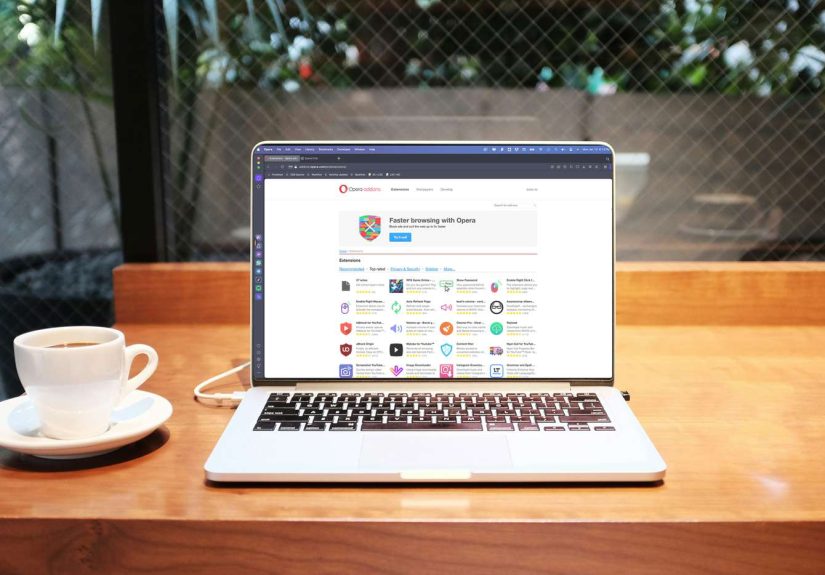
You can install extensions from Opera’s own add-ons catalog and, in many cases, from the Chrome extension ecosystem as well. Either way, a quick
safety routine saves you from the “why is my browser suddenly selling crypto sunglasses?” era.
A simple safety checklist
- Start with fewer extensions. Every extension is more code running in your browser. Keep your “must-haves” tight.
- Read permissions like you’re signing a lease. If a coupon tool wants “read and change all data,” ask why.
- Check the update cadence and reviews. A great extension in 2021 can become abandonware in 2025.
- Prefer reputable developers and well-known projects. Bonus points for transparent privacy policies and open-source code.
- Audit quarterly. If you haven’t clicked it in months, uninstall it. Your future self will feel faster and safer.
One more reality check: extension malware and shady “free VPN” add-ons are still a thing. The safest approach is to install only what you truly
need, from sources and developers you trust, and remove anything that starts asking for weird permissions or behaving oddly.
Our Favorite Opera Plugins of 2025
These picks are grouped by what they do best. Not every extension belongs in every browser. The goal is a lean, powerful setup that makes Opera
feel like your browser, not a public computer at an airport.
1) uBlock Origin Lite (Best “set it and forget it” content blocker)
If you install only one extension, make it a high-quality content blocker. In 2025, the extension world has been reshaped by platform changes,
which is exactly why uBlock Origin Lite stands out: it’s built for the modern extension framework and blocks ads, trackers,
and other clutter right away.
Use case: a faster-feeling web, fewer trackers, and less visual noise. Pair it with Opera’s own features if you want, but avoid running multiple
blockers with overlapping settings unless you enjoy troubleshooting at 1:00 a.m.
Pro tip: don’t chase a “perfect” filter setup on day one. Start default, browse normally, then tune only if something breaks.
2) Privacy Badger (Best tracker-blocking sidekick)
Privacy Badger is built around one job: reducing invisible tracking. It’s especially nice if you want a privacy tool that’s less about
“ad-blocking everything” and more about limiting cross-site snooping.
Use case: you’re researching, shopping, reading news, and you’d rather not be followed around the web by a suspiciously specific ad for the shoes
you looked at once at 2:47 a.m.
3) Bitwarden (Best password manager extension for most people)
Password managers aren’t “optional” anymore. Bitwarden earns its spot because it’s secure-minded, widely trusted, and works smoothly inside the
browser for saving logins, generating strong passwords, and autofilling without drama.
Use case: managing logins across dozens (or hundreds) of sites, moving toward passkeys where available, and reducing the risk of reused passwords.
Practical setup: enable autofill carefully, protect the vault with strong authentication, and consider a hardware security key if you want to level
up your account protection.
4) Dark Reader (Best “my eyes would like a word” extension)
Dark Reader creates dark themes for websites on the fly. It’s not just “flip colors and pray.” It gives you controls for brightness, contrast,
sepia, and per-site settings so you can actually read without feeling like you stared into a flashlight.
Use case: late-night research sessions, bright dashboards, long-form reading, and anyone who has ever said, “Why is this site still white in 2025?”
5) Grammarly (or its newer suite branding) (Best writing support across the web)
If you write emails, proposals, captions, or anything meant for human eyes, a writing assistant extension can be the difference between “polished”
and “I typed this while chewing ice.”
Grammarly’s browser extension helps with grammar, clarity, tone, and consistency across many writing boxes online. It’s especially handy for quick
edits where you don’t want to copy/paste into another tool.
Use case: writing client emails, polishing blog drafts in web editors, tightening up social posts, and spotting accidental rage-tone before you hit send.
6) Notion Web Clipper (Best “save this before I lose it forever” research tool)
Notion’s Web Clipper is for people who collect information like squirrels collect acorns. It lets you clip pages into Notion so your research,
inspiration, receipts, and “I swear I’ll read this later” articles don’t vanish into tab oblivion.
Use case: content research, planning a project, saving competitor examples, building a swipe file, or capturing sources for later synthesis.
Workflow tip: clip into a single “Inbox” database first, then sort weekly. Otherwise, you’re just building a second internet inside Notion.
7) OneTab (Best emergency brake for tab hoarders)
OneTab converts a mountain of open tabs into a single list. This can reduce memory usage and instantly calm your browser down when it’s doing that
slow, dramatic “I’m fine” spiral.
Use case: research sprints, shopping comparisons, “I opened 73 tabs to decide on a toaster,” and anyone who treats the tab bar like an emotional support animal.
A healthy habit: run OneTab at the end of each workday, label the list (Client A, Holiday Planning, “Things I’m Pretending Are Quick”), then start fresh tomorrow.
8) SponsorBlock (Best YouTube quality-of-life upgrade)
SponsorBlock is crowdsourced: people submit timestamps for sponsored segments and other skippable parts of videos, and the extension automatically
jumps over them for everyone.
Use case: learning videos, long podcasts, tech reviews, and any time you want the content without the 90-second “but first, today’s sponsor…”
speech you’ve memorized against your will.
Note: because it’s crowdsourced, coverage varies. But once you get used to it, regular YouTube can feel… slow.
9) Distill Web Monitor (Best “tell me when this page changes” tool)
Distill is for monitoring pages for updates. You choose what to watch (a section of a page or the whole thing), and it alerts you when something changes.
Use case: tracking price changes, appointment availability, product restocks, policy updates, job postings, or that one documentation page your team keeps changing.
Reality check: don’t set it to refresh aggressively. Be polite to websites, and you’ll avoid rate limits (and bad karma).
10) Tampermonkey (Best power-user toolbox for the web)
Tampermonkey runs user scripts that can customize how websites behave. It’s the “fine, I’ll fix it myself” extensiongreat for advanced users
who want to tweak layouts, automate repetitive web actions, or patch annoyances that no setting can reach.
Use case: custom scripts for specific sites, accessibility tweaks, small automations, and personal workflows.
Safety warning (friendly but firm): only install scripts from sources you trust, and read what they do. This is powerful enough to help you… or to help
someone else help themselves to your data.
11) Simple extension manager (Best “I want control, not chaos” add-on)
Once you run more than a handful of extensions, you’ll want an easy way to enable/disable sets. An extension manager helps you keep Opera fast by
turning on heavy tools only when needed (for example: a web clipper, a dev tool, or a shopping add-on).
Use case: switching between “work mode” and “weekend mode” without manually toggling 12 icons like you’re launching a spaceship.
12) DuckDuckGo-style privacy extensions (Best “privacy boost with minimal fuss” option)
If you want a simple privacy-focused add-on that emphasizes tracker protection and safer browsing signals, privacy bundles from well-known privacy brands
can be a good fitespecially for users who don’t want to tweak advanced settings.
Use case: everyday browsing, a lightweight privacy layer, and a “less tracking, please” approach without constant configuration.
How We Chose These Favorites
This list isn’t based on what looks cool in a store screenshot. We picked extensions that hold up under daily use and real constraints:
performance, permissions, trust signals, and whether they solve a common problem better than Opera’s built-in features.
- Trust and transparency: recognizable developers, clear privacy statements, and a history of maintenance.
- Practical impact: faster browsing, cleaner research, fewer distractions, better writing, safer logins.
- Low friction: tools that don’t demand constant babysitting.
- Reasonable permissions: “needs access to everything” is a red flag unless the job truly requires it.
Performance and Security Tips for a Faster, Safer Opera
Extensions are powerful because they can interact deeply with webpages. That’s also why you should treat them like appsnot like stickers.
Here’s the setup we recommend for 2025:
Keep a “core stack” and a “sometimes stack”
- Core stack: content blocker + password manager (and maybe a dark mode tool).
- Sometimes stack: web clipper, monitoring tools, script managers, shopping helpers, heavy media tools.
Do a 60-second permissions audit
Ask: “Does this extension need to read and change data on all sites to do its job?” If not, skip it or find an alternative. Also watch out for
extensions that change owners, switch business models, or suddenly update into something that feels unrelated.
Watch the extension ecosystem changes
The shift toward newer extension frameworks has changed how some blockers and privacy tools behave in Chromium-based browsers. In plain English:
sometimes you’ll see renamed “Lite” versions, updated rule systems, or new limitations. That’s not necessarily badbut it’s worth understanding
before you assume every ad blocker works the same way forever.
Field Notes From Daily Opera Use in 2025 (Bonus Experiences)
Here’s what these plugins feel like in real life, after the novelty wears off and your browser becomes the place where your job, your hobbies, your
shopping, your “just one more video,” and your tax forms all live together in a single tab bar like an awkward family reunion.
First: the biggest improvement wasn’t adding more extensions. It was removing the ones that sounded helpful but quietly slowed
everything down. In practice, a “core stack” of two or three extensions gives the best payoff: a content blocker to keep pages clean and quick,
a password manager to keep logins sane, and (if you work late) Dark Reader to keep your eyes from filing a complaint with HR.
The most dramatic day-to-day win is still a good blocker. Not because ads are annoying (they are), but because modern pages are heavy. A cleaner page
loads faster, scrolls smoother, and makes your laptop fan less likely to take off like a tiny helicopter. In 2025, when extension platforms shift and
some tools get reworked, the best move is choosing a blocker that’s built for today’s environment and staying with it instead of chasing random forks.
The second biggest win is workflow: Notion Web Clipper + OneTab is basically “research mode.” When I’m gathering info, I clip anything
worth keeping (quotes, product specs, examples, competitor pages), then OneTab the rest so my browser doesn’t become an archaeological site of half-read tabs.
The trick is discipline: clip with intention, then do a weekly cleanup in Notion so your “saved knowledge” doesn’t become “saved guilt.”
SponsorBlock is the extension that sneaks up on you. At first it’s just a nice convenience. Then you use a browser without it and realize you’re suddenly
watching intros, outros, self-promos, and the full sponsorship spiel like it’s a required course. It’s not about being impatient; it’s about getting your
time backespecially when you’re watching tutorials or long-form reviews.
Grammarly (and similar writing helpers) is best when you treat it like a copy editor, not a co-writer. I use it for tightening sentences, catching typos,
and checking tone in emails. It’s especially useful when you’re writing quickly and you don’t want a message to sound accidentally sharp or confusing.
The best “experience tip” is to turn it off in places where you’re drafting messy ideas, and turn it on when you’re polishing for humans.
Distill Web Monitor is the quiet MVP when you’re waiting on something: a price drop, a restock, a policy update, or a page you don’t want to refresh
manually 40 times. Set it gently, monitor only what you need, and let it be your polite internet butler. If you set it too aggressively, you’ll either
get blocked or drown in notificationsask me how I know.
Finally, the most “2025” lesson: extensions are an attack surface. That doesn’t mean “don’t use them.” It means use them deliberately.
Keep your browser tidy, uninstall what you don’t need, and treat permissions as a serious decision. Do that, and Opera becomes a legitimately powerful,
personalized workspace instead of a slow, suspicious zoo of mystery icons.
If you’re building your Opera setup from scratch, start with three: a modern content blocker, Bitwarden, and one workflow tool (Notion Web Clipper or OneTab).
Live with that for a week. Then add only what solves a problem you actually have. Your browser should feel like a sharpened toolnot a junk drawer.