Table of Contents >> Show >> Hide
- What Is YouTube TV Multiview?
- What You Need Before You Start
- How to Use Multiview in YouTube TV to Watch Live Sports
- Best Sports for YouTube TV Multiview
- Tips to Make Multiview Better
- Common Multiview Problems and How to Fix Them
- Is YouTube TV Multiview Worth Using for Sports?
- Experiences With YouTube TV Multiview While Watching Live Sports
- Final Thoughts
If you have ever tried to watch March Madness, Sunday afternoon NFL games, a big college football slate, and your fantasy team melt down in real time, you already know one painful truth: one screen is rude. It asks you to choose. Sports fans do not enjoy choosing. We prefer glorious chaos, multiple scoreboards, and the ability to yell, “Wait, go back to the other game!” at nobody in particular.
That is exactly why YouTube TV Multiview has become one of the most useful features for live sports fans. It lets you watch multiple live events at once on a single screen, which is a fancy way of saying you can turn your living room into a mini sports bar without paying sports-bar wing prices. Better yet, the feature has evolved from a simple preset tool into something far more flexible, especially for viewers who want more control over what appears on screen.
In this guide, you will learn how to use Multiview in YouTube TV to watch live sports, what devices work best, how to switch audio and go full-screen, what to expect with NFL Sunday Ticket, and how to fix the most common headaches if the feature is not behaving. Then, because real-life viewing is rarely as neat as a help page, you will also get a longer section on actual viewing experiences and smart ways to use the feature when the sports calendar gets ridiculous.
What Is YouTube TV Multiview?
YouTube TV Multiview is a viewing mode that allows you to watch up to four live streams on one screen at the same time. Instead of bouncing back and forth between channels like a caffeinated squirrel with a remote, you can keep multiple games visible at once and choose which one provides the audio.
For sports fans, this is the feature that changes everything. It is perfect for:
college football Saturdays with too many good games at noon, NFL Sundays with overlapping kickoffs, March Madness when every possession feels like a tiny heart attack, golf tournaments with several featured groups, soccer match windows across multiple networks, and those weekends where your “relaxing afternoon” somehow includes three remotes and a spreadsheet of kickoff times.
The big appeal is simple: Multiview cuts down on channel flipping, reduces FOMO, and makes your screen work harder than your group chat.
What You Need Before You Start
1. A YouTube TV subscription and access to the right channels
Multiview only helps if the games you want are actually available in your plan or add-ons. If you are trying to build a sports-heavy setup, make sure your package includes the relevant broadcasters and sports networks. This matters even more for premium sports add-ons.
2. A supported device
The best Multiview experience is still on a smart TV or streaming device. YouTube TV supports a wide range of TV platforms, including Roku, Apple TV, Fire TV, Chromecast with Google TV, Android TV, Samsung TVs, LG TVs, Vizio SmartCast, and even some game consoles like PlayStation. In plain English: if your living room setup is reasonably modern, you are probably in business.
Multiview is also available on mobile devices, including iPhone, iPad, and supported Android phones and tablets, but the TV experience is usually better for live sports. Four games on a 65-inch television feels like strategy. Four games on a phone can feel like you are trying to do taxes through a keyhole.
3. The right expectations
Here is the part many guides skip: Multiview is better than it used to be, but it is not limitless. On eligible content, YouTube TV now lets you build your own Multiview combinations, and it also surfaces recommended groupings in places like Top Picks for You and Watch in multiview. However, not every channel can always be mixed with every other channel, and some older devices may offer fewer customization options or reduced picture quality.
How to Use Multiview in YouTube TV to Watch Live Sports
Step 1: Open a live game or eligible sports event
Start by opening the YouTube TV app on your smart TV, streaming device, or supported mobile device. Tune into a live game you want to watch. The easiest time to test Multiview is during a major sports window when several live games are happening at once, such as NCAA basketball, NFL Sunday Ticket, or a busy college football Saturday.
Step 2: Open the Multiview option
On a TV or streaming device, press down on your remote while watching eligible content. You should see the Multiview option appear. Select it.
On mobile, tap the video player while watching eligible content, then tap the Multiview option. The interface is slightly different, but the idea is the same: you are telling YouTube TV, “One game is not enough, and I have the emotional bandwidth for four.”
Step 3: Add the games or live channels you want
Once Multiview opens, you can choose from the content available in the Multiview builder. On supported setups, pick the games or channels you want to add until your screen is full. YouTube TV may also show ready-made combinations if a major sports event is underway.
This is where the feature gets especially useful. Instead of relying only on random prebuilt combos, you can often create a better setup for your actual interests. That means you can prioritize your team, your rival’s game, one national game for context, and one “I just have a weird feeling this will get wild” matchup.
Step 4: Switch active audio
You can see all four streams, but only one can provide audio at a time. To change which game you hear, select that view. The active audio indicator will show which window is currently in charge of the sound.
This sounds basic, but it is incredibly important. Good Multiview habits are really audio habits. Most fans quickly learn to keep their “main” game as the active audio source and use the other windows as visual alerts. The moment another game gets weird, they switch over. It is basically survival of the loudest announcer.
Step 5: Expand one stream to full screen
If one game becomes too important to share the spotlight, select that view and switch it to full screen. On TV, this is typically done by selecting the active view and pressing the Select button on your remote. On mobile, tap the full-screen control.
When the moment passes, you can return to the Multiview layout. This is perfect for late-game drives, buzzer-beater situations, penalty shootouts, and any scenario where your brain says, “Okay, everyone else be quiet for a second.”
Step 6: Exit Multiview
When you are ready to go back to one channel, press down on your remote and select the network you want from the bottom menu, or use the Back button. On mobile, tap the screen to bring up the bottom panel, then choose the network you want or tap back.
Best Sports for YouTube TV Multiview
March Madness
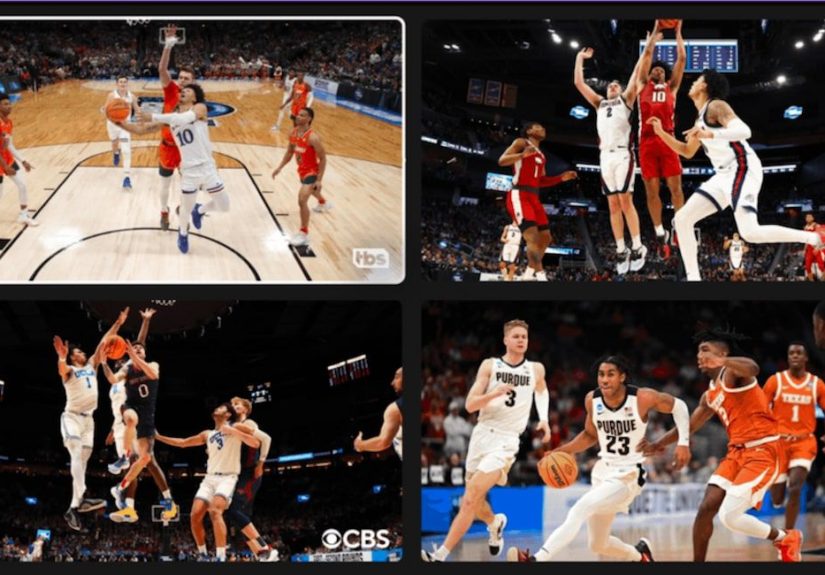
This might be the most obvious use case. During the NCAA tournament, multiple games overlap constantly, and Multiview turns that overlap into a feature instead of a problem. You can keep a close game in one window, an upset alert in another, and two more games on standby while pretending you absolutely meant to pick the 12-seed in your bracket.
NFL Sundays
If you have NFL Sunday Ticket, Multiview becomes even more valuable. It is a natural fit for tracking your favorite out-of-market teams, keeping an eye on RedZone, and monitoring fantasy-relevant players. There is one key restriction, though: Sunday Ticket Multiview combinations are limited to other NFL games, not random non-NFL YouTube TV channels. That means you cannot usually combine an NFL Sunday Ticket setup with a regular cable news channel or a totally unrelated network just because chaos is your brand.
College Football Saturdays
College football is built for Multiview. Noon slate, afternoon slate, prime time slate, and somehow there is still a game kicking off at an hour usually reserved for regrettable online purchases. Multiview helps you track ranked matchups, rivalry games, and upset brewing conditions without flipping around every 40 seconds.
Golf, Tennis, Soccer, and More
Multiview is not only for American football and basketball. It also works well for slower-paced sports where you want awareness across multiple feeds. Think featured groups in golf, overlapping tennis matches, or several soccer matches happening during the same weekend window. You may not keep audio on all of them, obviously, because the laws of physics are still annoyingly real, but visual awareness alone is valuable.
Tips to Make Multiview Better
Use the biggest screen you have
Multiview technically works on mobile, but live sports are much easier to follow on a larger TV. Bigger screens make score bugs, clock management, and body language far easier to read. If you want to enjoy the feature rather than squint at it like a suspicious detective, use your television.
Keep one game as the “captain”
Pick one main game for audio and emotional commitment. Let the other windows act as scouts. This makes Multiview much less overwhelming and much more useful.
Pair Multiview with a second device
During Multiview, some additional views and overlays are limited, especially with certain NFL features. A second phone or tablet is perfect for checking fantasy stats, highlights, betting lines, social chatter, or injury updates while your main screen stays focused on the games.
Know when presets are enough
Not every sports window requires custom building. Sometimes YouTube TV’s recommended Multiview combinations are already smart enough. If the games you care about are featured together, use the shortcut and save your thumbs for more important tasks, like dramatic remote-pointing.
Common Multiview Problems and How to Fix Them
The Multiview option does not appear
First, make sure you are watching eligible live content. Multiview does not show up for everything. If you are on a web browser, that is also your problem; YouTube TV does not support Multiview in a browser. AirPlay is also not supported for Multiview.
The channel or game you want is missing
This usually comes down to availability. Not every live event can be placed into every Multiview combination. Some add-on content requires the proper subscription, and NFL RedZone only appears in certain football-specific setups if you have the necessary package.
The picture quality looks worse than expected
That can happen on older devices, especially hardware from before 2018. If the image looks softer or the customization options feel limited, your device may simply be aging out of the ideal experience. Updating the app, updating your TV firmware, or moving to a newer streaming box can make a surprisingly big difference.
The app feels buggy
Classic streaming advice still applies: restart the app, restart the device, and make sure everything is updated. It is not glamorous, but neither is missing the game-winning shot because your app decided to become philosophical.
Is YouTube TV Multiview Worth Using for Sports?
Absolutely. In fact, for many subscribers, it is one of the best reasons to use YouTube TV in the first place. The feature solves a real sports-viewing problem, and it does so in a way that feels intuitive once you get used to the controls. It is especially valuable during crowded live windows where channel flipping is not just annoying but genuinely inefficient.
Is it perfect? No. Channel combinations can still feel limited at times, some device experiences are stronger than others, and mobile Multiview is more practical than luxurious. But when it works well, it turns live sports from a frantic scavenger hunt into a much smoother, smarter viewing experience.
And that is the whole point. Sports are already stressful enough. Your streaming setup should not be trying to make the playoffs too.
Experiences With YouTube TV Multiview While Watching Live Sports
The real magic of YouTube TV Multiview shows up when you stop thinking about it as a feature and start using it as a routine. On paper, the idea is simple: watch multiple live sports streams at once. In practice, it changes the rhythm of how you watch an entire day of games.
Take a typical college football Saturday. You start with one game, the one you promised yourself you would “focus on.” Then you notice another ranked matchup is close, a rivalry game is turning messy in the best possible way, and some underdog is suddenly one touchdown away from becoming the lead story of the day. Without Multiview, that becomes a constant remote battle. With Multiview, the day feels organized. You can keep your main game on audio, track momentum swings elsewhere, and instantly know when another game deserves full-screen attention.
NFL Sundays create a different kind of experience. They are less about one giant slate of random curiosity and more about managing priorities. Maybe you care about your team, your fantasy lineup, two divisional rivals, and RedZone. Multiview lets you keep all of that moving in one place. Instead of bouncing between broadcasts and arriving two plays late every time, you stay connected to the overall flow of the afternoon. You begin to notice patterns faster. You can sense when a game is tightening, when a quarterback is heating up, or when an announcer’s tone means something dramatic just happened in the other window.
March Madness may be the most emotionally chaotic example. Multiview does not calm the madness, but it makes the madness legible. That is an important difference. You still get the buzzer-beaters, the mini runs, the foul trouble, and the coach who looks like he has not blinked since Tuesday. But instead of choosing which drama to ignore, you can keep several stories alive at once. It makes the tournament feel bigger, faster, and somehow more coherent.
There is also a social side to the experience. Multiview works well when friends are over because it reduces arguments about what to watch next. Everyone gets a corner, metaphorically speaking. The NFL fan gets one game, the college basketball fan gets another, and the neutral viewer gets to pretend they are above all this while quietly becoming obsessed with an overtime thriller in the bottom-right box. It is one of the few streaming features that genuinely improves group watching.
That said, the best Multiview users develop habits. They learn not to chase every single game equally. They keep one audio source active. They go full-screen for high-leverage moments. They use a phone for stats and updates instead of asking the TV screen to do literally everything. Once those habits kick in, the feature stops feeling like a gimmick and starts feeling like the obvious way sports should be watched.
That is why Multiview lands so well with sports fans. Live sports are unpredictable, overlapping, and often impossible to schedule politely. YouTube TV Multiview does not remove that chaos. It just gives the chaos a seat chart.
Final Thoughts
If your weekends revolve around live sports, learning how to use Multiview in YouTube TV is well worth the few minutes it takes to get comfortable with the controls. Start a live game, open the Multiview menu, build a layout that matches your priorities, switch audio as needed, and go full-screen when the moment gets huge. Once you do it a few times, it becomes second nature.
And honestly, after a while, going back to one game at a time feels a little primitive. Not wrong. Just… quaint. Like using a paper map or calling a hotline for movie times.