Table of Contents >> Show >> Hide
- Quick Reality Check: What “Minecraft Xbox 360 Version” Means Today
- Before You Start: A 3-Minute Checklist
- Step 1: Update Your Xbox 360 Console (System Software)
- Step 2: Update Minecraft: Xbox 360 Edition (The Game Title Update)
- If Minecraft Won’t Update: Fixes That Actually Work
- How to Tell if Minecraft Xbox 360 Is Fully Updated
- What You Can (and Can’t) Update After the 2024 Store Shutdown
- Protect Your Worlds Before You Start Pushing Buttons
- FAQ: Fast Answers for Common Xbox 360 Minecraft Update Questions
- Real-Life Experiences: Updating Minecraft on Xbox 360 (500+ Words of “Yep, Been There”)
- Conclusion
Updating Minecraft: Xbox 360 Edition in 2026 is a little like teaching your childhood pet goldfish to do taxes: it’s not impossible… but it does require patience, the right steps, and realistic expectations. The good news? If your console can still connect to Xbox network services, you can usually get your Minecraft title update installed the official way. The even better news? Once it’s updated, you’re basically donebecause the Xbox 360 version isn’t receiving new feature updates anymore.
This guide walks you through the clean, legit, low-drama way to update Minecraft on Xbox 360, plus what to do when the update refuses to cooperate (because old consoles love a little chaos).
Quick Reality Check: What “Minecraft Xbox 360 Version” Means Today
On Xbox 360, you’re playing Minecraft: Xbox 360 Edition (often called the “Legacy Console Edition”). That matters because it’s not the modern Bedrock Edition you see on newer consoles. Translation: you can update your Xbox 360 edition to its latest available build, but you can’t “upgrade” it into the newest Minecraft platform on the same console.
Important: Minecraft: Xbox 360 Edition is no longer being updated with new content updates (think big modern features). So your goal is to get your copy to the latest Xbox 360 title update availablenot to chase brand-new Minecraft releases that aren’t coming to the 360.
Before You Start: A 3-Minute Checklist
Do these first so you don’t end up blaming Minecraft for what is actually a storage problem (classic console tragedy).
- Internet connection: Wired Ethernet is best, but Wi-Fi can work if your adapter is stable.
- Signed in profile: Use the Xbox profile you normally play on.
- Enough free storage: Aim for at least a few hundred MB free to avoid download/install failures.
- Know your copy type: Disc or digitalboth can update, but the “re-download” steps differ.
Step 1: Update Your Xbox 360 Console (System Software)
Your console’s system software (dashboard/OS) needs to be current enough to connect properly and download updates. Xbox 360 system updates are rare now, but they still matter for connectivity and stability.
Option A: Update Online (Easiest)
- From the Xbox 360 dashboard, go to Settings.
- Select System (or System Settings on some dashboards).
- Choose Network Settings and run Test Xbox Live Connection.
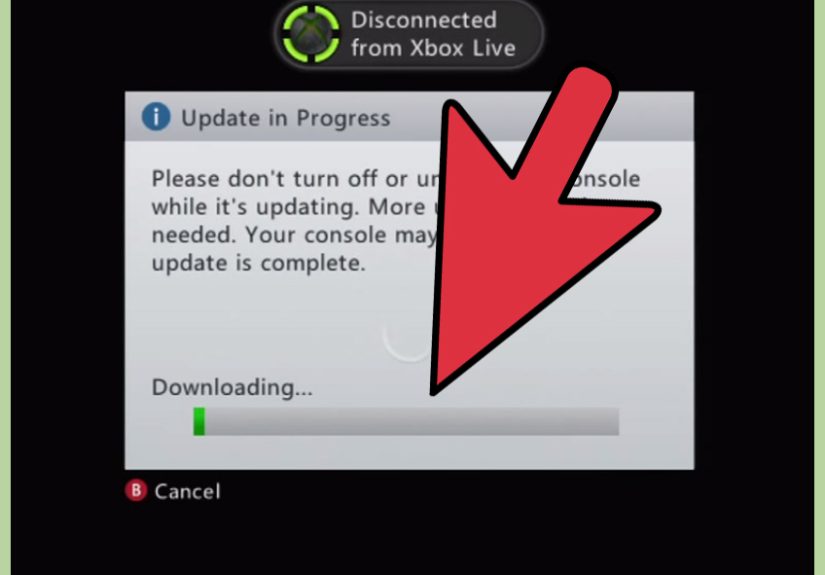
- If your console needs an update, it typically prompts you to install it. Accept and let it finish.
If you see an update prompt, let it complete without interruptions. Don’t unplug it. Don’t power-cycle it “to speed it up.” That’s like trying to bake cookies faster by punching the oven.
Option B: Offline System Update (USB) When Online Updates Fail
If your Xbox 360 can’t download a system update online, Microsoft provides an offline update method using a USB drive (you’ll use a PC to download the update file, then install it from USB on the console).
- Get a USB flash drive with enough free space (and format it as required by Xbox 360 instructions).
- Download the official offline system update file from Xbox support on a PC.
- Copy the update folder to the USB drive exactly as directed.
- Insert the USB drive into the Xbox 360 and follow the on-screen prompt to install.
If offline system updates sound intimidating: you’re not alone. The key is following the folder structure exactly. If the console doesn’t “see” the update, it’s usually because a folder was renamed, nested incorrectly, or the USB isn’t formatted right.
Step 2: Update Minecraft: Xbox 360 Edition (The Game Title Update)
Now for the main event: updating Minecraft itself. On Xbox 360, game updates are typically delivered as a title update. You usually don’t press an “Update” buttonMinecraft prompts you when it detects a newer title update.
Method 1: Update by Launching the Game (Most Common)
- Make sure the console is connected to the internet.
- Insert the Minecraft disc (if you have a disc) or launch it from My Games (if digital).
- If an update is available, you’ll see a prompt to download/install it.
- Select Yes (or Download) and wait for the update to complete.
After the update installs, Minecraft should load normally. If you get kicked back to the dashboard or the game hangs, jump to the troubleshooting section belowbecause Minecraft didn’t fail you, time did.
Method 2: Re-download Minecraft (Digital Owners) If Something’s Missing
Since the Xbox 360 Store and Marketplace were retired on July 29, 2024, you can’t buy new Xbox 360 content from the 360 store anymore, but you can still play and re-download what you already own. That includes games and (in many cases) previously purchased add-ons.
If Minecraft behaves like it never updatedor the install seems corruptedre-downloading your owned copy can help:
- Go to your Xbox 360 Download History (under Account settings).
- Find Minecraft in the list and choose Download Again.
- Launch Minecraft after reinstalling to trigger the latest available title update prompt.
If Minecraft Won’t Update: Fixes That Actually Work
When Minecraft refuses to update, the problem is usually one of these: network issues, storage issues, cached update corruption, or a system software snag. Here’s the practical order to troubleshoot without wasting an afternoon.
1) Test the Connection Like You Mean It
- Go to Settings > System Settings > Network Settings.
- Select Test Xbox Live Connection.
If the test fails, fix the connection first. Minecraft can’t download an update through the power of positive thinking. Common culprits include weak Wi-Fi, outdated network settings, or router security modes that don’t play nicely with older hardware.
2) Make Space (Yes, Even If You “Have Plenty”)
Xbox 360 updates can fail if storage is tight or fragmented. If you’re hovering near full, do this:
- Delete old demos you’ll never play again (be honest).
- Move videos/music to another storage device.
- Ensure the storage device you use for games has a comfortable buffer of free space.
3) Clear the System Cache to Force a Fresh Update Download
If a title update download got corrupted (or your console is clinging to an old cached patch like it’s a family heirloom), clearing the system cache is a classic fix.
- Press the Guide button.
- Go to Settings and select System Settings.
- Select Storage.
- Highlight the storage device (hard drive or memory unit), then press Y for Device Options.
- Select Clear System Cache and confirm.
After clearing cache, launch Minecraft again while connected to the internet. If the update is available, it should prompt to download again. Heads-up: clearing cache can remove stored title updates for multiple games, so you may see update prompts in other games afterward.
4) Reinstall Minecraft (When Things Get Weird)
If Minecraft crashes during update, freezes at launch, or behaves like it’s possessed by a square-shaped gremlin, reinstalling is reasonable.
- Disc owners: uninstall the installed data, then reinstall from disc and relaunch online.
- Digital owners: delete and re-download from your Download History, then relaunch online.
Your worlds are usually stored separately as save data, but it’s still smart to back them up before you delete anything major (more on that below).
5) If You Get an Error Code During System Update
Xbox 360 system update errors (often “E” codes) usually point to a storage, network, or update file problem. Use the official Xbox troubleshooting guidance and consider an offline system update if the online one won’t complete.
How to Tell if Minecraft Xbox 360 Is Fully Updated
The simplest answer: if Minecraft launches without an update prompt while you’re online, you’re likely already at the latest title update for Xbox 360. Remember, this edition isn’t getting new updates anymoreso once you’re current, you stay current.
If you’re troubleshooting multiplayer or joining friends, being on the latest title update matters. If you can’t join a world and it complains about versions, that’s your signal to re-check connection, clear cache, and relaunch for the update prompt.
What You Can (and Can’t) Update After the 2024 Store Shutdown
The Xbox 360 Store/Marketplace retirement changed what you can purchase from an Xbox 360, but it didn’t erase your library. You can still play disc games and re-download purchased content, and Xbox network services can still support things like multiplayer and updatesdepending on the game and publisher.
You can still do:
- Download Minecraft title updates (when available) through Xbox network services.
- Re-download Minecraft if you previously purchased it digitally.
- Play existing DLC you already own (availability can vary, but your owned library remains the starting point).
- Play online if the game’s servers/features are still supported.
You can’t do:
- Buy new Xbox 360 content from the Xbox 360 Store/Marketplace on the console.
- Turn Xbox 360 Edition into Bedrock Edition on the same hardware.
- Expect new feature updates for Minecraft: Xbox 360 Editionthose days are done.
Protect Your Worlds Before You Start Pushing Buttons
Most update steps are safe. Still, if you have a world you’ve been building since middle school (and you’re now old enough to have opinions about lawn fertilizer), take a moment to protect your saves.
- Use cloud saves if your profile supports it and your console is connected properly.
- Copy saves to another storage device if you have one available.
- Don’t delete “Save Data” unless you’re absolutely sure you’re okay losing worlds.
FAQ: Fast Answers for Common Xbox 360 Minecraft Update Questions
“Why doesn’t Minecraft show an Update button?”
Xbox 360 games typically update via prompts when you launch them online. If there’s no prompt, you’re likely already updated (or you’re offline / can’t connect).
“My friend has newer Minecraft features. Why don’t I?”
Your friend is probably on Bedrock Edition (Xbox One/Series, PC, mobile, etc.). Minecraft: Xbox 360 Edition is a legacy version and doesn’t receive modern feature updates anymore.
“Will clearing the cache delete my worlds?”
Clearing the system cache mainly removes temporary files and title updates, not your saved worlds. But it can force games to re-download updates. Your worlds are stored as save datastill, backups are smart because life is unpredictable.
“Can I still re-download Minecraft after the store shutdown?”
If you already purchased it digitally, yesyou can generally re-download previously purchased content. The shutdown mainly stopped new purchases from the Xbox 360 storefront.
Real-Life Experiences: Updating Minecraft on Xbox 360 (500+ Words of “Yep, Been There”)
There’s a special kind of nostalgia in booting up an Xbox 360. The startup sound hits, the dashboard loads, and suddenly you’re transported to a time when “HD” was a brag and headsets sounded like you were calling from the bottom of a cereal box. Updating Minecraft on a 360 is part technical chore, part time capsuleand honestly, part comedy routine.
One of the most common experiences goes like this: you dust off the console, pop in Minecraft, and it loads… but something feels “off.” Maybe the menus look older than you remember. Maybe your world loads, but the aquatic stuff you expected isn’t there. So you do what any modern human does: you stare at the screen and whisper, “Update. Please.” The console does not respond, because the Xbox 360 was not raised with gentle parenting.
Then comes the magical moment: you connect to the internet, run the network test, and launch Minecraft againand boom, an update prompt appears like it was waiting behind a curtain, dramatically clearing its throat. You hit “Yes,” and the progress bar begins… at the speed of a sleepy turtle carrying a backpack full of bricks. This is where you learn an important life lesson: the Xbox 360 does not care about your plans.
Another very real scenario: the update fails at 99%. Not 3%. Not 12%. 99%. This is the universe testing your character. The fix often isn’t dramaticfree up storage, clear the system cache, retrybut emotionally it feels like rebuilding your world from bedrock with a wooden pickaxe. The upside is that once you clear the cache and relaunch, Minecraft often behaves like nothing happened, casually offering the update prompt again like, “Oh, hey. Didn’t see you there.”
And then there’s the “I cleared cache and now every game wants to update” experience. You clear cache to fix Minecraft, relaunch it, and suddenly your other games line up like they’re at a deli counter: “Hi, yes, I also need an update.” It’s not usually a disastermore like a reminder that old consoles store things in mysterious places and don’t always label the boxes.
The best part, though, is what happens after you succeed. Minecraft loads smoothly. Your worlds appear. Your old builds are still there: the lopsided castle, the accidental lava incident, the “temporary” dirt house you absolutely never replaced (no judgment). You might even jump into split-screen with someone on the couch and remember why this version is still beloved: it’s simple, cozy, and feels like classic Minecraft nights before everything became a marketplace, a battle pass, or an update countdown.
Updating Minecraft on Xbox 360 isn’t about chasing the newest features anymoreit’s about keeping a classic running, preserving your worlds, and enjoying the kind of gaming that doesn’t demand a 40GB patch before you can place your first block. And if the update takes a while? Congratulations. You’ve just rediscovered the ancient art of waiting… which, historically, is how we all survived the 360 era in the first place.
Conclusion
To update Minecraft for the Xbox 360 version, focus on two things: keep your Xbox 360 system software as current as possible, and let Minecraft install its title update by launching the game while connected to the internet. If the update won’t show up (or fails), clear the system cache and try again, and reinstall Minecraft if the install seems corrupted.
Once you’re updated, you’re setbecause Minecraft: Xbox 360 Edition is a legacy version and isn’t receiving new feature updates. That means fewer surprises, fewer patch days, and more time doing what Minecraft was always meant for: building something cool and then accidentally lighting it on fire.