Table of Contents >> Show >> Hide
- Tabs vs. Windows: Know What You’re Switching
- How to Switch Tabs with Your Keyboard on Windows
- How to Switch Tabs with Your Keyboard on Mac
- Keyboard Tab Switching in Popular Browsers
- Tab Switching in Other Tabbed Apps
- Power Tips: Becoming a Keyboard Tab Ninja
- Troubleshooting: When Keyboard Tab Shortcuts Don’t Work
- Real-World Experiences: Living the Keyboard-First Life
- Wrap-Up: Make Your Keyboard Do the Tab Work
If your mouse disappeared tomorrow, could you still get work done? If the answer is “uh… maybe?”, this guide is for you. Learning how to switch tabs with your keyboard on a PC or Mac is one of those tiny upgrades that makes everything faster: browsing, researching, coding, studying, even doomscrolling (no judgment).
Instead of hunting for the right browser tab with your cursor, you can jump between them in a split second using simple keyboard shortcuts. The best part? Most browsers and apps use the same basic patterns, so once you learn them, they follow you everywhere.
Tabs vs. Windows: Know What You’re Switching
Before we dive into shortcuts, it helps to understand what you’re actually switching between:
- Tabs: Individual pages or documents inside one window. Think of them as file folders in a single binder.
- Windows: Separate app frames. You can have multiple browser windows, each with its own set of tabs.
This guide focuses on switching tabs with your keyboard, but we’ll sprinkle in a few handy shortcuts for switching windows too, because real life is messy and you’ll probably need both.
How to Switch Tabs with Your Keyboard on Windows
On Windows, most browsers (Chrome, Edge, Firefox, Opera, Brave, and many desktop apps with tabs) share the same core shortcuts.
Cycle Through Tabs (Next and Previous)
The most universal way to move between tabs on a PC is:
- Next tab: Ctrl + Tab
- Previous tab: Ctrl + Shift + Tab
Hold Ctrl and tap Tab repeatedly to walk through your open tabs from left to right. Add Shift to reverse direction. This works in major browsers and in many tabbed apps, including code editors and some design tools.
Some apps and browsers also support these alternatives:
- Next tab: Ctrl + Page Down
- Previous tab: Ctrl + Page Up
If your keyboard has Page Up/Page Down keys, these combos can sometimes feel more comfortable, especially if you’re using your right hand for shortcuts.
Jump Directly to a Specific Tab
When you have certain “anchor” tabs you constantly revisitlike email, project management, or musicyou don’t want to cycle through everything just to reach them. Use tab numbers instead:
- Jump to tab 1–8: Ctrl + 1 through 8
- Jump to the last tab: Ctrl + 9
In browsers like Chrome and Edge, tabs are numbered from left to right. So if you keep your “main” tab in the first or second spot, you can bounce back to it instantly with Ctrl + 1 or Ctrl + 2.
Pro tip: Make a habit of keeping your most important tabs pinned on the far left. That way, the muscle memory becomes automatic.
Switch Tabs vs. Switch Windows on Windows
Sometimes you think a tab shortcut “isn’t working,” but you’re actually trying to switch windows instead of tabs. Here’s the difference:
- Switch apps/windows: Alt + Tab (cycle through open app windows)
- Windows task view: Windows + Tab (shows all open windows and desktops)
The rule of thumb: Alt + Tab moves between apps and windows; Ctrl + Tab moves through tabs inside whatever app is already active.
How to Switch Tabs with Your Keyboard on Mac
On macOS, switching tabs is just as fast, but the key combos look a little different. You’ll mainly use Command (⌘), Option (⌥), and the arrow keys.
Cycle Through Tabs in Browsers on Mac
Most modern Mac browsers support one or more of these shortcuts for cycling tabs:
- Next/previous tab (Safari, many apps): Control + Tab / Control + Shift + Tab
- Next tab (Safari): Command + Shift + ]
- Previous tab (Safari): Command + Shift + [
- Next/previous tab (Chrome, Edge, many others): Option + Command + Right Arrow / Option + Command + Left Arrow
If one shortcut doesn’t work in your browser, try the others; Mac apps sometimes choose different default combos. The good news is that once you find “your” favorite shortcut, it usually works in several tabbed apps, not just your browser.
Jump to a Specific Tab on Mac
Safari and most Chromium-based browsers on Mac also support numbered tab shortcuts, similar to Windows:
- Jump to tab 1–9: Command + 1 through 9
On Mac, there’s no special key for “last tab” like Ctrl + 9 on Windows, but using Command + 9 still jumps to the rightmost tab in many browsers.
Switch Tabs vs. Switch Windows and Apps on Mac
Just like on Windows, you’ll want to distinguish between switching tabs, windows, and apps on Mac:
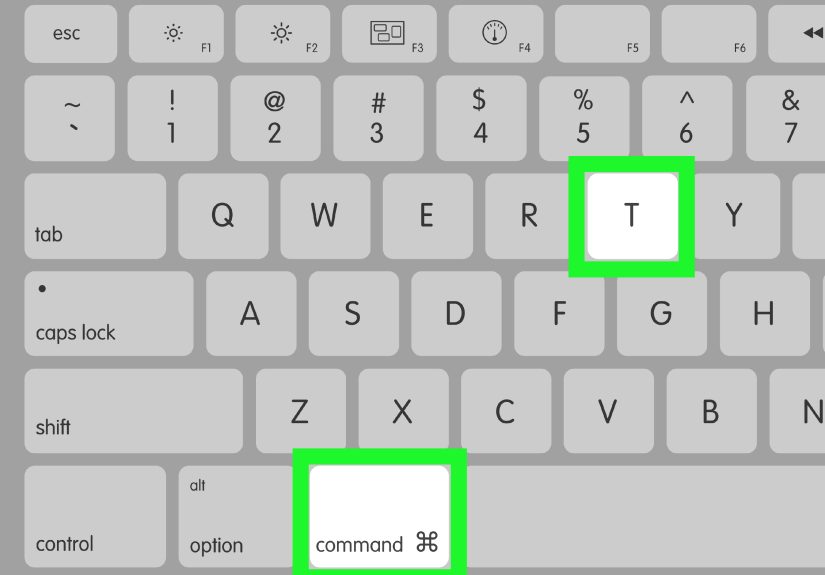
- Switch apps: Command + Tab (keep pressing Tab while holding Command to move through apps)
- Switch windows of the same app: Command + ` (the key just above Tab, often with the tilde ~)
- Switch tabs inside the active window: use one of the tab shortcuts above (Control + Tab, Command + Shift + ], or Option + Command + arrow keys)
Think of it like layers: Command+Tab moves between apps; Command+` moves between windows of that app; tab shortcuts move between tabs inside one window.
Keyboard Tab Switching in Popular Browsers
Let’s zoom in on the most common use case: switching browser tabs with your keyboard. Here are the key combos that work in most situations.
Google Chrome (Windows & Mac)
- Next tab: Ctrl + Tab (Windows) / Control + Tab (Mac)
- Previous tab: Ctrl + Shift + Tab (Windows) / Control + Shift + Tab (Mac)
- Jump to tab 1–8: Ctrl + 1–8 (Windows) / Command + 1–8 (Mac)
- Jump to last tab: Ctrl + 9 (Windows); many Mac users rely on Command + 9 for the same effect.
Microsoft Edge and Mozilla Firefox
Edge and Firefox follow almost the same layout as Chrome on Windows:
- Next/previous tab: Ctrl + Tab / Ctrl + Shift + Tab
- Direct tab access: Ctrl + 1–8, Ctrl + 9 for the last tab
On Mac, Firefox and Edge usually adopt the same Command + number style as Chrome for numbered tabs, plus the familiar Control + Tab for cycling.
Safari on Mac
Safari is a little quirkier, but once you get used to it, it’s very efficient:
- Next tab: Command + Shift + ] or Control + Tab
- Previous tab: Command + Shift + [ or Control + Shift + Tab
- Jump to tab 1–9: Command + 1–9
If you prefer a different layout for your shortcuts, macOS lets you customize keyboard shortcuts for individual apps in System Settings > Keyboard > Keyboard Shortcuts, including Safari’s tab commands.
Tab Switching in Other Tabbed Apps
Tabs aren’t just for browsers anymore. You’ll find them in:
- Code editors (VS Code, JetBrains IDEs)
- Terminal apps (Windows Terminal, iTerm2, Terminal on Mac)
- Document and note apps (Notion, OneNote, some PDF readers)
Many of these apps reuse the familiar Ctrl + Tab / Control + Tab pattern. When in doubt, look in the app’s View or Window menutab shortcuts are usually listed right next to commands like “Next Tab” or “Previous Tab.”
If the built-in shortcuts feel awkward, check whether the app supports custom key bindings. Many developer-oriented tools let you remap tab movement to whatever combo feels most natural for you.
Power Tips: Becoming a Keyboard Tab Ninja
Use “Search Tabs” and Tab Switcher Features
Some browsers offer a “tab search” or “tab switcher” view where you can search by page title instead of visually scanning tiny tab labels. Examples include:
- Edge’s tab search menu, which can often be opened with a keyboard shortcut like Ctrl + Shift + A or by clicking the tab search icon.
- Chrome and other browsers with tab search or “recent tabs” features accessible from the toolbar.
If you’re a power user with 30+ tabs open at all times (you know who you are), learning the keyboard shortcut for your browser’s tab search is a game-changer.
Try Tab-Switching Extensions (PC and Mac)
In Chromium-based browsers (Chrome, Edge, Brave), you can install extensions that give you advanced tab switching features, like:
- Switching tabs in “most recently used” order, similar to Alt+Tab behavior.
- Quick searching through all open tabs using a shortcut like Alt + a custom key.
- Previewing tabs in a mini popup switcher.
Look for extensions that focus on keyboard-driven tab switching and let you set your own shortcuts. They’re especially helpful if you bounce between the same handful of tabs all day.
Customize Shortcuts on macOS
On Mac, you can go a step further and build your own tab shortcuts:
- Open System Settings > Keyboard > Keyboard Shortcuts.
- Choose App Shortcuts.
- Click the + button and pick a specific app (like Safari).
- Type the exact menu name (e.g., “Show Next Tab”) and assign your favorite key combo.
This is perfect if you want your tab shortcuts to match what you’re used to on Windows, or if the defaults feel uncomfortable on your keyboard layout.
Troubleshooting: When Keyboard Tab Shortcuts Don’t Work
If your shortcuts aren’t doing what you expect, run through this quick checklist:
1. Make Sure the App Has Focus
Keyboard shortcuts apply only to the active window. If you press Ctrl + Tab but nothing happens, click once inside the browser window or app, then try again.
2. Check for Conflicting Shortcuts
Some apps or browser extensions override default shortcuts. If a tab shortcut doesn’t behave normally:
- Check the app’s shortcut settings or preferences.
- Disable extensions temporarily to see if one of them is hijacking Ctrl + Tab or similar combos.
3. Confirm Your Keyboard Layout
On international keyboard layouts, certain keys like [, ], or ` may be in different spots. If a shortcut uses those keys, it may feel awkward or easy to mistype. In that case, customizing your shortcuts (especially on Mac) can make a big difference.
4. Remember That Some Apps Are Different
Not every app uses browser-style tabs. Design software, music tools, and some specialized programs may treat “tab-like” items as separate windows or panels. If the usual tab shortcuts don’t work, look under the app’s Help menu for “keyboard shortcuts” or check its documentation.
Real-World Experiences: Living the Keyboard-First Life
So what does mastering keyboard tab switching look like in real life? Let’s walk through a few everyday scenarios where these shortcuts quietly save the day.
The Multitasking Office Worker
Imagine you’re working in an office with three main browser tabs pinned: email, project management, and chat. Before learning keyboard shortcuts, you instinctively moved your mouse across the screen to click between them. Each time, it cost you a couple of secondsand a little bit of mental focus.
Once you learn Ctrl + 1, Ctrl + 2, and Ctrl + 3 (or Command + 1–3 on Mac), your workflow changes. Need to check a new task? Tap one combo. Respond to a message? Another combo. Your hands stay on the keyboard, your attention stays on the work, and your brain doesn’t have to “hunt” as much.
The effect is subtle but real: fewer micro-distractions and a smoother work rhythm.
The Student with 20 Research Tabs Open
Students are world champions at opening way too many tabs. You’ve got the textbook platform, lecture slides, three research articles, a citation manager, Google Docs, andsomewhere in therea helpful YouTube video explaining the concept you definitely should have understood last week.
Instead of trying to find “that one tab with the graph” using your mouse, you can:
- Use Ctrl + Tab / Control + Tab to flip through tabs in order.
- Pin your “core” tabs (textbook, notes) to the far left and jump to them with Ctrl + 1/2 or Command + 1/2.
- Use “tab search” features to quickly find a tab by title instead of by sight.
This keyboard-first approach keeps studying from turning into a game of “Where’s Waldo?” but with more stress and fewer striped shirts.
The Developer or Power User
For developers, IT pros, or anyone who lives in multiple tools, keyboard tab switching is almost non-negotiable. A typical setup might include:
- A browser with documentation and error logs
- A code editor with several files open in tabs
- A terminal app with multiple sessions
Here, the same pattern repeats across apps: use Ctrl + Tab / Control + Tab to move between tabs, and use app-specific shortcuts (or custom bindings) for next/previous file or pane. Once your hands “memorize” these motions, you can move between environments in seconds without ever reaching for the mouse.
Many power users even go further, customizing their shortcuts so that tab movement is consistent across browsers, editors, and terminals. That way, no matter what they’re working in, the same combos always “feel right.”
The Everyday User Who Just Wants Less Friction
You don’t have to be a power user to benefit, though. Even if you only remember two shortcutscycle tabs and jump to a numbered tabyou’ll immediately notice that things feel smoother.
Maybe you’re paying bills with your bank in one tab and a spreadsheet in another. Maybe you’re comparing two products in separate tabs. Maybe you just want to switch between your music player and your main tab without losing concentration.
In every case, the idea is the same: the less time you spend dragging your mouse around, the more time you spend actually doing what you opened the tab for in the first place.
Wrap-Up: Make Your Keyboard Do the Tab Work
Learning how to switch tabs with your keyboard on a PC or Mac doesn’t require a big training sessionjust a few minutes of practice. Start with the basics (Ctrl/Control + Tab and the number keys), then add in app switching (Alt/Command + Tab) and window cycling as needed.
The payoff is a smoother, faster, more focused experience whether you’re working, studying, gaming, or catching up on your favorite sites. Your future selfwith fewer wasted clicks and a slightly less tired wristwill thank you.