Table of Contents >> Show >> Hide
- What you’ll learn
- First, a quick reality check: “Apps,” “windows,” and “Spaces” aren’t the same thing
- How to Swipe Between Apps on a Mac: 10 Steps
- Step 1: Confirm you have a gesture-friendly device
- Step 2: Turn on the right Trackpad gesture
- Step 3: If you use a Magic Mouse, enable its swipe too
- Step 4: Put your first app into full screen
- Step 5: Put a second app into full screen (or create another Space)
- Step 6: Swipe left/right to move between full-screen apps
- Step 7: Use Mission Control to “see the map” (and create more Spaces)
- Step 8: Use App Exposé when you have multiple windows inside one app
- Step 9: Learn the “no-swipe” backup shortcuts (because sometimes you’re on a desk mouse)
- Step 10: Tune Mission Control settings so switching behaves the way you expect
- Power moves: swipe smarter, not harder
- Troubleshooting: if swiping doesn’t work (or works… weirdly)
- Experiences: 5 real-life moments where swiping between apps feels like a superpower
- 1) The “Research + Writing” ping-pong match
- 2) The “I’m on a Zoom call but still doing my job” scenario
- 3) The “Creative project” setup that keeps your brain calm
- 4) The “Too many windows in one app” problem (and how App Exposé fixes it)
- 5) The “I travel with a laptop but work like I’m at a desk” workflow
- SEO tags (JSON)
If your Mac feels like it’s making you earn every app switch, you’re not alone. The good news:
macOS already has a bunch of buttery-smooth ways to hop between appsespecially if you’re using a
trackpad or Magic Mouse. The slightly confusing news: “swipe between apps” can mean three different
things, depending on what you’re looking at on screen. (Yes, Apple multitasking has layerslike an onion,
but with fewer tears if we set it up right.)
This guide breaks it down in plain English and walks you through 10 concrete steps to swipe between apps
like a proplus keyboard shortcuts for when your fingers are busy holding a coffee, a snack, or the weight
of your unread emails.
First, a quick reality check: “Apps,” “windows,” and “Spaces” aren’t the same thing
On a Mac, you can “switch” in a few different waysand swiping only controls some of them:
- Switch between apps: You’re moving from Safari to Messages to Photoshop (the classic “I’m multitasking” situation).
- Switch between windows: You’re staying inside one app (like Safari) but jumping between multiple Safari windows.
- Switch between Spaces / full-screen apps: You’re sliding between desktops or full-screen app “pages.”
This is where trackpad/Magic Mouse swipes shine.
The most common “Why isn’t my swipe working?!” moment happens when you expect a swipe to switch
between regular app windows, but macOS treats swipe-left/right as a way to move between
Spaces and full-screen apps. Once you know what swiping is supposed to control,
everything makes a lot more sense.
How to Swipe Between Apps on a Mac: 10 Steps
Step 1: Confirm you have a gesture-friendly device
Swiping between full-screen apps and desktops works best with:
MacBook trackpads, the Magic Trackpad, or an Apple Magic Mouse.
Some third-party mice can mimic gestures, but the “it just works” experience is usually Apple hardware.
Quick clue: if your “mouse” doesn’t have a touch surface, you probably won’t be swiping anythingexcept your patience.
Step 2: Turn on the right Trackpad gesture
Open System Settings (or System Preferences on older macOS versions), then:
- Go to Trackpad.
- Open More Gestures.
- Find Swipe between full-screen applications and make sure it’s enabled.
- Choose the gesture you want (commonly three or four fingers; some setups allow other options).
This setting is the difference between “Wow, that’s smooth” and “Why did my browser go back a page?”
Step 3: If you use a Magic Mouse, enable its swipe too
Magic Mouse has its own gesture settings:
- Open System Settings → Mouse.
- Look for gesture options (often under something like More Gestures).
- Enable swiping between desktops/full-screen apps.
On a Magic Mouse, the motion is usually a light swipe across the mouse’s touch surface. It’s less “dramatic”
than a trackpad swipemore like gently convincing the Mac to change its mind.
Step 4: Put your first app into full screen
Swiping left/right is built for full-screen apps and Spaces. So let’s create a full-screen app:
- Click the green window button (top-left of the app window), or
- Use the shortcut Control–Command–F (many apps support this).
Example: Put Safari in full screen. Now Safari becomes its own “Space.”
Step 5: Put a second app into full screen (or create another Space)
To swipe between apps, you need at least two destinations.
- Open a second app (like Notes), then make it full screen too.
- Or create an extra desktop Space using Mission Control (we’ll do that in Step 7).
Think of it like flipping between channels. You can’t “channel surf” if you only have one channel.
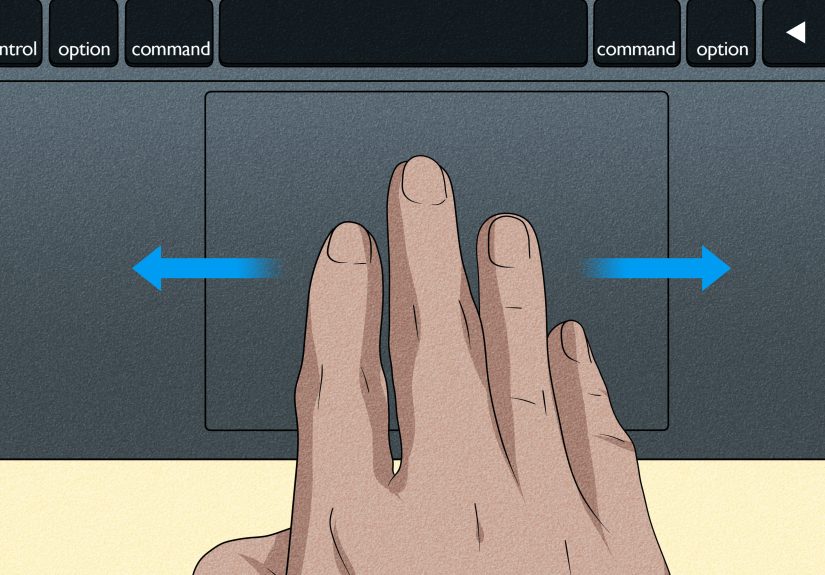
Step 6: Swipe left/right to move between full-screen apps
Now do the actual swipe:
- Trackpad: swipe left or right using the gesture you selected in settings.
- Magic Mouse: swipe left or right across the mouse surface (the gesture is typically two-finger style on the mouse surface).
If it works, you’ll slide between Safari and Notes like you’re paging through a magazineexcept the magazine is your life,
and the ads are Slack notifications.
Step 7: Use Mission Control to “see the map” (and create more Spaces)
If swiping is the hallway, Mission Control is the building directory.
- Open Mission Control with a trackpad gesture (commonly a multi-finger swipe up), or
- Press Control–Up Arrow (or use the Mission Control key if your keyboard has one).
Once Mission Control opens, look at the top of the screen for your Spaces and full-screen apps.
You can add another desktop Space from there (you’ll typically see an “add desktop” option).
Step 8: Use App Exposé when you have multiple windows inside one app
Here’s the trick many people miss: swiping between full-screen apps is great, but it won’t cycle through
multiple windows in the same app. That’s where App Exposé comes in.
- Keyboard: press Control–Down Arrow to show all windows of the front app.
- Trackpad: if enabled in Trackpad settings, swipe down with the configured multi-finger gesture.
Example: You have three Word documents open. App Exposé shows them all at once so you can click the one you want.
Step 9: Learn the “no-swipe” backup shortcuts (because sometimes you’re on a desk mouse)
Swipes are awesomeuntil you’re on a basic mouse or using a Mac mini setup. These shortcuts keep you moving:
- Command–Tab: switch between open apps.
- Command–` (grave accent): switch between windows of the current app.
- Control–Left/Right Arrow: move between Spaces/desktops.
- Control–Up Arrow: Mission Control overview.
- Control–Down Arrow: App Exposé (windows of the current app).
If your trackpad ever goes on a tiny “personal growth journey,” these shortcuts keep your workflow alive.
Step 10: Tune Mission Control settings so switching behaves the way you expect
macOS has a setting that can change how app switching behaves across Spaces:
“When switching to an application, switch to a Space with open windows for the application.”
You’ll find it in System Settings → Desktop & Dock → Mission Control.
If you like Command–Tab jumping you to wherever an app’s open window lives, keep it on.
If you prefer staying on your current desktop even when an app has windows elsewhere, turn it off.
This is the difference between “Wow, my Mac found the app for me” and “Why did my desktop just teleport?”
Power moves: swipe smarter, not harder
Use Spaces like “work playlists”
A practical setup:
- Space 1: communication (Mail, Messages, Slack)
- Space 2: creation (Docs, Figma, Photoshop)
- Space 3: reference (browser research, PDFs)
Then swiping becomes a purposeful move: you’re switching contexts, not just windows.
Don’t confuse “Swipe between pages” with “Swipe between full-screen apps”
In Trackpad settings, “Swipe between pages” is usually meant for browser navigation or documents (back/forward).
“Swipe between full-screen apps” is for jumping between desktops and full-screen apps.
If your swipe keeps flipping web pages instead of switching apps, you’re probably using the page swipe gesture.
Adjust your gesture choices so they don’t overlap in a way that annoys you.
Make Mission Control your “panic button”
If you ever lose a window, forget where you put an app, or accidentally create a dozen desktops while experimenting,
Mission Control is how you get your bearings fast. It’s the aerial view that makes everything click.
Troubleshooting: if swiping doesn’t work (or works… weirdly)
Problem: Swiping does nothing
- Make sure the gesture is enabled in Trackpad (or Mouse) settings.
- Confirm you have at least two Spaces or two full-screen apps to switch between.
- Restart the app you’re trying to full-screen (some apps can be stubborn).
Problem: My swipe goes back/forward in Safari instead of switching apps
- You’re likely triggering Swipe between pages.
- Change the gesture for full-screen app switching to a different finger count in Trackpad settings.
Problem: Command–Tab takes me to a different desktop and I hate that
Go to Desktop & Dock → Mission Control and toggle
“When switching to an application, switch to a Space with open windows for the application.”
Pick the behavior that matches how your brain expects reality to work.
Problem: Swiping feels reversed or “wrong”
Check Natural scrolling in Trackpad settings. Depending on your preferences, you may want it on or off.
The goal is simple: swipe in the direction that feels natural to you, not the direction that makes you question physics.
Problem: Multiple monitors make Spaces feel chaotic
Multi-display Spaces can change how switching behaves (especially if you expect each display to have independent desktops).
If your setup feels off, review Desktop & Dock Mission Control options and test after changing one setting at a time.
Experiences: 5 real-life moments where swiping between apps feels like a superpower
1) The “Research + Writing” ping-pong match
If you’ve ever written anything longer than a grocery list, you know the dance: browser tab, notes app, document,
back to browser, back to notes, back to documentrepeat until your soul leaves your body. Swiping between full-screen
apps turns that dance into a glide. I like putting my browser in one full-screen Space, my writing app in the next,
and a notes app in a third. Then I swipe: quote → outline → draft. It feels less like juggling and more like sliding
index cards across a desk. Bonus: when notifications start trying to hijack your focus, a separate “communication”
Space lets you check them intentionally instead of accidentally.
2) The “I’m on a Zoom call but still doing my job” scenario
Video calls are notorious for making you feel trapped. One second you’re listening politely, the next you’re trying to
locate the spreadsheet that contains The One Number Everyone Needs Right Now. Full-screen your call, full-screen your
work app, and swipe between them. It’s quick enough that you can stay present without panic-searching through overlapping
windows like you’re defusing a bomb. If you need to grab a specific file mid-call, Mission Control becomes your “view
everything instantly” buttonno frantic clicking, no accidental screen-share of your meme folder (hypothetically).
3) The “Creative project” setup that keeps your brain calm
Creative work loves clean boundaries. Designers often keep a “canvas Space” (Figma/Photoshop), a “reference Space”
(browser + inspiration), and a “feedback Space” (messages/email). Swiping between those Spaces creates a rhythm:
create → compare → revise. It’s surprisingly soothing because your desktop stops being one giant pile of overlapping
rectangles. Instead, each Space has a job. And when your brain is already doing complex work, not having to visually
hunt for the right window is a real energy saver.
4) The “Too many windows in one app” problem (and how App Exposé fixes it)
The first time you use App Exposé correctly, it’s a “where have you been all my life” moment. Picture this:
you have three Finder windows open, two Preview PDFs, and a Safari window that’s somehow split into separate windows
because you got ambitious. Swiping left/right won’t solve that. App Exposé will. You trigger it, and suddenly all the
windows for your current app are neatly laid out so you can pick the one you meant. It’s the Mac equivalent of turning
on the lights in a messy room. After you start using it, the habit sticks: swipe between Spaces for big context shifts,
App Exposé for window-level choices.
5) The “I travel with a laptop but work like I’m at a desk” workflow
On-the-go workspaces are unpredictable: tiny coffee shop table, airplane tray, couch cushion that’s secretly a villain.
That’s why gestures are so powerfulno need for a perfect mouse surface. With a trackpad, you can keep everything
organized in Spaces and swipe between them without lifting your hands. If you’re switching between apps constantly,
it’s also easier on your wrists than repeated trackpad-to-Dock aiming. It feels like your Mac is cooperating instead
of requiring you to play “click the tiny thing” all day. When you get back to a full desk setup, you can keep the
same systemtrackpad swipes plus Command–Tabso your workflow stays consistent wherever you work.