Table of Contents >> Show >> Hide
- First Things First: What “Sign Out” Really Means for Google Drive
- How to Sign Out of Google Drive on the Website (Desktop Browsers)
- How to Sign Out of Google Drive for Desktop (Windows & Mac)
- How to Remotely Sign Out of Google Drive on Other Devices
- How Google Chrome Affects Signing Out of Google Drive
- Security Best Practices When Signing Out of Google Drive
- Common Problems When Signing Out of Google Drive (and How to Fix Them)
- Real-World Tips & Experiences: Staying in Control of Your Google Drive
You’ve wrapped up work, closed your laptop, and headed out… only to suddenly realize:
“Wait. Did I sign out of Google Drive on that shared computer?”
Awkward. But good news: signing out of Google Drivewhether on the website or the desktop appis easy once you know where Google hides all the buttons and menus.
In this guide, we’ll walk through how to sign out of Google Drive step-by-step on your browser and in the Drive for desktop app, plus how to log out remotely from devices you no longer use. We’ll also cover some smart security habits and real-world scenarios so you’re not lying awake at 2 a.m. wondering who’s browsing your spreadsheets.
First Things First: What “Sign Out” Really Means for Google Drive
Google Drive is tied directly to your Google Account. When you “sign out of Google Drive,” you’re effectively signing that Google Account out of Google’s services on that browser or out of the Drive for desktop app on that computer. That usually affects:
- Google Drive (obviously)
- Gmail, Google Docs, Sheets, and other Google Workspace tools
- Sometimes Chrome sync (if you’re signed into the browser itself)
So if Drive, Gmail, and YouTube all suddenly ask you to sign in againdon’t panic. That’s normal. It just means you successfully signed out the whole Google Account on that browser or app.
How to Sign Out of Google Drive on the Website (Desktop Browsers)
If you’re on a computer and using Google Drive in a browser like Chrome, Edge, or Firefox, signing out is mostly about your profile picture in the top-right corner.
Step-by-Step: Sign Out of Google Drive on the Web
- Open Google Drive.
Go todrive.google.comand make sure you’re looking at your Drive home page. - Click your profile picture (or initial).
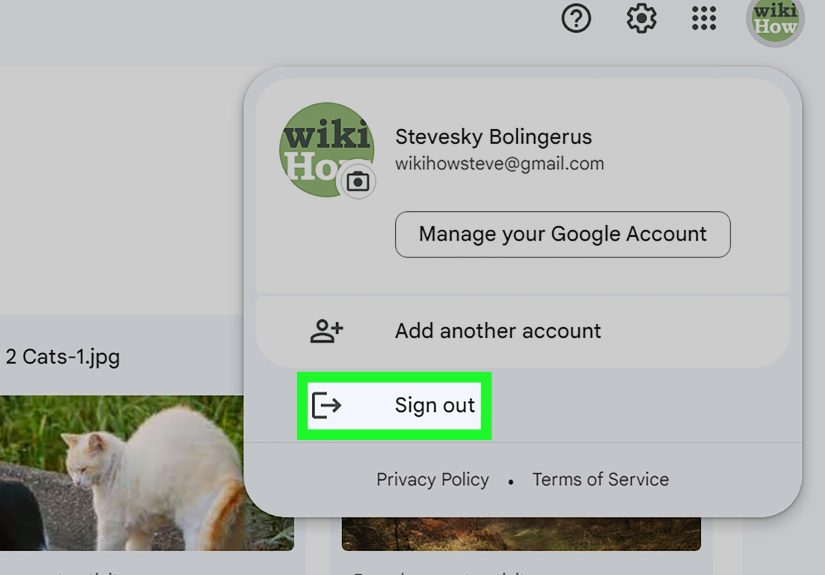
In the top-right corner, you’ll see your avatar or a colored circle with your first initial. - Choose the sign-out option.
In the dropdown, you’ll typically see:- “Sign out” – signs out the current account.
- “Sign out of all accounts” – if you’re signed into multiple Google Accounts in that browser, this logs them all out at once.
Click the option that matches what you want.
- Confirm you’re signed out.
You should be redirected to a sign-in page or see a prompt to log in again when you reload Drive.
What If You’re Using Multiple Google Accounts?
Many people juggle at least two accounts: one for work and one for personal stuff. On the Drive website, you can be signed into multiple accounts at once and switch between them from that same profile menu.
- If you see several accounts listed, there may be separate “Sign out” options for each or a global
“Sign out of all accounts”. Use the one that gives you the control you need. - If you can’t sign out just one account, a workaround is to sign out of all, then sign back in only with the accounts you still need on that browser.
Tip: If you frequently switch between accounts, using separate browser profiles (e.g., one Chrome profile for work, one for personal) can keep things less chaotic and make it easier to log out where it matters.
How to Sign Out of Google Drive for Desktop (Windows & Mac)
On computers, Google’s sync app is now called Drive for desktop (it replaced the old Backup and Sync and Drive File Stream). Unlike the website, there isn’t a big “Sign Out” buttonwhat you do instead is disconnect your account from the app.
Step-by-Step: Disconnect Your Account in Drive for Desktop
- Find the Drive for desktop icon.
On Windows, it’s usually in the taskbar system tray (bottom-right). On macOS, it’s in the menu bar (top-right). It looks like a triangular Google Drive icon. - Open the menu.
Click the Drive icon. A small window appears with recent files and a settings area. - Go to Preferences.
Click the gear (Settings) icon, then select “Preferences”. - Open Advanced Settings.
In Preferences, look for another gear icon or an “Advanced Settings” link. - Select your account.
You’ll see the accounts currently signed into Drive for desktop (you can usually have up to four). Choose the one you want to remove from this computer. - Click “Disconnect account.”
Confirm in the pop-up window by clicking “OK” or “Disconnect.”
After this, Drive for desktop stops syncing files for that account on that device. You’ll need to sign in again if you ever want to reconnect it.
Does Disconnecting Delete Your Files?
The short answer: no, not in the cloud. Your files stay safely in Google Drive online. What you might lose locally depends on your sync settings:
- If you were streaming files: Most content is stored online only and just cached locally as needed. Disconnecting mainly removes that connection.
- If you were mirroring files (keeping copies both in the cloud and on your computer): The local copies may remain on your disk unless you delete them manually, but they won’t sync anymore.
Either way, your online Drive content is still accessible from other devices or browsers once you sign in again.
What About Just “Quitting” the App?
Closing or quitting Drive for desktop usually doesn’t sign you out. It simply pauses the app. The next time it launches, you’ll still be signed in. To truly disconnect your Google Account from the app, you must use the Disconnect account option in Preferences.
How to Remotely Sign Out of Google Drive on Other Devices
Let’s say you used a friend’s computer or a public library PC to access Google Drive, and you’re not sure if you logged out. You can fix that from anywhere using your Google Account’s security settings.
Step-by-Step: Remotely Sign Out via Your Google Account
- Visit your Google Account.
Go tomyaccount.google.comand sign in if needed. - Open the Security section.
In the left menu, click “Security.” - Find “Your devices” or “Manage all devices.”
Scroll until you see “Your devices” and click “Manage all devices.” - Select the device or session.
You’ll see a list of computers, phones, and sessions where your Google Account is active. Click the one you’re worried about. - Click “Sign out.”
Choose “Sign out” to remove your account from that device. Confirm if a pop-up appears.
This is like hitting the big red “Nope!” button on any suspicious or forgotten device. It signs your account out of services like Gmail and Google Drive on that device so no one can casually open your stuff.
How Google Chrome Affects Signing Out of Google Drive
One confusing piece of the puzzle: if you’re signed into the Chrome browser itself, signing out can affect all Google services at once. Likewise, if you sign out of a Google service like Drive, it may also disconnect you from Chrome sync, depending on your settings.
Signing Out of Chrome on Desktop
- Open Chrome on your computer.
- Click your profile icon in the top-right corner.
- Choose “Sign out of Chrome” (or equivalent option).
This logs your Google Account out of Chrome and typically signs you out of Drive and other Google services in that browser too.
Turning Off Automatic Chrome Sign-In
Don’t want Chrome to automatically sign in every time you use a Google service like Drive or Gmail?
- Go to Chrome Settings.
- Click You and Google > Sync and Google services.
- Turn off “Allow Chrome sign-in.”
This helps keep your browser (and your Drive access) separate from casual logins, which is handy on shared or work machines.
Security Best Practices When Signing Out of Google Drive
Signing out is a great start, but if you want your Google Drive files to stay truly secure, combine it with a few extra habits.
1. Use Two-Step Verification
Turn on 2-step verification (a.k.a. two-factor authentication) for your Google Account. That way, even if someone gets your password, they still can’t access your Drive without your phone or security key. You can enable this in the Security section of your Google Account.
2. Check Your Devices Regularly
Once a month (or more often if you use lots of shared devices), visit myaccount.google.com > Security > Manage all devices and sign out of anything that looks unfamiliar or outdated. It’s like cleaning out your digital keyring so old laptops and forgotten tablets don’t still have access to your stuff.
3. Be Careful on Shared Computers
- Always sign out when you’re done using Google Drive.
- Use Incognito/Private browsing whenever possible so your session disappears when you close the window.
- Never check the “Stay signed in” or “Remember me” boxes on public machines.
4. Watch for Suspicious Activity
If you see files you don’t recognize, receive sign-in alerts at odd times, or get emails about password changes you didn’t request, secure your account immediately:
- Change your password.
- Review and sign out of all suspicious devices.
- Run Google’s built-in Security Checkup to make sure everything looks normal.
Common Problems When Signing Out of Google Drive (and How to Fix Them)
“I Signed Out, but Drive Still Looks Logged In.”
This usually means:
- You’re still signed into another Google Account in that browser.
- Chrome sync is still active and pulling your account back in.
- You have multiple browser profiles and signed out only in one of them.
Try signing out of Chrome itself or checking all open browser windows (including Incognito ones) to ensure there isn’t another active session.
“I Want to Sign Out of Drive but Stay Signed Into YouTube/Gmail.”
Unfortunately, that’s not how Google works. Signing out of your Google Account in Drive usually affects other Google services in that browser as well. If you want different services signed into different accounts, use:
- Separate browser profiles (e.g., personal vs. work profiles in Chrome)
- Different browsers (Drive in Chrome, YouTube in Firefox, etc.)
“I Don’t See a ‘Sign Out’ Option in the Drive App.”
In the desktop app, you’re looking for “Disconnect account”, not “Sign out.” Think of it as unplugging your Drive account from that machine’s sync rather than logging out of a website session.
Real-World Tips & Experiences: Staying in Control of Your Google Drive
Knowing the steps is one thing; actually building habits around them is another. Here are some lived-in, practical perspectives on signing out of Google Drive from everyday use.
1. The “Shared Computer Shuffle”
If you work in a co-working space, school lab, or library, signing out of Drive should be as automatic as closing the browser tab. The easiest system is to treat the profile picture in the corner like a big glowing “Are you sure you’re done?” indicator. Before you stand up, click it, hit Sign out, and wait for the sign-in page to appear. Once you see that, you’re safe to walk away.
A lot of people assume that just closing the tab is enough. It’s not. Tabs are cheap; sessions are persistent. If someone reopens the browser and hits drive.google.com, they could be instantly inside your files unless you explicitly sign out.
2. Keeping Work and Personal Life Separate
Many remote workers keep both personal and corporate Google Drive accounts. A good workflow looks like this:
- Use one Chrome profile (with its own icon and theme) dedicated to your work Google Account.
- Use another profile for your personal Gmail, Drive, and YouTube.
- At the end of the workday, sign out of Drive or even sign out of the whole work profile if your company policies require it.
This makes signing out very predictable: you always know which profile holds which Drive, and you’re less likely to accidentally leave sensitive corporate documents sitting open on your personal laptop.
3. Traveling or Using Temporary Devices
When you’re traveling, you’re more likely to borrow someone else’s laptop or use a hotel business center. In those cases:
- Always use Incognito/Private browsing when accessing Drive.
- Sign out when you’re done, then close the entire browser window, not just the tab.
- Once you’re back on a trusted device, visit myaccount.google.com and review your devices. Sign out of anything that looks like a hotel PC, someone else’s laptop, or a device you used once and will never touch again.
This gives you peace of mind that your vacation photos and client contracts aren’t silently sitting open somewhere in the lobby.
4. Drive for Desktop at Work vs. at Home
With Drive for desktop, the stakes are a bit higher because files may be synced directly onto the computer. On a personal machine, staying signed in is usually fineit’s your laptop, your files, your house. On a shared work computer, though, having an always-on Drive connection is like leaving a permanent portal to your cloud storage.
A good strategy is:
- At work: Use Drive in the browser only, or if you must use Drive for desktop, disconnect the account at the end of your shift.
- At home: Use Drive for desktop with streaming or mirroring turned on, plus a strong device password and 2-step verification on your Google Account.
That way, your home machine stays convenient, while your work machine stays locked down.
5. Making Security Checkups a Routine
Just like you might do a quick cleanup of your desk on Fridays, it’s smart to build a habit of checking your Google Account’s Security page every so often. Look over your devices and recent security activity. If you see a device you don’t recognize, sign out immediately. This routine catches forgotten sessions in old browsers and devices you sold, donated, or left in a drawer.
Over time, you’ll find that signing out of Google Drive becomes a natural part of your digital hygiene. Instead of wondering, “Did I log out?”, you’ll know you did because it’s part of your shutdown ritualclick profile picture, sign out, close the window, done.
The bottom line: between the Drive website, Drive for desktop, Chrome sign-in, and your Google Account device list, you have multiple layers of control. Once you learn where each sign-out switch lives, keeping your cloud storage private gets a whole lot easier.