Table of Contents >> Show >> Hide
- Save vs. Download: The Difference That Changes Everything
- The Best Ways to Save Videos from Facebook
- How to Save Videos from Facebook on iPhone and iPad
- How to Save Videos from Facebook on Android
- How to Save Videos from Facebook on Windows PC
- How to Save Videos from Facebook on Mac
- When Facebook Video Saving Does Not Work
- Should You Use Third-Party Facebook Video Downloaders?
- Is It Legal to Save Videos from Facebook?
- Best Practices for Saving Facebook Videos the Right Way
- Quick Troubleshooting Tips
- Real-World Experiences: What People Learn When They Try to Save Facebook Videos
- Final Thoughts
Let’s clear up the biggest misunderstanding first: when people say they want to “save videos from Facebook,” they can mean two very different things. One is saving a video inside Facebook so you can come back to it later like a digital squirrel hiding acorns for winter. The other is downloading the video to your device so it lives on your phone, tablet, or computer. Those are not the same thing, and knowing the difference saves you time, frustration, and a possible detour into sketchy downloader-land.
This complete guide walks through the safest, smartest, and most practical ways to save Facebook videos. It covers what works, what does not, what is legal, and how to manage downloaded files on iPhone, Android, Windows, and Mac. If you want a clean, modern answer instead of a pile of outdated internet tricks from 2018, you are in the right place.
Save vs. Download: The Difference That Changes Everything
On Facebook, Save usually means bookmarking a video so you can watch it later within the Facebook app or website. It is convenient, quick, and great for recipes, workouts, funny clips, and videos you fully intend to watch later but absolutely may forget about by tomorrow afternoon.
Download, on the other hand, means storing the file on your device. This is what you want when you need offline access, want to archive your own content, or need to organize video files for work, family memories, or content management.
That distinction matters because Facebook commonly allows users to save many posts and videos for later viewing inside the platform, but downloading is much more limited and is usually intended for your own content, your own account data, or videos where the owner has provided a direct file download option.
The Best Ways to Save Videos from Facebook
1. Save a Video Inside Facebook to Watch Later
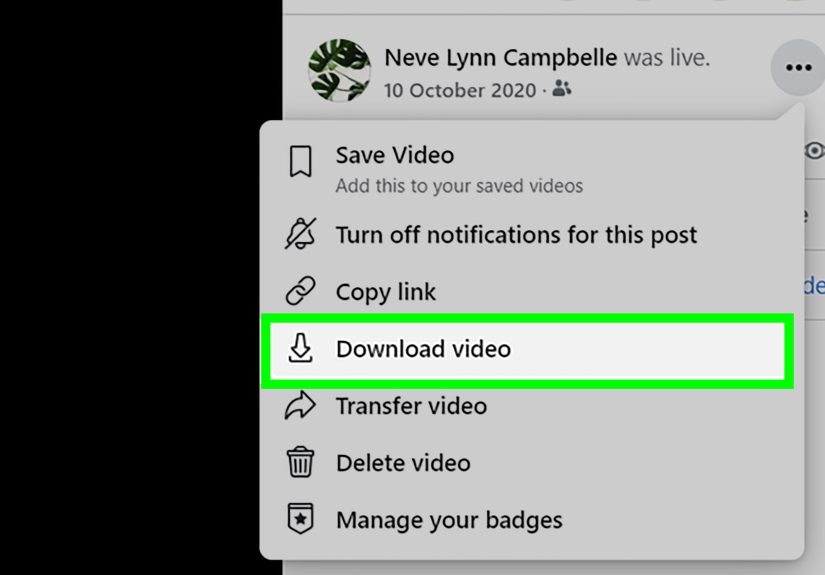
If your goal is simply to keep track of a video, this is the easiest and safest method. On many Facebook posts, you can tap or click the menu on the post and choose an option such as Save video. The video then appears in your Saved items, where you can return to it later without hunting through your feed like an archaeologist with Wi-Fi.
This method is best when:
- You want quick access later
- You do not need the file offline
- The video belongs to someone else and you just want to revisit it
- You want to stay fully within Facebook’s built-in tools
The downside is simple: if the original post is deleted, made private, or restricted later, your saved item may no longer work. So “save” is convenient, but it is not the same as permanent storage.
2. Download Your Own Facebook Videos
If you uploaded the video, you are in much better shape. Facebook provides ways to download videos you own, especially content from your profile, Page, or archived activity such as Live videos. This is the best route for creators, businesses, and anyone cleaning up old content while keeping a backup.
Use this method when:
- You posted the original video
- You need the file for editing or re-uploading elsewhere
- You want a backup of important content
- You need an offline copy for records, client work, or family archives
If the video is yours, downloading is usually straightforward through your account tools, activity log, or data export settings. That is a much better approach than using a random third-party website that promises miracles and delivers pop-ups, confusion, and the occasional sense of regret.
3. Export Your Facebook Information
If you want more than one video, downloading your Facebook information can be the smartest option. This feature is useful if you want a broader archive of your account content, including videos, photos, and posts. It is especially helpful for people who are organizing years of uploads, closing an account, moving content to another platform, or finally deciding that “someday I’ll back this stuff up” should become today.
This method works well when:
- You want multiple videos at once
- You need an account backup
- You want a more organized archive
- You do not want to manually save one file at a time
It may take longer because Facebook needs time to prepare the export, but it is one of the most reliable ways to gather your own content in one place.
4. Ask the Creator for the Video File
If the video is not yours and there is no built-in download option, the most practical and respectful move is often the simplest one: ask the creator. That may sound wildly old-fashioned, like using manners on the internet, but it works. If you need a clip for a class, a team recap, a family group, or a business project, getting the original file from the source is often better quality and avoids copyright or privacy issues.
How to Save Videos from Facebook on iPhone and iPad
On iPhone and iPad, there are really two safe pathways. The first is saving the video inside Facebook. The second is downloading a video file you are allowed to download, such as your own exported content or a file someone sent you with permission.
If you download a file through Safari, it often appears in the Downloads area and can usually be found in the Files app. Depending on your settings, Safari may save downloads to iCloud Drive, On My iPhone, or another folder you selected. That means the video may not automatically land in your Photos app unless you move or save it there yourself afterward.
Here is the practical workflow:
- Use Facebook’s built-in Save feature if you only need the video later inside Facebook.
- If you download your own video file, check Safari’s Downloads area first.
- Open the Files app and look in the Downloads folder.
- Move the file to another folder or save it to Photos if you want it easier to access.
If you cannot find the video, do not panic and accuse your phone of betrayal. Check your Safari download location in settings and look in Files before assuming the file vanished into the digital void.
How to Save Videos from Facebook on Android
Android users have a similarly simple path. Save videos inside Facebook if you only need them later on the platform. If you download a file you are authorized to keep, it usually shows up in your phone’s Files app, Downloads area, or a manufacturer-specific file manager.
A good Android routine looks like this:
- Save the post in Facebook if you only want to revisit it later.
- Download your own Facebook video or account export when available.
- Open the Files app and check Downloads.
- Rename or move the file so you can find it again easily.
Android file storage can vary a little by phone brand, so if your device uses a custom file manager, the folder names may look different. But in most cases, the Downloads folder is still the first place to check.
How to Save Videos from Facebook on Windows PC
On Windows, saving Facebook videos is usually easiest when you are downloading your own files through a browser. Chrome and Edge typically store downloads in your default Downloads folder unless you changed the location. You can also configure the browser to ask where to save each file before downloading.
This is especially useful if you are downloading multiple exported videos and want them organized into folders such as:
- Facebook Live Archive
- Client Videos
- Family Events
- Social Media Backups
One smart habit is to rename files right away. “video_2026_final_final_REAL.mp4” might make sense at midnight, but future you deserves better.
How to Save Videos from Facebook on Mac
On Mac, the same basic rules apply. If you download a file through Safari, you can usually view it in the downloads list and reveal its location. Safari also lets you choose a preferred file download location. If you use Chrome, downloads typically go to the Downloads folder unless you changed that setting.
Mac users should consider creating a dedicated folder for exported Facebook videos. That makes it easier to import files into editing software, back them up to external storage, or sync them across devices.
When Facebook Video Saving Does Not Work
Sometimes the problem is not you. Sometimes it is the video. Here are common reasons saving or downloading may fail:
The Video Is Private or Restricted
If the creator limited visibility to friends, a private group, or a specific audience, you may be able to watch it but not save or download it in any meaningful way outside what Facebook allows.
The Video Was Deleted or Changed
Saved posts are only useful while the original content still exists and remains available to you. If the creator deletes the post or changes privacy settings, the saved item may stop working.
There Is No Legitimate Download Option
Not every video on the internet is meant to become a permanent file on your device. If Facebook or your browser does not offer a download option, that is often intentional.
The File Downloaded but You Cannot Find It
This is very common and much less dramatic than it feels. Check Downloads, Files, your browser’s download history, and your chosen save location before assuming the file disappeared.
Should You Use Third-Party Facebook Video Downloaders?
In most cases, no. Or at least, not casually, not blindly, and definitely not because a website with six flashing buttons told you it was “FAST FREE HD NO WATERMARK.” Many third-party downloader sites and browser extensions create more problems than they solve.
Potential issues include:
- Malware or suspicious downloads
- Browser extensions with broad permissions
- Fake buttons and deceptive pop-ups
- Poor video quality
- Broken links or privacy concerns
- Possible copyright or policy violations
If you truly need a copy of a video, built-in Facebook tools, creator permission, or direct file sharing are safer options. Random downloader sites might look like shortcuts, but many are really detours with bad lighting.
Is It Legal to Save Videos from Facebook?
That depends on what you are saving and how you plan to use it. Downloading your own videos or your own account archive is generally the clearest and safest case. Saving someone else’s public video for later viewing inside Facebook is also typically fine because you are using Facebook’s own feature.
But downloading someone else’s video file without permission can create legal and ethical issues, especially if you plan to repost it, edit it, monetize it, or use it outside personal viewing. Public does not automatically mean free to copy. Copyright still applies to original videos posted online.
As a rule, ask yourself three questions:
- Did I create this video?
- Did the owner give permission or provide a download?
- Am I using a built-in tool or trying to bypass the platform?
If the answers are no, no, and yes-I-am-definitely-trying-to-bypass-something, that is your cue to step back.
Best Practices for Saving Facebook Videos the Right Way
- Use Facebook’s Save feature for watch-later convenience.
- Download only content you own or have permission to keep.
- Use account export tools for large backups.
- Organize files immediately into clear folders.
- Rename videos so they are searchable later.
- Avoid suspicious extensions and websites that overpromise.
- Respect privacy and copyright even when a video is easy to access.
Quick Troubleshooting Tips
You Saved the Video but Cannot Find It
Check your Saved items inside Facebook. Remember, this is not your phone’s gallery or computer’s Downloads folder.
You Downloaded a File but It Is Missing
Look in your browser’s download history and the default Downloads location. On phones, check the Files app. On desktop, check Downloads and your browser settings.
The Downloaded File Will Not Open
The file may be incomplete, corrupted, or saved in a strange format. Try downloading it again from the original legitimate source.
The Video Belongs to Someone Else
Use Save for later viewing or ask the creator for permission and the original file.
Real-World Experiences: What People Learn When They Try to Save Facebook Videos
In real life, people usually start with a very normal reason for wanting to save a Facebook video. A parent wants to keep a school performance. A small business owner wants a copy of a product demo. A creator wants to archive old Live videos before reorganizing a Page. A friend sees a heartfelt memorial clip and wants to make sure it is not lost. The goal is rarely shady. The problem is that many people search the web, land on outdated instructions, and end up more confused than when they started.
One common experience is the “I thought Save meant download” moment. Someone taps Save video, assumes the file is on their phone, and later cannot find it in Photos. This happens all the time because Facebook’s Saved feature feels like ownership when it is really just a bookmark. Once people understand that difference, everything gets easier.
Another common scenario involves content creators and Page managers. They often do not realize how valuable it is to periodically export their Facebook information or download their own Live videos. Then one day they need an old clip for a reel, a sales page, or a client case study, and suddenly they are digging through a social platform instead of a properly organized archive. The lesson is simple: if the content matters, back it up while it is still easy to access.
Families run into this too. Imagine a grandparent posting a birthday video in a private family group. Everyone can see it, but not everyone can download it. The best solution is not a sketchy downloader site. It is asking the original poster to send the file directly. That usually gives better quality, fewer headaches, and a lot less time spent clicking fake buttons that say “Download Now” when they actually mean “Welcome to Ad City.”
Students and researchers also learn a useful lesson: “public” is not the same as “free to reuse.” A video can be visible on Facebook and still be protected by copyright or personal privacy concerns. Saving it inside Facebook for later reference is one thing. Pulling it down, editing it, and reposting it somewhere else is something else entirely. People often do not mean harm, but the internet is full of accidental bad ideas.
Then there is the browser-extension experience. Many users install a “video downloader” because it looks convenient. A week later, the extension wants broad permissions, slows the browser down, or starts acting weird. That is when people realize that the safest method is usually the boring one: use the platform’s tools, use your own backups, use official download paths, and avoid digital shortcuts that smell like trouble.
The biggest lesson from real-world use is this: the best way to save Facebook videos depends on who owns the video and what kind of access you actually need. If you just want to watch it later, use Save. If it is your video, download it properly. If it belongs to someone else, ask. That approach may not feel flashy, but it is the one least likely to end with missing files, poor quality, malware, or a headache that could have been avoided with one ounce of patience.
Final Thoughts
If you want to save videos from Facebook, the smartest approach is not the most complicated one. Start by deciding whether you need a bookmark inside Facebook or an actual downloaded file. For most users, Facebook’s built-in Save feature is perfect for casual watch-later needs. For creators, businesses, and anyone managing their own uploads, downloading your own videos or exporting your account data is the most reliable path.
The internet will always try to tempt you with shortcuts. Some of them work. Some of them work badly. Some of them work right up until they don’t. If you want a method that is safe, sustainable, and less likely to turn your browser into a regret machine, stick with official tools whenever possible.