Table of Contents >> Show >> Hide
- First: Pick the “right” printing method
- Method 1: Print iPhone text messages using screenshots (fastest)
- Method 2: Save iPhone messages as a PDF, then print (cleaner)
- Method 3: Print a conversation from a Mac (best-looking “official” printout)
- Method 4: Print iPhone texts from a Windows PC (screenshots + import)
- Method 5: Export and print messages using reputable tools (best for long threads)
- Troubleshooting: when printing goes sideways (sometimes literally)
- Mini example: printing a short conversation the “clean” way
- Extra: of real-world “experience” and what people usually learn the hard way
- Conclusion
You’d think that in the year of pocket supercomputers, you could tap Print inside the Messages app and call it a day.
Unfortunately, iPhone Messages doesn’t offer a tidy “print this conversation” button. The good news: you can still print iPhone texts
in a few reliable waysranging from quick screenshots to clean PDFs that look like they came from a responsible adult.
This guide walks you through the best methods to print text messages from an iPhone, plus how to save them as a PDF (great for emailing,
filing, or anything that makes you say, “I should keep a record of this”). We’ll also cover what to do when your printer pretends it has
never met you before.
First: Pick the “right” printing method
Before you start capturing messages like a documentary filmmaker, decide what you need:
- Just a few messages? Screenshots are fastest.
- A longer conversation? Use a Mac to print the thread or create a PDF.
- Hundreds (or thousands) of messages? Consider reputable export tools that create searchable PDFs.
- For legal or official use? Aim for complete context: contact name/number, dates, and message continuity.
Privacy reminder: Texts can include personal info, photos, location links, and other “oops” moments.
If you’re printing at work, school, or a copy shop, consider exporting to PDF first and printing from your own device.
Method 1: Print iPhone text messages using screenshots (fastest)
Screenshots are the simplest “no extra software” workaround. They preserve the look of the conversation, including the sender bubbles and timestamps
(when visible). The trade-off: it can get tedious for long threads.
Step 1: Capture the conversation with clean, readable screenshots
- Open Messages and tap the conversation you want to print.
- Scroll to the part of the thread you want to start with. (Tip: start slightly above the first message you need so your first screenshot has context.)
- Take a screenshot:
- Face ID iPhones: press Side + Volume Up together, then release.
- Home button iPhones: press Side (or Top) + Home together, then release.
- Repeat as you scroll down, capturing the rest of the messages you need.
Screenshot tips that make your printout look intentional:
- Overlap each screenshot by 1–2 lines so nothing gets missed between images.
- Keep the contact name visible at the top when possible (especially for important records).
- If the text is tiny, increase font size temporarily:
Settings > Display & Brightness > Text Size (or Accessibility > Display & Text Size).
Just remember to put it back unless you want your whole phone to look like a movie theater subtitle. - If you need messages from a specific date, use the conversation search:
tap inside the thread, use the search field, and jump to relevant results (then screenshot around them).
Step 2: Print the screenshots directly from your iPhone (AirPrint)
If you have an AirPrint-compatible printer on the same Wi-Fi network, you can print straight from your iPhoneno computer required.
Here’s how:
- Open the Photos app and find your screenshots (often in Albums > Screenshots).
- Tap Select and choose the screenshots you want to print.
- Tap the Share button, then scroll and tap Print.
- Choose your printer, set options (copies, paper size, etc.), then tap Print.
Pro move: If you’re printing multiple screenshots, select them all at once so they print in one batch.
If the order matters, double-check the sequence in your album before printing.
When the Print option is missing
Not every app shows a print option, but Photos usually does. If you don’t see Print, try:
- Using the Share sheet and scrolling down (the Print option can hide like it’s playing a game).
- Saving screenshots to Files and printing from there.
- Printing from a Mac/PC after transferring the images.
Method 2: Save iPhone messages as a PDF, then print (cleaner)
PDFs are easier to archive, email, upload, and reprint. Two common ways to make a PDF:
(1) use the iPhone print preview “save as PDF” trick, or (2) create a PDF from screenshots in the Files app.
Option A: Use the iPhone Print screen to create a PDF (the “hidden” trick)
- Get to the iPhone print screen from something printable (for screenshots: Photos > Select images > Share > Print).
- On the print preview, pinch out (zoom in) on the preview image/pages.
This opens a full-screen PDF-style preview. - Tap Share, then choose Save to Files.
- Now you can print the PDF anytime (from Files, or on a computer).
This works great when you want a single PDF instead of a stack of separate screenshots floating around your Photos app like loose confetti.
Option B: Create a PDF from screenshots in the Files app
If you want a PDF that’s easy to organize in folders (like “Receipts,” “Taxes,” and “Evidence of My Roommate Never Replacing the Toilet Paper”),
Files can help.
- In Photos, select the screenshots you need and tap Share > Save to Files.
- Open the Files app and navigate to where you saved them.
- Long-press an image (or select multiple), then choose Quick Actions (if available) and tap Create PDF.
- Open the PDF to confirm everything is readable, then print or share it.
Tip: If your PDF ends up sideways or too small, try printing in landscape orientation or adjusting scale
in printer options.
Method 3: Print a conversation from a Mac (best-looking “official” printout)
If you also have a Mac and your iPhone messages sync to it (usually via the same Apple ID), this method is hard to beat.
You can print the conversation directly or save it as a PDF from the Mac’s Messages app.
Steps (Mac Messages app)
- On your Mac, open the Messages app.
- Click the conversation you want to print.
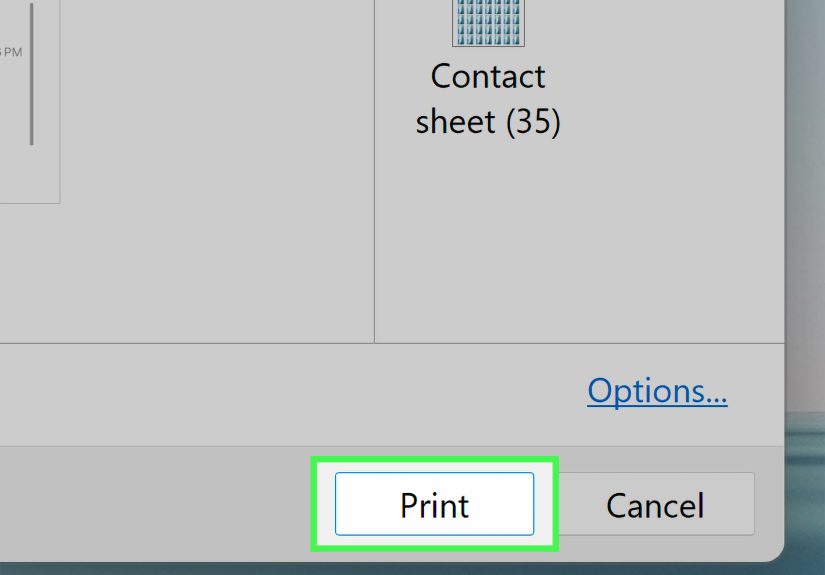
- Go to File > Print.
- To create a PDF instead of printing immediately, use the PDF menu in the print dialog and choose a save option.
- Print the PDF or archive it for later.
Why people love this method: It produces a continuous document that’s usually easier to read than a pile of screenshots,
and it can be saved as a PDF in one go.
Method 4: Print iPhone texts from a Windows PC (screenshots + import)
Windows doesn’t have a native iMessage app the way macOS does, so the common approach is:
screenshot on iPhone, then import those screenshots to your PC and print.
Steps
- Take screenshots of the messages on your iPhone (see Method 1).
- Connect your iPhone to your PC with a USB cable and unlock the phone.
- On your PC, open the Photos app and use Import to pull in the screenshots.
- Print the imported images like normal photos (or combine them into a PDF first if you prefer).
Quick sanity check: If Windows can’t see your iPhone, confirm the phone is unlocked and tap Trust
if prompted.
Method 5: Export and print messages using reputable tools (best for long threads)
For long conversationsespecially if you need something searchable, neatly formatted, or “court-ready”export tools can save a lot of time.
They typically let you pull messages from an iPhone backup, then export to PDF (often with timestamps, contact details, and attachments).
What to look for in an export tool
- Clear export formats: PDF is ideal; CSV can help for searching.
- Readable layout: looks like actual iPhone messages, not a spreadsheet disguised as a document.
- Privacy and security: avoid sketchy apps that demand unnecessary permissions or cloud uploads.
- Support for your message type: SMS vs iMessage, and any carrier-based messaging features.
Examples of widely discussed tools include desktop utilities that export iPhone messages to PDF and offer printing options.
If you choose this route, keep it simple: download from the official site, read the privacy policy, and avoid “free miracle” apps
that feel like they were built in a basement next to a suspiciously large pile of energy drinks.
Troubleshooting: when printing goes sideways (sometimes literally)
“No printer found” on iPhone
- Confirm the printer supports AirPrint (many modern printers do).
- Make sure your iPhone and printer are on the same Wi-Fi network (guest networks can cause chaos).
- Restart the printer and your iPhone if the printer vanishes from the list.
- Check printer firmware updates if the printer is older or recently updated.
Printed texts are too small to read
- Print in landscape orientation.
- Increase iPhone text size before taking screenshots (temporarily).
- Use the Mac/PDF method for cleaner scaling and better layout.
Your screenshots print out of order
- Put all screenshots into a dedicated album and confirm the sequence.
- Rename files in Files (or export a single PDF) to avoid printing chaos.
Mini example: printing a short conversation the “clean” way
Let’s say you need to print a short thread confirming an appointment (date, time, address).
The cleanest approach is:
- Screenshot the key messages (include the contact name at the top if possible).
- From Photos, go to Share > Print.
- On the Print Options screen, pinch out to create a PDF preview, then Share > Save to Files.
- Print the PDF from Files or email it to yourself and print from a computer.
Result: one tidy PDF that’s easy to file, share, and reprintwithout a scavenger hunt through your camera roll.
Extra: of real-world “experience” and what people usually learn the hard way
If you’ve never tried to print text messages from an iPhone, the first surprise is usually emotional. Not because the messages are dramatic
(although… sometimes), but because printing something that lives inside a chat bubble is weirdly more complicated than printing a document.
Most people start with an innocent assumption: “I’ll just open Messages and print.” Then they spend five minutes looking for a Print button that
doesn’t exist, followed by ten minutes questioning whether they’re the problem. (You’re not. Apple just didn’t design Messages as a printing press.)
The next lesson tends to be about planning. People who capture screenshots without overlap often discover later that a crucial sentence
landed right between Screenshot #3 and Screenshot #4like a dramatic plot twist that got edited out. That’s why experienced screenshot printers do a small
overlap on purpose, even if it feels repetitive. Redundancy is annoying, but missing context is worse.
Another common “experience” is realizing that readability is everything. On a phone screen, tiny text can still be readable because you’re
holding it six inches from your face like a detective with a clue. On paper, that same screenshot can look like you printed a transcript for ants.
The fix is usually simple: bump up text size before you screenshot, print landscape, orif you want to feel instantly more organizedturn the whole thing
into a PDF and print from a computer. PDFs scale better, and you can preview them before wasting ink.
Then there’s the printer itself: the unpredictable character in this story. Even people with perfectly good AirPrint printers often run into the
“No Printer Found” moment. It’s usually not personal. Most of the time, the iPhone and printer are on different Wi-Fi networks (main vs guest),
the printer fell asleep, or the router is having one of its mysterious moods. A quick restart of the printer (and sometimes the phone) solves it,
but it’s a reminder that wireless printing is basically modern magic… held together by polite optimism.
Finally, people printing messages for official reasons (like records, disputes, or formal documentation) often learn that presentation matters.
A screenshot dump can work, but a clean PDF with clear dates, contact identifiers, and continuity looks more credible and is easier for someone else to follow.
If the goal is claritynot chaosusing a Mac to print the conversation (or exporting with a reputable tool) often saves time and reduces confusion.
The best “experience-based” advice is simple: decide what you need to prove or preserve, capture only what supports that, and keep it readable.
Your future self (and your printer ink budget) will thank you.
Conclusion
To print text messages from an iPhone, screenshots are the quickest method, especially if you can print directly from Photos using AirPrint.
If you want a cleaner, shareable record, turn those screenshots into a PDFor print the conversation from a Mac for a more polished document.
For very long threads, reputable export tools can create searchable PDFs and save hours of scrolling and tapping.
Whichever route you choose, focus on readability, complete context, and privacy. And if your printer doesn’t show up right away,
try not to take it personallyprinters are famous for their commitment to drama.