Table of Contents >> Show >> Hide
- First, the plot twist: Turbo Boost is usually already enabled
- Step 1: Confirm your i5/i7/i9 actually supports Turbo Boost
- Step 2: Check BIOS/UEFI for the Turbo Boost setting
- Step 3: Fix the Windows settings that commonly disable Turbo Boost
- Step 4: Laptop maker performance modes can cap Turbo Boost
- Step 5: Understand why Turbo Boost doesn’t always hit the max advertised speed
- Step 6: Optional tools (for monitoring and tuning), with sensible caution
- Step 7: Turbo Boost on Linux (quick, practical version)
- Troubleshooting: Turbo Boost still not working?
- FAQ
- Real-World Experiences: What enabling Turbo Boost feels like (and what surprises people)
- Experience #1: “I enabled Turbo Boost and… nothing changed.”
- Experience #2: The infamous 99% setting that “mysteriously” kills boost
- Experience #3: “Turbo Boost makes my laptop loud/hotshould I disable it?”
- Experience #4: Desktops that boost “too well” (and suddenly your cooler is the main character)
- Experience #5: The “it boosts for 10 seconds, then drops” mystery
Your CPU has two personalities: “responsible adult” (base clock) and “I can totally carry this whole group project”
(Turbo Boost). If your Intel Core i5, i7, or i9 isn’t hitting its advertised boost speeds, you don’t usually need
a magical “Enable Turbo” buttonyou need to remove whatever is quietly holding it back.
This guide walks you through enabling Turbo Boost the right way: BIOS/UEFI checks, Windows settings that can
accidentally disable boosting, laptop power profiles that act like a performance speed limit, and the real-world
power/thermal rules that decide whether Turbo Boost actually shows up.
First, the plot twist: Turbo Boost is usually already enabled
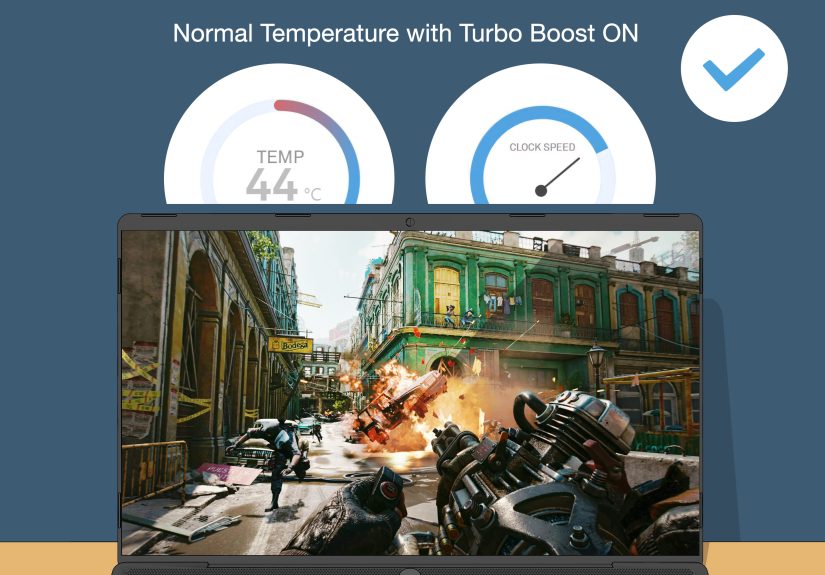
On most systems, Intel Turbo Boost is enabled by default and is designed to work automatically.
When there’s enough power and cooling headroom, your CPU boosts above its base frequency for short bursts (and
sometimes longer ones), then backs off when it must.
So why does it feel “disabled”? Usually one of these is happening:
- You’re not testing it under the right load. Light tasks may not trigger sustained boosting, and some monitors show averages.
- Your cooling can’t keep up. High temperatures force the CPU to reduce speed (thermal throttling).
- Your laptop is in a quiet/battery-saver mode. Many OEM utilities cap performance on purpose.
- Windows is limiting max processor state. Setting Maximum Processor State to 99% can effectively prevent Turbo Boost.
- Power limits are clamping boost. Turbo is governed by power/time rules, not just wishful thinking.
Translation: “Enable Turbo Boost” is often less about flipping it on, and more about undoing a setting that turned
it off (or keeping it from reaching higher boost bins).
Step 1: Confirm your i5/i7/i9 actually supports Turbo Boost
Most modern Intel Core i5, i7, and i9 processors support Turbo Boost, but don’t assumeverify.
Look up your exact CPU model and confirm it lists a Max Turbo Frequency (or similar wording).
Quick ways to identify your CPU model
- Windows: Task Manager → Performance → CPU (shows model name)
- Windows (details): Settings → System → About
- BIOS/UEFI: Often shows CPU model on the main page
If your CPU lists boost frequencies but you never see speeds rise above base under load, keep goingsomething is restricting it.
Step 2: Check BIOS/UEFI for the Turbo Boost setting
The most direct “enable” switch lives in your BIOS/UEFIif your system exposes it. On many consumer laptops,
the option may be hidden or renamed, but desktops and workstations often show it clearly.
How to enter BIOS/UEFI (general)
- Restart your PC.
- Press the BIOS key repeatedly during boot (commonly F2, Delete, sometimes F10 or Esc).
- Look for performance, CPU, advanced, or power sections.
What the setting might be called
- Intel Turbo Boost Technology
- Turbo Mode
- Enhanced Turbo / Multi-Core Enhancement (motherboard “extra boost,” not always Intel-default behavior)
- Performance Mode / System Profile: Performance (common on enterprise systems)
What to do
- If you find a Turbo Boost option: set it to Enabled, save changes, and reboot.
- If you don’t see it: don’t panicTurbo Boost may still be enabled by default and controlled automatically.
Pro tip: If your BIOS has both “Turbo Boost” and “Enhanced Turbo/Multi-Core Enhancement,”
understand the difference. Turbo Boost is Intel’s normal behavior within limits. Enhanced features can push
higher sustained clocks by relaxing power limitsoften increasing heat and fan noise.
Step 3: Fix the Windows settings that commonly disable Turbo Boost
Windows can’t “install” Turbo Boost (it’s a CPU feature), but Windows power settings can absolutely stop the CPU
from boosting the way you expect. Here are the settings that matter most.
3A) Set Windows power mode to favor performance
On Windows 11: Settings → System → Power & battery → Power mode → choose
Best performance (wording varies slightly by device).
On laptops, do this while plugged in if you want consistent boosting. On battery, many systems lower boost
aggressiveness to protect battery life (and your lap).
3B) Check “Maximum processor state” (this one catches people)
Control Panel → Power Options → Change plan settings → Change advanced power settings →
Processor power management → Maximum processor state.
- Set Plugged in to 100% if you want Turbo Boost available.
- If it’s set to 99%, your CPU may not Turbo Boost the way you expect.
Why this matters: that “99% trick” is a common DIY method people use to lower temps by preventing boost.
It workssometimes too wellbecause it can effectively keep clocks from rising into turbo ranges.
3C) Choose a plan that doesn’t sabotage you
Balanced is usually fine. High performance is fine too. The real issue is when a custom plan (or OEM plan)
quietly lowers max processor state, enables energy saver behaviors aggressively, or restricts boosting.
3D) Watch for Energy Saver (especially on laptops)
If Energy Saver is on, Windows may reduce background activity and performance. That can mean less boosting
and more conservative power behavior. If you’re benchmarking or troubleshooting, temporarily turn it off.
Step 4: Laptop maker performance modes can cap Turbo Boost
If you’re on a laptop, your “Turbo Boost problem” might actually be a profile problem.
Many laptops ship with OEM power utilities that can prioritize quiet fans, cooler temps, or battery lifeoften by
restricting CPU power and boosting behavior.
Common signs an OEM profile is the culprit
- Your CPU boosts briefly, then drops hard and stays low even when temps look okay.
- Performance changes dramatically when switching from “Quiet” to “Performance.”
- Boost is weaker on battery, stronger on AC power.
What to do
- Open your laptop’s OEM utility and select Performance (or equivalent) for plugged-in use.
- Disable “Ultra Quiet,” “Cool,” or “Battery Saver” modes while troubleshooting.
- Make sure the charger is the correct wattage (underpowered adapters can reduce performance).
If you’re thinking, “But I want Turbo Boost AND whisper-quiet fans,” I have bad news: physics is still undefeated.
Faster CPU clocks produce more heat. Your laptop can be quiet, cool, or fastpick two. Sometimes you can pick 2.2
if you undervolt or improve cooling, but you get the idea.
Step 5: Understand why Turbo Boost doesn’t always hit the max advertised speed
Even with Turbo Boost enabled, your CPU won’t necessarily sit at “Max Turbo” all day like it’s camping there.
Turbo behavior is governed by three big realities:
- Temperature headroom: If the CPU approaches its thermal limits, it reduces frequency to cool down.
- Power limits: CPUs follow short-term and long-term power rules (often described as PL2 vs. PL1 behavior).
- Workload shape: The “max turbo” number is often easiest to hit on light or single-core bursts, not all-core stress tests.
A realistic example (not tied to one exact model)
Imagine an i7 with a base clock around the low-to-mid 2 GHz range and a max turbo near the high 4 GHz range.
When one core is doing a short task (opening an app, compiling a small file, loading a game level), it may spike
close to max turbo. Under an all-core render or stress test, it might settle lowerstill above base, but not at the
absolute peakbecause power and thermals become limiting.
What you can do to get “better boost” without doing anything sketchy
- Keep vents clear and remove dust buildup.
- Use a hard surface (not a blanket) for laptops.
- Update BIOS/UEFI and chipset drivers if your OEM recommends it.
- Use the correct power adapter and plug in for performance testing.
Step 6: Optional tools (for monitoring and tuning), with sensible caution
If your goal is simply to enable Turbo Boost, you may not need any tools. But if you want to
confirm what’s happeningor understand why boosting stopsmonitoring helps.
Good uses for tuning/monitoring utilities
- Confirm whether the CPU is boosting under load.
- Check if you’re hitting thermal throttling or power limits.
- Stress test after BIOS changes to confirm stability.
Intel XTU (when supported)
Intel Extreme Tuning Utility (XTU) can monitor and tune performance on supported hardware. On many locked CPUs
and many laptops, options may be limited or unavailableand that’s normal.
Motherboard “enhancement” features
Some desktops include settings like “Enhanced Turbo” or “Multi-Core Enhancement.” These may keep higher clocks
longer by relaxing power limits. That can improve performance, but it also increases heat and can raise fan noise.
If stability matters more than bragging rights, stick close to defaults.
Step 7: Turbo Boost on Linux (quick, practical version)
On Linux, Turbo Boost is also typically enabled by default, but behavior depends on your CPU scaling driver and
power profile.
Check Turbo status (common Intel scaling driver setups)
- If your system exposes this file:
/sys/devices/system/cpu/intel_pstate/no_turbo- 0 usually means Turbo is allowed (enabled).
- 1 usually means Turbo is disallowed (disabled).
Make sure you’re not in a power-saver profile
Desktop environments and power daemons can select “power saver,” “balanced,” or “performance.” If you want
aggressive boosting, choose “performance” while plugged in (especially on laptops).
If Turbo appears enabled but you still don’t see higher clocks, it’s often the same story as Windows:
temperatures, power limits, or conservative OEM firmware.
Troubleshooting: Turbo Boost still not working?
Use this checklist to narrow down what’s actually preventing boost:
- Confirm Turbo isn’t disabled in BIOS/UEFI. If you can find the toggle, set it to Enabled.
- Set Windows Maximum processor state to 100%. Especially check for the 99% “accidental turbo-off.”
- Switch to Best performance (Windows) or Performance mode (OEM utility). Test on AC power.
- Monitor temperatures under load. If temps spike fast, you may be thermal throttling.
- Look for power limit throttling signs. CPU may boost briefly then clamp down by design.
- Update BIOS and chipset drivers. Firmware updates can fix strange boosting behavior on some machines.
- Test with a repeatable workload. A quick benchmark or a compile is better than “I opened 17 Chrome tabs.” (Okay, actually that’s also a benchmark.)
If you’re on a locked-down laptop and Turbo still seems missing, it may be an OEM limitation. Some systems don’t
expose the toggle, and performance behavior is heavily controlled by the manufacturer’s profiles.
FAQ
Does enabling Turbo Boost damage my CPU?
Turbo Boost is a normal feature designed to operate within safe power and temperature limits. If your cooling is
weak or your laptop is dusty, you may see higher temps and louder fansbut the CPU is still managing itself.
Is Turbo Boost the same as overclocking?
Not exactly. Turbo Boost is dynamic scaling within CPU-defined rules. Overclocking typically pushes beyond stock
settings. Some motherboard “enhancement” features blur the line by relaxing limits to sustain higher clocks longer.
Why doesn’t my i9 sit at max turbo all the time?
Because max turbo depends on workload, active cores, temperatures, and power limits. “Max” is usually easiest to
reach in short bursts and lighter thread counts.
Can I force Turbo Boost to stay on constantly?
You can choose performance-oriented power modes and avoid settings that disable boosting, but the CPU will still
downshift when it hits thermal or power constraints. If you “force” it with aggressive tuning, you’re mostly forcing
more heat and fan noisenot free performance.
Real-World Experiences: What enabling Turbo Boost feels like (and what surprises people)
Here are some common, real-world patterns people run into when they go hunting for Turbo Boostespecially on
i5, i7, and i9 systems that should be fast but somehow feel like they’re jogging in flip-flops.
Experience #1: “I enabled Turbo Boost and… nothing changed.”
This usually happens because Turbo Boost was already enabled, and the bottleneck is elsewhere. A lot of users
expect a dramatic, always-visible jump in clock speed, but modern CPUs boost in short spikes and then manage
themselves. If you’re watching a “current frequency” number that updates slowly, you can miss the burst entirely.
The fix isn’t another toggleit’s testing with a repeatable workload (a benchmark, a game loading scene, a short
compile) while monitoring per-core clocks. When people do that, they often discover Turbo Boost is working, just
not in the “permanent 5.0 GHz wallpaper” way they imagined.
Experience #2: The infamous 99% setting that “mysteriously” kills boost
Plenty of folks search “laptop running hot” and find a tip: set Maximum Processor State to 99% to lower temps.
It works, so they keep it. Months later they wonder why performance feels lower than expected, or why the CPU
never reaches advertised turbo speeds. Turning it back to 100% can feel like taking the parking brake off.
The funny part is that nobody remembers changing itbecause it feels like a harmless slider. It’s not harmful,
but it can absolutely change your CPU’s behavior in a way that looks like Turbo Boost is disabled.
Experience #3: “Turbo Boost makes my laptop loud/hotshould I disable it?”
This is the classic laptop trade-off. With Turbo Boost active, short tasks finish faster, but your CPU may draw
more power briefly, which means more heat and fan ramping. Some people prefer a quieter laptop and accept a
small performance hit by using a balanced or quiet profileor by limiting boost when they’re just browsing,
streaming, or writing. Others want maximum performance plugged in, and they switch profiles depending on what
they’re doing. The best “real life” approach is often: performance mode on AC power when you need it, balanced
mode when you don’t. That way you aren’t living in fan-noise land 24/7.
Experience #4: Desktops that boost “too well” (and suddenly your cooler is the main character)
On desktops, the surprise is sometimes the opposite: enabling a motherboard performance profile (or leaving an
“enhancement” feature on) can push the CPU to hold higher clocks longer than expected. Performance jumps… and
so do temperatures. People often think something is wrong because the CPU runs hotter than it did before, but
it’s simply taking advantage of looser power limits. The practical lesson: if you enable aggressive settings,
make sure your cooler and airflow can handle it. Many users end up dialing things back to stock-like behavior
because the extra heat/fan noise isn’t worth a small performance gain in daily use.
Experience #5: The “it boosts for 10 seconds, then drops” mystery
This is where power and thermal rules show up in real life. People run a heavy workload and see the CPU boost
high at first, then settle lower. They assume Turbo Boost turned off. What’s usually happening is the CPU is
allowed a short, higher-power boost window, then it transitions to a sustained limit based on cooling and power
policy. If you improve cooling (clean dust, better airflow, stronger laptop cooling pad, or a better desktop
cooler), the sustained speed often improves. The CPU isn’t “broken”it’s doing exactly what it was designed to do:
boost when there’s headroom, then protect itself when there isn’t.
Bottom line: enabling Turbo Boost is often easy. Getting the benefits consistently is the real projectand it
usually comes down to sensible power settings, sane performance profiles, and cooling that’s ready for the job.