Table of Contents >> Show >> Hide
- Why Convert Excel to Word in the First Place?
- Method 1: Copy and Paste Excel Data Into Word
- Method 2: Insert the Excel File as an Embedded or Linked Object
- Method 3: Convert Excel to PDF, Then Convert PDF to Word
- Which Excel-to-Word Method Should You Choose?
- Common Problems When Converting Excel to Word
- Tips for a Cleaner Excel to Word Conversion
- Real-World Example: Budget Report Conversion
- Experiences and Lessons From Actually Converting Excel to Word
- Conclusion
- SEO Tags
If you have ever stared at a beautiful Excel spreadsheet and thought, “This belongs in my Word document now,” welcome to the club. Maybe you need to drop a budget table into a report, paste a sales chart into a proposal, or send a cleaner, more readable version of spreadsheet data to someone who thinks formulas are a personality flaw. Whatever the reason, converting Microsoft Excel to Word is absolutely doable. It is just not always a one-click magic trick.
That is the part that trips people up. Excel is built for calculations, sorting, formulas, and data analysis. Word is built for readable pages, polished documents, and making things look like you definitely planned them that way. So when you move content from Excel to Word, you are not always doing a true file conversion. In many cases, you are choosing the best method for how you want that data to behave inside Word.
In this guide, you will learn three simple ways to convert Microsoft Excel to Word, plus when each method works best, what can go wrong, and how to make your final document look sharp instead of “copied in a panic at 11:58 PM.” We will also cover formatting tips, practical examples, and real-world experiences so your final document looks professional and not like two Office apps got into a minor argument.
Why Convert Excel to Word in the First Place?
Before jumping into the how-to, it helps to know why people move Excel data into Word so often. Usually, it comes down to presentation. Excel is excellent for storing and analyzing information, but Word is better when you need to explain that information in a report, proposal, case study, meeting summary, invoice package, or client document.
For example, a marketing manager might build campaign results in Excel, then paste only the important performance table into a Word report. A teacher might export grade summaries into Word for a parent-facing document. A small-business owner might create product pricing in Excel and move it into Word for a polished quote. Same data, different vibe.
The trick is choosing the right approach. Some methods keep your Excel formatting. Some keep the connection to the original workbook. Some give you a cleaner page layout. And some are perfect when you want Word to stop acting like it just adopted a spreadsheet from another universe.
Method 1: Copy and Paste Excel Data Into Word
The easiest way to convert Excel to Word is also the one most people try first: copy the data in Excel and paste it into Word. Simple? Yes. Powerful? Also yes, if you use the right paste option.
How to do it
- Open your Excel worksheet and select the cells, chart, or table you want to move.
- Press Ctrl + C on Windows or Command + C on Mac.
- Open your Word document and click where you want the content to appear.
- Press Ctrl + V or Command + V.
- Choose the paste option that gives you the result you want.
Best paste options to know
When you paste Excel content into Word, you usually get a few choices. These matter more than people think.
- Keep Source Formatting: Keeps the Excel look, colors, borders, and layout.
- Use Destination Styles: Adapts the content to your Word document’s font and style.
- Paste as Picture: Great when you want the data to stay exactly as it looks, but not be editable.
- Paste Special: Gives you more control, including pasting as a linked or embedded Excel object.
When this method works best
This approach is ideal when you only need part of a worksheet, such as a table, summary range, or chart. It is fast, familiar, and perfect for one-off documents where you do not need the Word file to stay connected to the original Excel workbook.
Let’s say you built a simple monthly expense tracker in Excel. You do not need all twenty tabs in Word. You just want the polished “March Summary” table inside a report. Copy and paste is your winner.
Pros
- Quick and easy for beginners
- Works well for tables, charts, and small data ranges
- Lets you control appearance with paste options
- No extra software required
Cons
- Large pasted tables can look messy in Word
- Formatting may shift if the page width is tight
- Pasted data usually does not update automatically
- Complex formulas do not always carry over in a useful way
Formatting tip
If the table looks cramped in Word, try switching the page to landscape orientation, reducing the font size slightly, or using Word’s table layout tools to auto-fit the contents. A little cleanup goes a long way. Word is not allergic to spreadsheets, but it does appreciate a calmer introduction.
Method 2: Insert the Excel File as an Embedded or Linked Object
If you need something more flexible than a basic paste, this method is the grown-up version. Instead of pasting raw cells, you can insert the Excel worksheet into Word as an object. This gives you two main choices: embed the file or link to it.
How to insert an Excel file into Word
- Open your Word document.
- Click the Insert tab.
- Select Object.
- Choose Create from File.
- Browse for your Excel workbook.
- Select one of the following:
- Link to file if you want Word to reflect updates made in Excel
- Leave it unchecked if you want to embed a copy inside Word
- Click OK.
Embedded vs. linked: what is the difference?
This is where many people get confused, so let’s make it painless.
Embedded Excel object: Word stores a copy of the Excel file inside the document. That means the Word file keeps the content even if the original Excel file is moved, renamed, or deleted. The downside is that it does not automatically update when the Excel source changes.
Linked Excel object: Word connects to the original Excel file. If you update the workbook later, the linked object in Word can update too. Very handy for recurring reports. The downside is that if the source file gets moved or the link breaks, Word will not be thrilled.
When this method works best
Use this method when you need a live relationship between Excel and Word, or when you want to keep the spreadsheet behavior available inside the Word file. It is especially useful for business reports, dashboards, proposals with updating charts, and documents that get revised often.
For example, imagine you prepare a weekly sales summary for your boss. The totals and charts live in Excel because that is where the real work happens. But the final report is delivered in Word because that is where the polished commentary lives. Linking the Excel object saves time because you can update the numbers in Excel without rebuilding the Word document every week.
Pros
- More control than a basic paste
- Linked objects can reflect Excel updates
- Embedded objects keep the data self-contained in Word
- Useful for charts, tables, and recurring reports
Cons
- Linked files can break if the source moves
- Embedded files can increase Word document size
- May be less convenient for simple one-page needs
- Can confuse collaborators who just wanted “a normal document”
Pro tip
If you are sending the Word file to someone else and you are not sure they will have access to the original Excel workbook, embedding is often safer. If the file is only for internal use and will be updated regularly, linking usually makes more sense.
Method 3: Convert Excel to PDF, Then Convert PDF to Word
This is the workaround method, but it is a very useful one. If your Excel sheet needs to preserve layout, spacing, and visual structure, converting Excel to PDF first can help “lock in” the appearance before converting to Word.
Think of it as putting your spreadsheet in a nice blazer before introducing it to Word.
How to do it
- Open your Excel file.
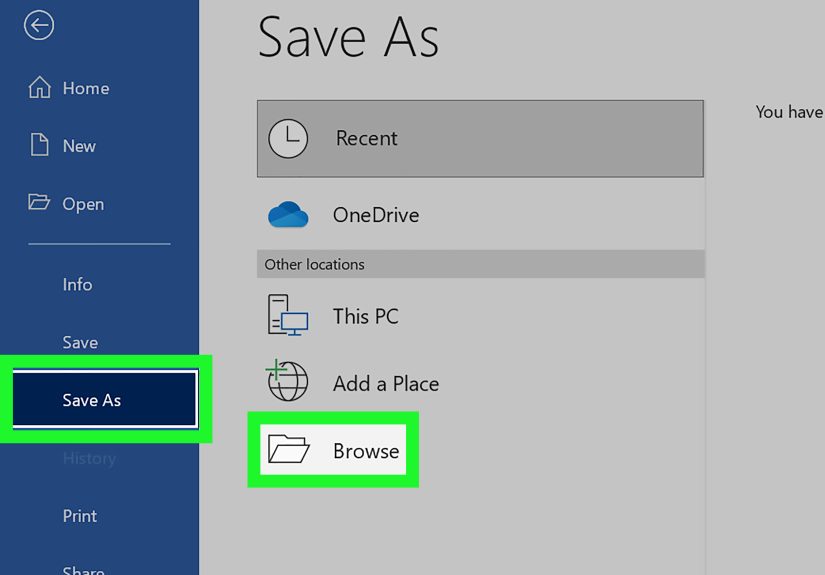
- Go to File > Export or Save As.
- Choose PDF or Create PDF/XPS.
- Save the PDF.
- Open the PDF in a PDF tool that can export to Word.
- Convert the PDF to a Word document.
- Review the Word file and clean up any formatting issues.
When this method works best
This option is especially helpful when you care more about page appearance than spreadsheet behavior. It works well for invoices, formatted tables, printable schedules, and presentation-style worksheets where preserving the look matters most.
For example, if you created a visually formatted pricing sheet in Excel with merged cells, borders, colored headers, and carefully adjusted widths, direct pasting into Word may turn it into a mild disaster. Exporting to PDF first often produces a cleaner result when you later move it into Word.
Pros
- Often preserves layout better than direct paste
- Useful for print-ready or presentation-heavy pages
- Good for sharing polished documents
- Helpful when Excel formatting is complex
Cons
- Not always ideal for editing data later
- Converted Word files may need cleanup
- Tables can become less flexible after conversion
- It is an extra step, because apparently life enjoys process
Which Excel-to-Word Method Should You Choose?
Here is the simple rule:
- Choose copy and paste when you need speed and only want a portion of the worksheet.
- Choose embed or link when you want Excel content to stay interactive or update over time.
- Choose PDF first when preserving layout is more important than keeping spreadsheet functionality.
If you are creating a one-time report, pasting is usually enough. If the document will be updated every month, linking is smarter. If the sheet must look exactly right on the page, the PDF route is often the cleanest option.
Common Problems When Converting Excel to Word
1. The table runs off the page
This is classic. Word pages have margins. Excel does not care. Fix it by reducing column widths in Excel before copying, switching the Word page to landscape, or pasting only the needed columns instead of the entire kingdom.
2. Fonts and colors change
This usually happens when Word applies destination styles. If you want the original look, choose Keep Source Formatting. If you want it to match the Word document, use destination styles on purpose instead of by surprise.
3. The linked file stops updating
That usually means the original Excel file was moved, renamed, or stored somewhere Word can no longer reach. If you need reliability when sharing files externally, embedding is safer than linking.
4. The converted Word document looks weird after PDF conversion
Complex Excel layouts, merged cells, and unusual spacing can create awkward results in Word after conversion. The fix is to simplify the Excel layout before exporting, or accept that some cleanup in Word is part of the deal.
Tips for a Cleaner Excel to Word Conversion
- Trim unnecessary columns and rows before moving data.
- Use clear headers and consistent formatting in Excel first.
- Avoid overly merged cells if you plan to convert through PDF.
- Preview print layout in Excel before exporting to PDF.
- Test paste options instead of settling for the first result.
- Use smaller chunks of data when building Word reports.
- Keep a copy of the original Excel file in case you need to revise anything.
Real-World Example: Budget Report Conversion
Suppose you created a monthly department budget in Excel. It includes line items, totals, color-coded categories, and a pie chart. You now need to include it in a Word report for leadership.
If you only need the summary table and chart, copy and paste them into Word. If those numbers will keep changing through the week, insert them as linked Excel objects so your Word report stays current. If the budget sheet is carefully designed to fit one printable page and needs to look exactly the same in Word, export it as PDF first and then convert.
There is no single “best” method for every situation. There is only the method that saves you the most time while making your document look like you know what you are doing. That is the sweet spot.
Experiences and Lessons From Actually Converting Excel to Word
Here is the honest truth from real-world use: converting Microsoft Excel to Word sounds simple until the formatting starts doing interpretive dance. On paper, it feels like a quick office task. In practice, the best method usually depends on what you care about most: speed, appearance, or editability.
One common experience is that copy and paste feels magical for the first ten seconds. You select a neat little table in Excel, paste it into Word, and think, “Excellent, I am unstoppable.” Then you notice the last two columns are hanging off the page like they are trying to escape. That is usually the moment people discover page orientation, table auto-fit, and the emotional complexity of margins.
Another frequent lesson is that linked objects are wonderful right up until file management enters the chat. In a work setting, linking Excel to Word can be a huge time-saver. Update the workbook, refresh the document, and suddenly your report is current again. It feels efficient and mildly heroic. But if someone renames the source file to something cryptic like Final_FINAL_v7_UseThisOne.xlsx, the link can break and your Word document starts acting confused. So yes, linking is smart, but only if your file organization is not powered by chaos.
Embedding has its own personality. It is reliable because the Excel content stays inside the Word document, which makes sharing easier. This is especially nice when sending files to clients, teachers, classmates, or teammates who do not need access to the full workbook. The tradeoff is file size. A Word document with embedded Excel content can bulk up quickly. Suddenly your tidy document becomes the digital equivalent of carrying three winter coats in July.
The PDF route often surprises people in a good way. When Excel formatting is complicated, exporting to PDF before converting to Word can preserve the page layout much better than direct pasting. This is useful for schedules, printable tables, quotes, invoices, and dashboards. The catch is that the Word file you get afterward may still need some editing. The text may be split into odd boxes, tables may not behave perfectly, and spacing can get dramatic. Still, if appearance matters most, this method often wins.
Over time, the biggest lesson is that preparation inside Excel matters more than people expect. Clean headers, sensible column widths, fewer unnecessary colors, and a print-friendly layout make every conversion method work better. When the Excel file is messy, Word simply reveals that mess in a new and exciting format. When the Excel file is clean, Word becomes much easier to work with.
So the real experience of converting Excel to Word is less about finding one perfect button and more about choosing the least annoying path for your goal. If you just need the data visible, paste it. If you need updates, link it. If you need it to look polished on the page, use PDF first. Once you match the method to the mission, the whole process becomes faster, cleaner, and far less likely to make you mutter at your screen.
Conclusion
Converting Microsoft Excel to Word is easier once you stop looking for a mythical “convert” button and start choosing the right workflow. If you want the fastest method, copy and paste your Excel data into Word. If you want a smarter, more flexible setup, insert the workbook as an embedded or linked object. And if layout matters most, convert Excel to PDF first and then move it into Word.
The best method depends on whether you care most about speed, live updates, or polished formatting. In other words, the spreadsheet is not the problem. The strategy is the secret. Pick the right one, and your Word document will look clean, professional, and much less like it was assembled during a caffeine emergency.