Table of Contents >> Show >> Hide
- Why Convert a PDF for Kindle in the First Place?
- Before You Convert: Pick the Right Output Format
- The 3 Best Ways to Convert a PDF to Kindle Format
- Can You Still Convert PDF to MOBI?
- When Not to Convert a PDF
- How to Get Better Conversion Results
- Online Converters vs. Desktop Software
- Which Method Is Best for You?
- Common Questions About PDF to Kindle Conversion
- Practical Experiences Readers Commonly Run Into
- Final Thoughts
If you have ever opened a PDF on a Kindle and immediately thought, “Well, this is technically readable in the same way a parking ticket is technically literature,” you are not alone. PDFs and Kindles have a long, complicated relationship. They can work together, but sometimes they act like roommates who share a kitchen and passive-aggressive sticky notes.
The good news is that converting a PDF to a Kindle-friendly format is absolutely possible. The better news is that you usually have more than one way to do it. The best option depends on what your PDF looks like, how clean the text is, and whether you care more about preserving the original layout or making the book reflow nicely on a small e-reader screen.
In this guide, you will learn how to convert a PDF to Kindle format, including legacy .mobi workflows and more practical modern options such as .azw, .azw3, and Kindle-friendly EPUB. We will also cover when you should not convert a PDF, common formatting problems, and the easiest tools to use if you want the process to be fast, clean, and headache-light.
Why Convert a PDF for Kindle in the First Place?
A PDF is designed to preserve layout. That is wonderful when you are sending a contract, a brochure, or a workbook. It is less wonderful when you are trying to read a 300-page document on a 6-inch screen while pinching, zooming, and silently bargaining with your eyesight.
Kindle-friendly ebook formats are different. They are built for reflowable text, which means the words adapt to your screen size, font choice, line spacing, and margin settings. Instead of behaving like a frozen poster, the text behaves like actual digital reading material. That means:
- larger fonts without wrecking the page,
- better spacing on smaller Kindle screens,
- easier highlighting and note-taking,
- more comfortable reading for long sessions,
- and fewer moments where you mutter, “Why is this footnote in another zip code?”
If your PDF is mostly straight text, such as a novel, report, essay collection, or manual, conversion can dramatically improve the reading experience. If your PDF is heavy on images, tables, columns, equations, or magazine-style design, conversion may still work, but results can get messy in a hurry.
Before You Convert: Pick the Right Output Format
Here is the part many older guides skip: not all Kindle formats matter equally anymore.
If layout is everything, keep the file as a PDF and send it directly to Kindle. This works well for image-heavy documents, comics in fixed layouts, charts, forms, academic papers, or anything where the original page design is part of the meaning.
MOBI
MOBI is the old celebrity who still gets recognized at the grocery store but is no longer headlining the tour. It can still appear in conversion tools, and some older Kindle workflows still mention it, but it is a legacy option. You may be able to create a MOBI file for personal use, yet it is no longer the most future-friendly choice.
AZW / AZW3
AZW and especially AZW3 are more Kindle-centric choices for converted ebooks. If you are using desktop software like Calibre and want a cleaner ebook-style result, AZW3 is usually the stronger target for readable, reflowable text. Think of it as giving your PDF a Kindle wardrobe makeover instead of leaving it in stiff office attire.
EPUB for Kindle Delivery
This surprises many readers: in modern Kindle workflows, the smartest path is often PDF to EPUB, then send that EPUB to your Kindle through Amazon’s document delivery tools. Even if your original goal was “PDF to .mobi or .azw,” EPUB is often the most practical bridge when you want readable text on a Kindle today.
The 3 Best Ways to Convert a PDF to Kindle Format
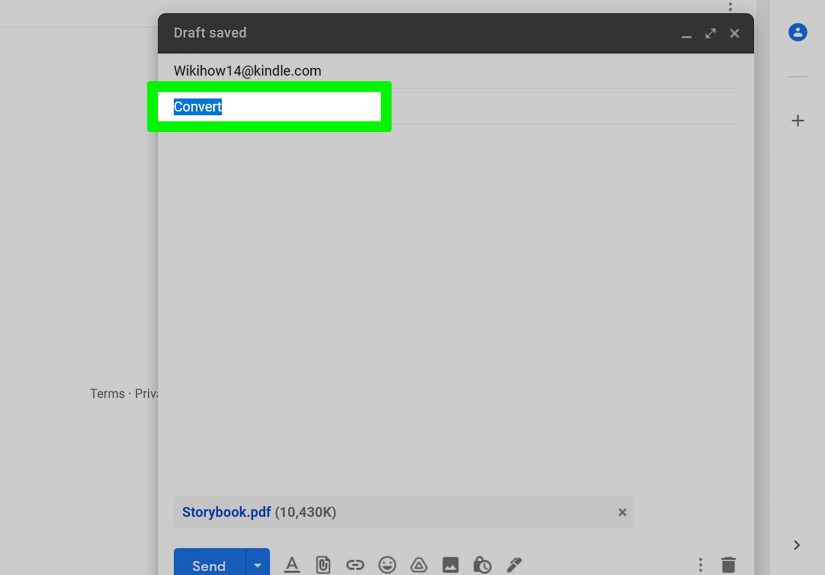
Method 1: Use Amazon’s Send to Kindle for a Quick Conversion
This is the easiest method if your PDF is mostly text and you do not want to fiddle with software settings for half an afternoon.
How it works: you send the PDF to your Kindle library using Amazon’s Send to Kindle tools. In some workflows, Amazon can transform the document into a more Kindle-friendly reading experience rather than leaving it as a static page replica.
Best for: casual readers, simple text PDFs, and anyone who values convenience over pixel-perfect control.
Steps:
- Open Send to Kindle on the web, app, or supported sharing method.
- Upload your PDF file.
- Choose to add it to your Kindle library.
- Deliver it to your Kindle device or Kindle app.
- Check the result on your device before calling the job done.
Pros: fast, beginner-friendly, no extra software required, and ideal for reading personal documents across devices.
Cons: you get less control over formatting. If the PDF has columns, footnotes, unusual fonts, or lots of graphics, the result may look like the document took a tumble down a staircase.
Method 2: Convert PDF to AZW3 with Calibre
If you want better control, Calibre is the heavyweight champion of ebook conversion. It is especially useful when you want to turn a text-based PDF into a more Kindle-native reading file.
Best for: users who want to tweak formatting, metadata, chapter breaks, margins, or output profiles.
Steps:
- Install Calibre on your computer.
- Click Add books and import your PDF.
- Select the file and choose Convert books.
- Set the output format to AZW3.
- Review metadata such as title and author.
- Adjust formatting options if needed, especially structure detection, page setup, and look-and-feel.
- Run the conversion.
- Preview the result before sending it to your Kindle.
Calibre is powerful, but it also tells the truth. And the truth is this: PDF is one of the hardest formats to convert well. If the source file is clean, you can get a surprisingly good result. If the source is messy, multi-column, scanned, or image-based, the output can range from “pretty decent” to “why is chapter two inside a footer?”
Pro tip: if the PDF includes running headers, footers, line breaks in weird places, or broken paragraph flow, spend a few extra minutes cleaning the file or tweaking Calibre’s input settings. Those few minutes often make the difference between “pleasant ebook” and “haunted manuscript.”
Method 3: Convert PDF to EPUB First, Then Send It to Kindle
This is often the best modern compromise between compatibility and readability.
Best for: people who want a flexible ebook file, especially if they may also read it outside the Kindle ecosystem.
Steps:
- Use Calibre or a trusted online converter to turn the PDF into EPUB.
- Open the converted EPUB and inspect it carefully.
- Fix obvious problems like missing chapter breaks, giant gaps, or broken headings.
- Upload the EPUB through Send to Kindle.
- Read the result on your Kindle or Kindle app.
This route is often cleaner than chasing a direct PDF-to-MOBI conversion because EPUB is now a more natural part of modern ebook workflows. It also gives you a file you can edit more easily before delivery if the conversion needs touch-ups.
Can You Still Convert PDF to MOBI?
Yes, technically. Some tools still offer PDF to MOBI conversion, and older guides continue to recommend it. But for most readers, MOBI should now be viewed as a legacy format, not the default destination.
If your goal is personal reading on a Kindle, AZW3 or EPUB-to-Kindle is usually the smarter route. If you specifically need MOBI for an older device, a niche workflow, or an archive habit you refuse to abandon out of principle, then sure, convert away. Just do not assume MOBI is the best answer simply because it used to be the loudest one on the internet.
When Not to Convert a PDF
Sometimes the best conversion strategy is no conversion at all. Keep the PDF as a PDF when your document includes:
- complex tables,
- academic equations,
- magazine layouts,
- art books or illustrated manuals,
- two-column pages,
- scanned pages with imperfect OCR,
- or forms and worksheets that depend on exact placement.
In those cases, preserving the original layout may matter more than gaining reflowable text. You can still improve the reading experience by cropping margins, rotating pages, splitting wide spreads, or using a larger-screen Kindle device or tablet.
How to Get Better Conversion Results
1. Start with the cleanest PDF possible
A well-made digital PDF converts much better than a scanned photocopy of a photocopy of a photocopy that has clearly been through some things.
2. Check whether the PDF is text-based or image-based
If you can select text with your cursor, you have a fighting chance. If every page is basically a picture, the converter has to rely on OCR, and that introduces more errors.
3. Remove unnecessary headers and footers
Repeated page numbers, file names, and running headers often end up injected into the middle of paragraphs after conversion.
4. Watch out for columns
Multi-column PDFs are notorious. A converter may read across the page in the wrong order, producing paragraphs that sound like they were written by three people shouting over one another.
5. Preview before you commit
Always inspect the converted file on a real Kindle screen or in a Kindle preview tool. Desktop reading can hide problems that become obvious on e-ink.
6. Edit after conversion if needed
Sometimes the fastest path is not “perfect conversion.” It is “convert first, fix second.” Clean up chapter titles, spacing, and metadata after the file is generated.
Online Converters vs. Desktop Software
Online converters
Online tools are quick and convenient. They are useful for one-off jobs and simple documents. If you only convert a file once every few months, this may be all you need.
Good for: speed, ease, and minimal setup.
Watch out for: privacy, file-size limits, and lower control over output quality.
Desktop software
Desktop software like Calibre gives you more control, better repeatability, and more options for metadata, structure, and output tuning.
Good for: frequent conversions, complex projects, and users who care about polished results.
Watch out for: a steeper learning curve. The buttons are friendly enough, but the advanced settings can make you feel like you accidentally wandered into mission control.
Which Method Is Best for You?
Choose Send to Kindle if you want the simplest workflow and your PDF is mostly plain text.
Choose Calibre to AZW3 if you want the most Kindle-like file and do not mind tweaking settings.
Choose PDF to EPUB first if you want the most flexible modern workflow and a better chance at readable, reflowable text.
Keep the original PDF if layout, diagrams, or design matter more than font customization.
Common Questions About PDF to Kindle Conversion
Will converting a PDF always improve readability?
No. It improves readability most when the source PDF is simple, text-heavy, and well structured. A messy PDF may convert badly and look worse than the original.
Is AZW3 better than MOBI?
For most modern Kindle reading workflows, yes. AZW3 is generally the more practical target when you want a Kindle-oriented ebook file instead of a legacy one.
Can Kindle read a PDF without conversion?
Yes. In many cases, that is still the right move. Conversion is not mandatory; it is only helpful when reflowable text would improve the reading experience.
What about scanned PDFs?
They are the trickiest of the bunch. You may need OCR before or during conversion, and the final result can still require cleanup.
Practical Experiences Readers Commonly Run Into
In real-world use, converting a PDF to Kindle format often feels less like pressing a magic button and more like choosing the least annoying path. Readers usually begin with high hopes. They find a PDF of a report, an ebook, class notes, or a long article collection, then imagine it will slide neatly onto a Kindle and behave like a store-bought ebook. Sometimes it does. Sometimes it behaves like a raccoon in a pantry.
A very common experience is that plain-text PDFs convert surprisingly well. If the document was originally exported from Word, Google Docs, or another clean writing tool, the result can be excellent. Chapter headings survive, paragraph spacing stays sane, and the text reflows well enough that reading on a Paperwhite feels natural. This is usually when people start thinking conversion is easy and begin feeling just a little too confident.
Then comes the second experience: the complicated PDF. This is the file with page numbers in the wrong places, a header on every page, footnotes packed like sardines, and maybe two columns because apparently someone wanted their report to look like a newspaper from 1987. After conversion, the Kindle file may place headings in odd locations, merge paragraphs, or break lines in ways that feel deeply personal. This is where many readers discover that the quality of the source PDF matters far more than the quality of their optimism.
Another common pattern is that people try direct PDF reading first, then switch to conversion later. They send the PDF to Kindle, open it, zoom in a bit, zoom out, rotate the screen, tap around, sigh heavily, and then decide reflowable text sounds wonderful after all. That is usually the moment AZW3 or EPUB starts looking less like a technical detail and more like a peace treaty.
Students and professionals often report a split experience. For reports, essays, and meeting documents, conversion can be fantastic because adjustable fonts and easier highlighting make long reading sessions much more comfortable. But for technical papers with diagrams, formulas, or dense tables, the original PDF often remains the safer choice. In other words, conversion is brilliant right up until your chart turns into abstract art.
Many Kindle users also learn that a little cleanup goes a long way. Renaming the title, fixing the author field, removing headers, or correcting chapter breaks can transform a mediocre conversion into something genuinely pleasant to read. The process is not always glamorous, but it is practical. And once readers do it a few times, they start recognizing which PDFs are worth converting and which ones should simply stay in their original form.
The biggest lesson from experience is this: the “best” method is rarely universal. The best method is the one that matches the file in front of you. If it is a clean text document, conversion can feel almost magical. If it is a visual layout masterpiece, forcing it into ebook form may just produce digital chaos in a new outfit.
Final Thoughts
If you want to convert a PDF to Kindle format, the real secret is not choosing the fanciest tool. It is choosing the right workflow for the kind of PDF you have. For simple text, conversion to AZW3 or EPUB can make reading far more comfortable. For complex layouts, staying with the original PDF may save your sanity. And while PDF to MOBI is still technically possible, it is no longer the smartest default for most modern Kindle users.
So yes, you can convert a PDF to Kindle format. Just remember: the best result comes from matching the format to the file, not from forcing every PDF through the same tiny funnel and hoping it comes out looking like a bestseller.