Table of Contents >> Show >> Hide
- First: What “Camera Roll” Means Inside Snapchat
- Quick Checklist Before You Start
- Option A: Auto-Save New Snaps to Camera Roll (and/or Memories)
- Option B: Make Sure Snapchat Memories Are Actually Backed Up
- Option C: Import Camera Roll Photos/Videos into Snapchat Memories
- Option D: Export Snapchat Memories Back to Camera Roll (or Anywhere Else)
- Privacy & Organization: Backup Without Oversharing
- Troubleshooting: When Snapchat Backup Gets Stuck
- The Best Strategy: Snapchat + A Real Camera Roll Backup
- FAQ: Quick Answers People Actually Want
- Conclusion
You know that tiny, irrational fear that your phone will fall into a lake, get run over by a scooter, or simply decide it’s “taking a mental health day” and never turn on again? Yeah. That fear gets real when your Camera Roll is basically your life: friends, trips, screenshots you swear are “important,” and 47 versions of the same selfie where only one is acceptable.
Here’s the good news: you can set up Snapchat so your new Snaps automatically save where you want, import selected Camera Roll photos into Snapchat Memories, and export anything back out again. Here’s the slightly less magical news: Snapchat does not automatically back up your entire phone Camera Roll into Memories for you. (If it did, your Snapchat would become a very chaotic attic.) But with the right settings, you can still create a solid, low-stress backup routinewithout turning your life into a spreadsheet.
First: What “Camera Roll” Means Inside Snapchat
Snapchat uses a couple of terms that sound similar but behave very differently:
- Camera Roll (on your phone): The photos and videos stored in your device’s Photos/Gallery app.
- Memories (in Snapchat): Snaps and Stories you save in Snapchat. These can be backed up to Snapchat’s servers.
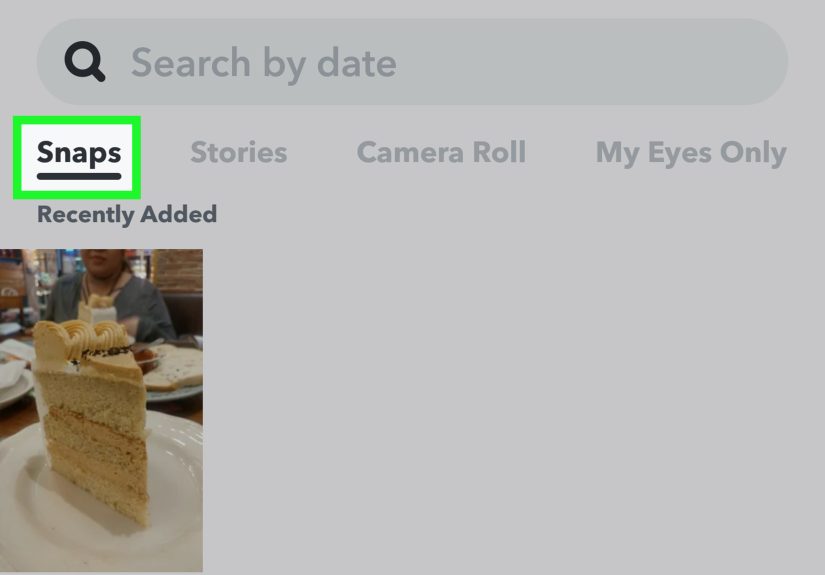
- Camera Roll tab in Memories: A convenient view into your phone’s Camera Roll from inside Snapchatgreat for sharing, not automatically a “backup.”
So when people say “back up Camera Roll in Snapchat,” they usually mean one (or more) of these goals:
- Automatically save new Snaps to your phone’s Camera Roll (so they’re not trapped only in Snapchat).
- Back up Snapchat Memories properly (so you don’t lose saved Snaps when switching phones).
- Import selected Camera Roll photos/videos into Snapchat Memories for an extra copy.
- Export Snapchat Memories back to Camera Roll or another cloud service for safe keeping.
Quick Checklist Before You Start
Two minutes of prep now can save you from a “why is nothing saving?!?” spiral later:
- Update Snapchat (App Store / Google Play). Backup features and menus change.
- Give Snapchat photo permission (iPhone: Photos access; Android: Photos/Media permission).
- Use stable internet (Wi-Fi preferred) if you’re backing up a lot of Memories.
- Free up device storage if backups stallphones get dramatic when storage is tight.
Option A: Auto-Save New Snaps to Camera Roll (and/or Memories)
If your main goal is “anything I create in Snapchat should also land in my Camera Roll,” this is the setting you want. Snapchat lets you choose what the Save button does by default: save to Memories, Camera Roll, or both.
How to change the Save Button destination
- Open Snapchat and go to your Profile (tap your Bitmoji or profile icon).
- Tap Settings (the ⚙️ gear icon).
- Scroll to Memories (often under “My App” / “Customize My App,” depending on your version).
- Tap Save Button.
- Choose one:
- Memories (saved inside Snapchat)
- Camera Roll (saved to your phone)
- Memories & Camera Roll (best “belt and suspenders” choice)
Best practice: Pick Memories & Camera Roll if you want your Snaps backed up in two places automatically. That way, even if your phone is lost, your Snapchat Memories can still be thereand even if Snapchat is being moody, you still have the file in your Camera Roll.
Option B: Make Sure Snapchat Memories Are Actually Backed Up
Snapchat Memories can be backed up to Snapchat’s servers. That’s the key phrase: can be. If your Memories aren’t fully backed up and you log out, uninstall, or switch phones… you may discover the meaning of regret.
How to check your Memories backup status
- Go to your Profile → tap ⚙️ Settings.
- Find and tap Memories.
- Look for Backup Progress.
- You want it to say Complete. If it shows something like “Snaps Remaining” or “No Network Connection,” it’s not done.
Turn on Smart Backup (optional, but useful)
If you’re not always on Wi-Fi, Snapchat offers Smart Backup, which may allow Memories to back up using mobile data when Wi-Fi isn’t available. It’s handyjust keep an eye on your data plan if you post a lot of high-resolution chaos.
- Profile → ⚙️ Settings → Memories
- Toggle Smart Backup on (if you want cellular backup)
Auto-save Story Snaps to Memories
If you post to My Story a lot, turning on auto-save is a quiet little life upgrade:
- Profile → ⚙️ Settings → Memories
- Turn on Auto-Save My Story Snaps
Reality check: Snapchat is clear that it backs up Memories, but it does not back up your phone’s Camera Roll media into Memories automatically. If you want Camera Roll items inside Memories, you’ll need to import them (next section).
Option C: Import Camera Roll Photos/Videos into Snapchat Memories
Want a second copy of certain phone photos living inside Snapchat (for editing, reposting, or just because you trust Snapchat’s organization more than your own)? You can import selected Camera Roll items into Memories.
How to import from Camera Roll into Memories
- Profile → ⚙️ Settings
- Tap Memories
- Tap Import Snaps from Camera Roll
- Select what you want to import
Tips so the import actually shows your photos
- Check permissions: If Snapchat only has “Selected Photos” access on iPhone, it may not see everything. Consider granting broader Photos access if you’re comfortable.
- Be patient with huge libraries: If your Camera Roll is 40,000 items deep, the import picker might lag or take time to populate.
- Import intentionally: Memories is a great backup for meaningful photos, but importing your entire Camera Roll is like moving your whole garage into your living room.
Example: You filmed your cousin’s wedding toast on your phone camera (not in Snapchat). Import that video into Memories so it’s accessible inside Snapchat for sharing later, plus it’s an extra copy in case your phone storage goes sideways.
Option D: Export Snapchat Memories Back to Camera Roll (or Anywhere Else)
If your goal is “I want everything important out of Snapchat and into my phone backup system,” exporting is your friend. Snapchat lets you download individual Memories (or multiple at once) using the Export option.
Download a Snap from Memories
- From the Camera screen, swipe up to open Memories.
- Press and hold the Snap (photo or video).
- Tap Export.
- Select where to send it (often Save Image/Save Video to Camera Roll, or share to another app/cloud).
Export multiple Memories at once
If you’re migrating to a new phone or doing a “yearly cleanup like a responsible adult,” multi-select saves time:
- Open Memories.
- Tap the selector / multi-select icon (varies by version) to select multiple items.
- Tap Export and choose your destination.
Save your Story to Memories and Camera Roll
You can also save your Story (the whole thing) or just one Snap from it. This is especially useful if you want a “highlight reel” saved outside Snapchat.
Download your Snapchat data (for a bigger archive)
Snapchat also provides a way to request and download your account data, including an option to export your Memories. This is not the fastest method for day-to-day saving, but it’s useful for a fuller archive or record.
Privacy & Organization: Backup Without Oversharing
Backups are great. Accidentally handing a friend your phone and letting them scroll through your Memories like it’s a museum exhibit? Not great. If you want to keep certain Snaps extra private, Snapchat offers My Eyes Only.
Use “My Eyes Only” for private Memories
- Move sensitive Snaps/Stories from Memories into My Eyes Only, protected by a passcode.
- If you forget the passcode, Snapchat can’t recover it for youso choose something memorable but not “1234” (please).
Make Memories easier to find later
- Use search in Memories (keywords, dates, locations when available).
- Create a routine: export the “top 10” Memories from each month into Camera Roll + cloud backup.
- Don’t rely on one place for the only copy of anything important.
Troubleshooting: When Snapchat Backup Gets Stuck
If Backup Progress refuses to move, don’t panicthis is usually fixable. Try these in order:
1) Fix the basics (boring, but effective)
- Switch to Wi-Fi or move closer to your router.
- Turn off Low Power Mode / battery saver temporarily.
- Free device storage (phones hate working when they’re full).
- Restart your phone (classic for a reason).
2) Clear Snapchat cache (safe and often helpful)
Clearing cache typically won’t delete your Memories, but it can force the app to refresh local data and behave. Look for Clear Cache in Snapchat Settings, then reboot your phone.
3) Check Smart Backup settings
If you’re relying on cellular data, make sure Smart Backup is enabled. If you’re trying to avoid cellular data, turn it off and stay on Wi-Fi.
4) Update or reinstall (only after confirming backup)
Updating Snapchat can fix bugs. Reinstalling can help toobut only if your Memories backup status is Complete. If it’s not complete, do not uninstall unless you’re comfortable with potential loss.
The Best Strategy: Snapchat + A Real Camera Roll Backup
Let’s build a backup plan that doesn’t depend on you remembering anything at 2 a.m.:
- Save new Snaps to Memories & Camera Roll (Snapchat setting).
- Confirm Memories backup is Complete (Snapchat setting).
- Back up your Camera Roll using a dedicated service (phone setting/app).
iPhone: iCloud Photos
iCloud Photos keeps your photos and videos stored in iCloud and updated across devices when enabled. It’s the most “set it and forget it” option for iPhone usersjust make sure you have enough iCloud storage.
Android (and iPhone too): Google Photos
Google Photos can automatically back up photos and videos to your Google Account, and you can choose which folders get backed up. Great if you want cross-platform access and easy sharing.
Other solid options
- OneDrive: Offers camera upload on iOS and Androidhandy if you already live in Microsoft 365.
- Dropbox: Camera uploads can automatically upload photos/videos for backup and access anywhere.
- Amazon Photos: Auto-Save can back up photos/videos automatically inside the Amazon Photos app.
Why use a dedicated Camera Roll backup? Because Snapchat is excellent for Snapchat content (Snaps, Stories, Memories), while services like iCloud Photos or Google Photos are built specifically to back up your entire photo library. Together, they cover you from both directions.
FAQ: Quick Answers People Actually Want
Does Snapchat back up my whole Camera Roll automatically?
No. Snapchat backs up Memories, but it does not automatically back up your phone’s Camera Roll media into Memories. You can import selected Camera Roll items manually.
If I switch phones, will my Memories come back?
If your Memories are fully backed up (Backup Progress shows Complete), they should be available when you log in on a new device. If they weren’t fully backed up, you may not recover everything.
How do I make sure new Snaps save to my phone?
Set the Save Button to Memories & Camera Roll (or Camera Roll only) in Settings → Memories → Save Button.
Can I export a bunch of Memories at once?
Yesuse multi-select in Memories, then Export. It’s the fastest way to move a batch into Camera Roll or another app.
Conclusion
Backing up your Camera Roll “in Snapchat” is really about creating a smart loop: save new Snaps where you want, make sure Memories are backed up, and use a true Camera Roll backup service so your photo library survives real life (and real life is messy).
Do the setup once, check “Backup Progress: Complete” occasionally, and you’ll spend less time worrying about lost memoriesand more time making the kind worth saving.
Bonus: Real-Life Backup Experiences (Because Stuff Happens)
Here are a few very normal, very human scenarios that explain why this whole backup thing matterswithout turning it into a doom-and-gloom lecture. First, there’s the “new phone glow-up.” You upgrade, you log into Snapchat, and you expect everything to be waiting for you like a well-trained butler. If your Memories were fully backed up, that’s exactly what happens: your saved Snaps reappear, your Story archives are still there, and life is good. If they weren’t backed up? Suddenly you’re staring at a gap where last summer should be, wondering if nostalgia can be recovered by sheer willpower.
Then there’s the “storage crisis” phase. Your phone pops up the alert: Storage Almost Full, and you respond like any responsible adult: by ignoring it. Eventually, your camera stops saving, apps get glitchy, and Snapchat backups slow down because your device is fighting for breathing room. This is where exporting a batch of Memories to your Camera Roll (and letting iCloud Photos, Google Photos, OneDrive, Dropbox, or Amazon Photos back it up) feels like cleaning your roompainful at first, but weirdly satisfying once you can actually find the floor again.
Another common one: the accidental logout. Maybe you’re troubleshooting, maybe you’re switching accounts, maybe your friend says, “Try logging out and back in!” (This friend is chaotic neutral.) Snapchat itself warns that you should make sure Memories are completely backed up before logging out or uninstalling. The smart move is to check Backup Progress first. The even smarter move is to have your most important Snaps already exported to Camera Roll and backed up elsewhere, so even a worst-case scenario is just annoying, not heartbreaking.
And yes, there’s the “oops, I dropped my phone” story. It doesn’t have to be dramatic; sometimes it’s just a cracked screen that never comes back to life. When that happens, people often realize their Camera Roll was only living on the device. If iCloud Photos or Google Photos backup was off, that’s a rough day. But if you had your phone’s Camera Roll backing up automatically, you can get a new device, sign in, and watch your photos repopulate like magic. Pair that with Snapchat Memories being fully backed up, and you’re basically immune to most everyday tech disasters.
Finally, here’s the most relatable experience of all: you find a photo you took two years agomaybe a family moment, a trip, or a random candid that hits you right in the feelings. You want to use it in a Snap, but you also want to keep it safe. Import it to Memories if you want easy Snapchat access; export it back to Camera Roll if you want it in your main library. The point isn’t choosing one “perfect” place to store everything. The point is having more than one copy of what matters, so your memories don’t depend on one app, one login, or one fragile little rectangle of glass in your hand.