Table of Contents >> Show >> Hide
- Apple ID vs. Apple Account: Same thing, new name
- Method 1: Check Settings (the fastest and most common)
- Method 2: Use “Sign-In & Security” to see the exact sign-in emails/phone numbers
- Method 3: Check the Apple Account used for the App Store (Media & Purchases)
- Method 4: Find your Apple ID inside the App Store
- Method 5: Check saved logins (Passwords) for clues
- Method 6: If you forgot your Apple ID and you’re signed out
- Troubleshooting: When Apple Account options are missing or grayed out
- Quick security checklist after you find your Apple ID
- FAQ: The questions people ask right after they find their Apple ID
- Conclusion
- Real-World Experiences: What usually happens (and what to do about it)
- Experience 1: “My iPhone shows my name, but the email isn’t mine”
- Experience 2: “My Photos are on one account, but my apps are on another”
- Experience 3: “My Apple Account is grayed out and I can’t change anything”
- Experience 4: “I got a scary text about suspicious Apple ID activity”
- Experience 5: “I’m sure I used my phone number, but Settings shows an email”
Need to find your Apple ID on your iPhone? Maybe you’re signing into a new device, troubleshooting iCloud,
downloading an app, or trying to figure out why your subscriptions are billing an email address you haven’t typed since 2014.
Whatever the reason, the good news is: your iPhone usually tells you exactly what account it’s usingif you know where to look.
This guide walks you through multiple reliable ways to see your Apple ID (now often called your Apple Account)
directly on your iPhone. We’ll also cover common “Wait… why is it showing that email?” moments, including the
not-so-rare situation where iCloud uses one account while the App Store uses another. (Yes, your iPhone can do that.
No, it doesn’t always announce it with confetti.)
Apple ID vs. Apple Account: Same thing, new name
You’ll still hear people say “Apple ID” (because the phrase is practically a cultural artifact), but on newer iOS versions,
Apple may label it “Apple Account.” Your sign-in credentials generally remain the same; the name changed, not your identity.
Also important: your Apple Account sign-in can be an email address or, in some cases,
a phone number. And you can have multiple emails/phone numbers attached to the same account, even though
only one may be your “primary.”
Method 1: Check Settings (the fastest and most common)
If you’re signed in, the quickest way to see your Apple ID/Apple Account is right at the top of the Settings app.
Think of it as your iPhone’s way of saying, “This is who I believe you are.”
If you’re signed in
- Open Settings.
- Tap your name at the very top (or the banner that shows your profile picture).
- Look just under your nameyour Apple Account sign-in (email or phone number) is typically shown there.
If you see your name and picture at the top, you’re almost certainly signed in. If you tap into that area,
you’ll also find account details like iCloud settings, subscriptions, and device lists.
If you’re signed out
If you’re signed out, the top of Settings will usually show something like Sign in to your iPhone.
In that case, your iPhone won’t display your Apple ID upfront because it isn’t currently signed in.
Don’t worrylater in this article, you’ll see other ways to identify which Apple Account you’ve used before
(especially for purchases), plus safe recovery options.
Method 2: Use “Sign-In & Security” to see the exact sign-in emails/phone numbers
Sometimes the email you expect isn’t the one you see. That’s usually because:
you changed your primary email, you added additional emails, you sign in with a phone number, or you’re mixing up
“contact email” with “sign-in email.”
The most authoritative place to confirm what you can use to sign in is the Sign-In & Security section.
- Open Settings.
- Tap your name (Apple Account banner).
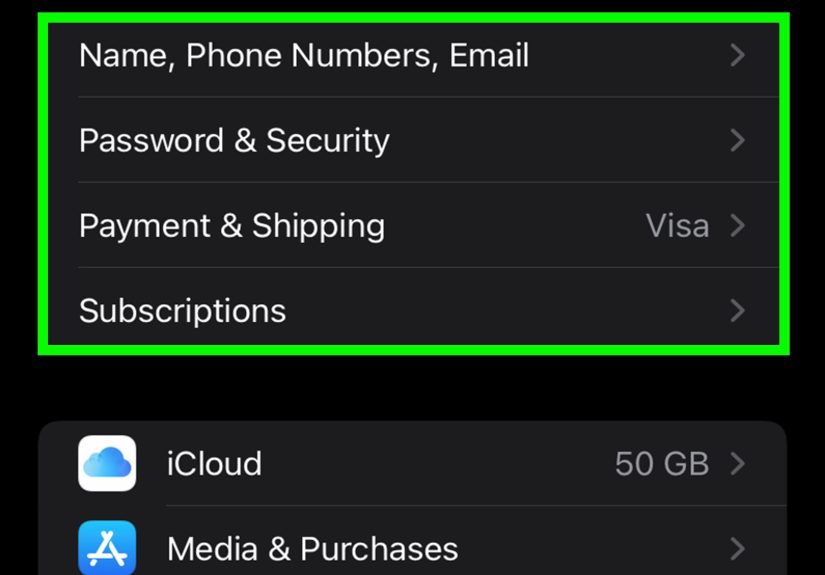
- Tap Sign-In & Security.
- Look for the list of email addresses and phone numbers that can be used to sign in.
This is especially helpful if you’re trying to answer questions like:
“Which email address is actually tied to this Apple Account?” or
“Why does Apple keep sending verification codes to that number?”
A quick note about “Hide My Email” and mystery addresses
If you use iCloud+ features like “Hide My Email,” you might see unique relay addresses when signing into third-party apps.
Those aren’t your Apple ID; they’re privacy tools that forward messages to your real inbox. In other words:
your Apple Account is still yoursjust wearing sunglasses and a fake mustache in public.
Method 3: Check the Apple Account used for the App Store (Media & Purchases)
Here’s the plot twist that causes most Apple ID confusion: your iPhone can be signed into one Apple Account for iCloud
and a different one for Media & Purchases (App Store, subscriptions, etc.).
This usually happens when someone:
shares purchases with family, had a long-ago “apps-only” account, or signed in with a different account for a single subscription
and then forgot they did that (a very human activity).
How to see the Media & Purchases account
- Open Settings.
- Tap your name (Apple Account banner).
- Tap Media & Purchases.
- You should see which Apple Account is used for purchases. Tap View Account for more details (you may be asked to authenticate).
If you discover that iCloud uses one account but Media & Purchases uses another, you’ve just solved a huge number of mysteries:
missing app purchases, subscription billing surprises, or “Why can’t I download that app again?” moments.
Real example: “My subscriptions are on one email, but my photos are on another”
Let’s say your iPhone is signed into iCloud with [email protected] (so Photos, iMessage syncing, device backups are tied there),
but your App Store is signed in with [email protected] (so purchases and subscriptions live there).
You’ll still be “you” on the phonebut your digital receipts are going to the other inbox.
Method 4: Find your Apple ID inside the App Store
If your main goal is “Which account is the App Store using right now?”, the App Store itself can tell you.
This is useful when Settings looks correct, but your downloads and subscriptions disagree.
- Open the App Store.
- Tap your profile icon (usually in the top-right corner).
- Look for the account info near the top of the account page (often an email address).
- From there, you can tap into account settings, subscriptions, and purchase history-related areas.
If the email here differs from what you see in your main Apple Account banner in Settings, that’s your confirmation:
you have separate sign-ins for iCloud vs purchases.
Method 5: Check saved logins (Passwords) for clues
This one is more of a detective move than a guaranteed answer, but it can help in real life:
your iPhone may have saved credentials for Apple-related sign-ins (like iCloud, Apple account pages, or services).
- Open Settings.
- Search for Passwords (or go to the Passwords section).
- Authenticate with Face ID/Touch ID/passcode.
- Search for entries related to Apple sign-in pages or “iCloud” and see which username/email is stored.
This won’t always reflect your current signed-in Apple Account, but it can help you remember which email you used.
It’s especially useful if you’re signed out and trying to piece together your past sign-ins.
Method 6: If you forgot your Apple ID and you’re signed out
If you’re not signed in and you genuinely don’t know which Apple Account you used, you’ll want to use Apple’s account recovery tools.
The key idea: don’t guess randomly until you lock yourself outuse the official recovery flow.
Safe recovery tips
- If you have another Apple device that’s already signed in (like an iPad or Mac),
check the Apple Account section thereoften the quickest path. - Look for Apple receipts or subscription emails in your inbox (search terms like “Apple,” “App Store,” or “receipt”).
The email address those were sent to can be a strong clue. - If you can access your account settings online, you may be able to confirm sign-in details and recovery options.
Always type official addresses yourself instead of clicking random links in messages.
If you’re worried about security (and it’s smart to be), avoid “helpful” third-party sites that promise to reveal your Apple ID.
Your Apple Account is tied to payments, backups, and your devicestreat it like the key to your house, not a spare key you leave under the mat.
Troubleshooting: When Apple Account options are missing or grayed out
Sometimes you open Settings and the Apple Account area is grayed out, or you can’t sign out. This is usually a settings restriction,
not a cosmic punishment.
1) Screen Time restrictions
Screen Time can restrict account changes. If you (or a parent/guardian) set restrictions, you may need to allow account changes:
- Go to Settings > Screen Time.
- Tap Content & Privacy Restrictions.
- Review settings that may block account changes (you may need the Screen Time passcode).
2) Work/school device management
If your iPhone is managed by a school or employer, device management profiles can limit sign-in changes.
In that case, your best next step is to talk to the organization’s IT/admin team.
3) Multiple accounts (iCloud vs purchases)
If your device uses different accounts for iCloud and Media & Purchases, you might feel like you’re logged into two parallel universes.
The fix is usually not “panic,” but “identify which account you want for which purpose,” then carefully sign out/in where appropriate.
Quick security checklist after you find your Apple ID
Once you’ve found your Apple Account, take two minutes to confirm it’s truly yours and properly protected.
This is the boring part that prevents the exciting part (account takeover).
- Review Sign-In & Security: confirm your email addresses and phone numbers are correct.
- Check trusted devices: make sure old devices you no longer own aren’t still associated.
- Turn on (or confirm) two-factor authentication: it adds a major layer of protection.
- Watch for phishing: if you get a message claiming your Apple ID is “locked” or “charged,” verify through official channelsnever through the message link.
- Set recovery options: adding trusted recovery methods can save you a headache later.
FAQ: The questions people ask right after they find their Apple ID
Is my Apple ID the same as my iCloud email?
Sometimes. Many people use an iCloud email as their Apple Account sign-in, but you can also use Gmail, Outlook, or a phone number.
What matters is what your account shows in Settings and Sign-In & Security.
Why does my iPhone show one account in Settings but another in the App Store?
Because your iPhone can use one account for iCloud services and a different one for Media & Purchases.
It’s not always recommended, but it’s possibleand it’s common enough to deserve its own troubleshooting section (hi, you’re here).
Can I switch my Apple ID?
You can sign out and sign in with a different Apple Account, but do it carefullyespecially if you use Find My, iCloud backups,
Photos, or have subscriptions. The cleanest approach is to first identify which account holds your data (iCloud) and which holds your purchases
(Media & Purchases), then decide what you actually want long-term.
Conclusion
To see your Apple ID on an iPhone, start with Settings and tap your name at the top.
For the most precise sign-in info, check Sign-In & Security.
And if apps, subscriptions, or downloads don’t match what you expect, inspect Media & Purchases and the App Store
profile pagebecause purchases can be tied to a different account.
Once you find your Apple Account, take a moment to confirm your sign-in emails/phone numbers and security settings.
It’s the easiest way to avoid future confusionand to keep your account from becoming someone else’s surprise new hobby.
Real-World Experiences: What usually happens (and what to do about it)
The “How do I see my Apple ID?” question almost never shows up in a calm, quiet moment. It arrives during a tiny tech emergency:
you’re trying to download an app five minutes before you need it, you just upgraded to a new iPhone, or your subscription payment bounced
and your phone suddenly acts like it doesn’t know you. Here are some common experiences people run intoplus the practical fix for each.
Experience 1: “My iPhone shows my name, but the email isn’t mine”
This often happens when the phone was originally set up with a parent’s or partner’s Apple Account, or when you bought a used phone that wasn’t fully signed out.
Sometimes it’s even more subtle: the name is yours, but the sign-in email is an old address you stopped using years ago.
The best move is to check Sign-In & Security first. If the account truly is yours, you may see multiple sign-in options listedyour current
email might be added, but not set as primary. If it’s not yours, don’t ignore it. A phone tied to someone else’s Apple Account can cause issues with iCloud backups,
Find My, and app downloads later.
Experience 2: “My Photos are on one account, but my apps are on another”
This is the classic split-personality setup: iCloud uses Account A, Media & Purchases uses Account B. People often discover it after upgrading phones:
they restore iCloud data successfully, then try to re-download paid apps and get prompted for a different password.
The fix is not “delete everything.” The fix is to identify which account owns what. Go to Settings > your name to confirm the iCloud account,
then check Media & Purchases to see the App Store account. Once you know what’s what, you can decide whether to keep them separate
or unify them (carefully, and preferably when you have timenot while standing in line at the coffee shop).
Experience 3: “My Apple Account is grayed out and I can’t change anything”
This is usually Screen Time doing its job a little too enthusiastically. If you can’t sign out or tap account options, check
Settings > Screen Time and look for restrictions that block account changes. This comes up a lot for teens’ phones or family devices,
but also for adults who set Screen Time once and forgot the passcode exists. If it’s a managed device (school/work), restrictions may be enforced by policy,
and you’ll need the admin team.
Experience 4: “I got a scary text about suspicious Apple ID activity”
Phishing attempts love panic. The message tries to push you into clicking a link or calling a number “right now.” The safer pattern is:
ignore the link, open Settings yourself, confirm your Apple Account, and check your subscriptions/purchases through official apps or official sites you type in.
If something looks wrong, change your password and review Sign-In & Security details and trusted devices. Your Apple Account protects a lottreat urgent messages
like uninvited salespeople: you don’t have to open the door.
Experience 5: “I’m sure I used my phone number, but Settings shows an email”
Both can be true. Many Apple Accounts allow sign-in with multiple emails and phone numbers. That’s why the Sign-In & Security page matters:
it lists all sign-in options associated with your Apple Account. People often mistake a contact email (where receipts go) for the sign-in email, or vice versa.
If you’re trying to sign in elsewhere, use one of the sign-in options shown there rather than guessing.
The recurring lesson from all these real-world scenarios is simple: your iPhone is usually telling the truthyou just have to ask it in the right place.
Start with the Apple Account banner in Settings, confirm sign-in options in Sign-In & Security, and always double-check Media & Purchases if the App Store
is behaving like it’s on a different team. Once you see the full picture, the “mystery Apple ID” problem usually goes from stressful to solvable in a few minutes.