Table of Contents >> Show >> Hide
- What “location history” means on an iPhone
- The quickest ways to check location history on iPhone
- Method 1: Check Apple Maps Visited Places
- Method 2: Turn on the settings that allow Apple to remember places
- Method 3: Use Google Maps Timeline for a more detailed history
- Method 4: Check location data in the Photos app
- Method 5: Use Find My to see your device’s current or last known location
- Method 6: Check Apple Maps Recents and Recently Viewed places
- Why your iPhone location history may look empty
- How to clear or limit location history on iPhone
- Which method is best?
- Common experiences people have when checking iPhone location history
- Final thoughts
If you have ever stared at your iPhone and thought, “I know I was at that coffee shop last Tuesday, but my brain has filed it under mystery,” you are not alone. The good news is that your iPhone can help. The slightly less exciting news is that there is no giant glowing button labeled Location History. Apple prefers a more subtle, treasure-hunt approach.
That means finding your iPhone location history depends on which kind of history you want. Are you trying to see places you visited in Apple Maps? A more detailed day-by-day travel log in Google Maps? The location attached to a photo? Or the current or last known location of your device in Find My? Each method gives you a different piece of the puzzle.
In this guide, you will learn the easiest ways to see location history on iPhone, what each method actually shows, why some people see almost nothing, and how to control or delete that information when you are done. Think of this as your practical field guide to digital breadcrumbs, minus the crumbs all over your keyboard.
What “location history” means on an iPhone
Before jumping into the steps, it helps to know one important truth: Apple and Google handle location history differently.
On an iPhone, Apple does not usually present a big, detailed route-by-route diary in the way many people expect. Instead, Apple’s built-in tools tend to show things like visited places, recent routes, maps activity, geotagged photos, and your device’s current or last known position. Google Maps Timeline, on the other hand, is often the more detailed option if you want a day-by-day travel record.
So if you are looking for a complete timeline of where you drove, stopped, and wandered around like a lost tourist in your own town, Google Maps may give you the richest history. If you want a more private, Apple-native view of places that matter to you, Apple Maps and iPhone settings are a better starting point.
The quickest ways to check location history on iPhone
Here is the short version:
- Apple Maps Visited Places: Best for checking places you have been in the Apple ecosystem.
- Google Maps Timeline: Best for the most detailed travel history, if you already use Google Maps.
- Photos app: Best for confirming where a photo or video was taken.
- Find My: Best for seeing your device’s current or last known location, not a full travel timeline.
- Maps Recents: Best for recently searched or viewed places, not a full history.
Now let’s break down each method the easy way.
Method 1: Check Apple Maps Visited Places
If you want an Apple-first option, this is usually the cleanest place to start. On supported iPhone versions, Apple Maps can show Visited Places, which works like a private record of places you have been.
How to view it
- Open the Maps app on your iPhone.
- Tap Places.
- Tap Visited Places.
- Browse or search by place name, category, address, date, or city.
- Tap All Visits if you want a fuller look at specific stops.
This is one of the most useful ways to see where your iPhone thinks you have been. It can help you remember restaurants, stores, hotels, neighborhoods, and other stops without turning your phone into a giant neon surveillance sign.
What makes it useful
Apple Maps Visited Places is convenient because it feels built into normal iPhone use. You do not need to install another app, and you can often filter by category or date, which is helpful when you vaguely remember going “somewhere that sold tacos and had suspiciously good parking.”
What to keep in mind
This is not always a perfect, minute-by-minute trip log. It is more of a place-based history than a dramatic travel documentary. If you want something more detailed, move to Google Maps Timeline.
Method 2: Turn on the settings that allow Apple to remember places
If Apple Maps is not showing much, the issue is often a setting, not your memory. For Apple Maps to build a useful history, a few location-related options usually need to be enabled.
What to check
- Open Settings.
- Go to Apps > Maps.
- Tap Location.
- Make sure location access is enabled, and turn on Precise Location if you want better accuracy.
- Then go to Settings > Privacy & Security > Location Services.
- Make sure Location Services is on.
- Scroll to System Services.
- Turn on Significant Locations & Routes.
On older iPhone guides, you may see names like Significant Locations or even Frequent Locations. Apple’s wording has changed over time, which explains why older tutorials sometimes look like they were written by someone exploring a different planet. The core idea is the same: your iPhone can remember meaningful places to improve Maps and related features.
Can you see the history directly in Settings?
On some older iOS versions, people were used to checking this kind of information more directly in Settings. On newer Apple guidance, the more user-friendly view is in Maps > Places > Visited Places, while the Settings area is more focused on permissions, privacy controls, and clearing history.
Method 3: Use Google Maps Timeline for a more detailed history
If you want the most detailed answer to the question “Where was I on Tuesday at 3:14 p.m. and why was I near a donut shop again?” then Google Maps Timeline is usually the strongest option.
How to view Google Maps Timeline on iPhone
- Open the Google Maps app.
- Tap your profile picture in the top-right corner.
- Select Your Timeline.
- Choose a date to see the places you visited, routes, and stops.
If you already use Google Maps for navigation, this can feel much more detailed than Apple’s built-in history. You may see your trips broken down by day, along with stops and movement between locations. For travelers, commuters, and people who constantly forget where they parked, it can be genuinely useful.
Important catch
Google Maps Timeline is not magic. It only works well if you turned it on and gave Google the permissions it needs. Timeline is off by default, and it can also be limited if Location Services or Background App Refresh are disabled. In other words, if Google Maps was never allowed to watch your travels, it cannot suddenly become your personal documentary editor.
When Google Maps is the better choice
Use Google Maps Timeline if you want:
- A day-by-day travel record
- More route detail
- A better memory tool for trips and errands
- More editing and deletion options for specific days or ranges
Method 4: Check location data in the Photos app
Sometimes you do not need a full travel history. Sometimes you just need proof that yes, you really did take that sunset photo in San Diego and not in your backyard with a suspiciously orange filter.
The Photos app can help if your photos and videos include GPS information.
How to see a photo’s location on iPhone
- Open the Photos app.
- Select a photo or video.
- Swipe up or tap the Info button.
- Look for the map or address attached to that image.
You can also browse photos on a map in your library, which is handy if you are trying to reconstruct a trip or remember where a certain picture was taken. This method only works for media with embedded location data, so if the camera location permission was off, the map may be blank.
Best use case
This is excellent when your question is not “Where have I been in general?” but “Where was I when I took this photo?” That is a much more targeted search, and often a much easier one.
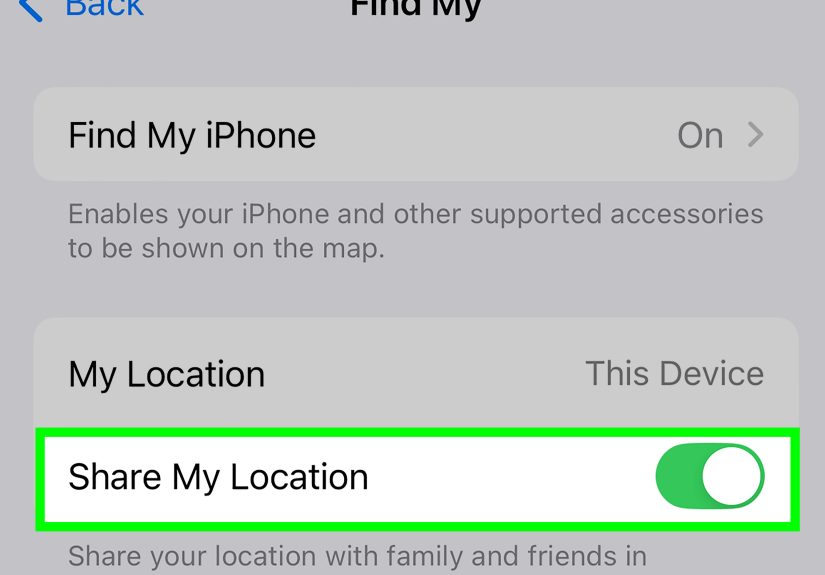
Method 5: Use Find My to see your device’s current or last known location
Find My is incredibly useful, but it is often misunderstood. It is designed to help you locate your iPhone, not to act as a long-term travel journal.
How to use it
- Open the Find My app.
- Tap Devices.
- Select your iPhone.
- View its current or last known location on the map.
You can also use iCloud Find Devices if you do not have your phone with you. This is great for tracking down a misplaced or stolen device, checking whether you left your phone somewhere, or confirming its last reported location.
Just remember: this is not the same as location history. It shows where your device is now, or where it was last seen, rather than giving you a rich archive of your movements over time.
Method 6: Check Apple Maps Recents and Recently Viewed places
If you only need a recent clue, Apple Maps also keeps a list of recently searched, viewed, or routed places. This is not full location history, but it is useful when you are trying to find that address you looked up yesterday and now absolutely cannot remember.
How to find it
- Open Maps.
- Swipe up to open the search card.
- Look under Recents or Recently Viewed.
This can be a lifesaver for everyday tasks, especially if you recently searched for a place but did not actually save it. It is less like “Where have I been?” and more like “What have I recently been obsessed with finding?”
Why your iPhone location history may look empty
If you open all these tools and see almost nothing, do not panic. Your iPhone is not gaslighting you. Usually, one of these issues is the reason:
Location Services is turned off
If system-wide location access is off, Apple and Google will have very little to work with.
The app permissions are too limited
Maps, Photos, or Google Maps may not have enough permission to access location data.
Precise Location is off
This does not always block everything, but it can reduce accuracy.
Background App Refresh is off
This especially matters for Google Maps Timeline, which may need background activity to build a better history.
Timeline was never enabled
Google Maps Timeline is off by default, so a blank history may simply mean it was never turned on.
You are using a work or school Google account
Some managed accounts have restrictions that can limit Timeline availability.
How to clear or limit location history on iPhone
Sometimes you want to find your history. Sometimes you want to erase it like it never happened, especially after a week of surprise fast-food stops you prefer to classify as “private research.”
Clear Apple Maps visited places
- Open Maps.
- Tap Places > Visited Places.
- Scroll down and tap Clear History.
Change how long Apple Maps keeps visited places
Apple lets you choose how long to keep visited places, such as 3 months, 1 year, or Forever. That is a nice middle ground between “remember everything” and “my phone knows too much.”
Clear significant locations in Settings
- Open Settings.
- Go to Privacy & Security > Location Services > System Services.
- Tap Significant Locations & Routes.
- Tap Clear History.
Delete Google Maps Timeline data
Google Maps gives you flexible options. You can delete a single day, a range of days, or your full Timeline. You can also set auto-delete rules so older data disappears automatically.
Which method is best?
The best method depends on what you are trying to do.
- Need a general Apple-based history? Use Apple Maps Visited Places.
- Need detailed daily movement? Use Google Maps Timeline.
- Need to verify a photo’s location? Use Photos.
- Need to locate your phone right now? Use Find My.
- Need a recently searched address? Check Maps Recents.
In real life, many people end up using more than one method. Apple Maps is good for built-in convenience. Google Maps is better for detail. Photos fills in visual memory. Find My handles the “where is my actual phone” crisis when your device is hiding under a blanket like it pays rent.
Common experiences people have when checking iPhone location history
One of the most common experiences is using location history after a trip. Someone gets home from a weekend getaway, uploads photos, and suddenly realizes they forgot the name of the beach, café, museum, or tiny bookstore they loved. Apple Maps Visited Places can jog the memory, while Google Maps Timeline can fill in the route between stops. Photos often acts like the final witness that ties the whole story together. Between the map, the timestamps, and the geotagged pictures, a fuzzy memory turns into a very clear travel record.
Another common experience happens much closer to home. A person remembers going somewhere useful a few days ago, maybe a repair shop, a clinic, or a friend’s new apartment, but cannot remember the exact address. Instead of texting three people or retracing the whole trip in their head like a detective drama, they open Maps Recents or Timeline and find it in seconds. It is not glamorous, but it is wildly practical.
Some people discover location history because they are trying to solve a tiny mystery. Maybe they are sure they left their phone at school, at work, or in the car. Find My becomes the hero here, because it can show the current or last known location of the device. That does not provide a long historical narrative, but it is often exactly what is needed in a stressful moment. No one cares about a full timeline when the phone is missing and panic levels are climbing.
Then there are people who check location history for personal organization. They use it to remember routines, confirm which days they went to the gym, recall when they visited a store, or piece together an especially chaotic week. In those cases, location history acts like a backup memory. It is not perfect, and it should not replace your calendar, but it can be surprisingly helpful when your week turns into a blur of errands, classes, appointments, and “How is it already Thursday?”
Privacy is another big part of the experience. Many users are genuinely surprised the first time they realize how much their phone can remember. They go in looking for a single place and come out with a whole new appreciation for privacy settings. That often leads to smarter choices, like limiting app permissions, turning off Timeline if they do not need it, shortening how long visited places are stored, or checking which photos include location data before sharing them online.
And of course, there is the most relatable experience of all: realizing your iPhone location history can be useful and slightly humbling at the same time. It can remind you of a favorite bakery, a memorable road trip, a hidden park, or the exact number of times you somehow ended up at the same taco place in one week. Technology can be deeply practical, mildly eerie, and occasionally hilarious all at once. Location history on iPhone is a perfect example.
Final thoughts
If you want to see location history on iPhone, the trick is knowing where to look. Apple Maps Visited Places is the best built-in option for many users, Google Maps Timeline is the strongest choice for detailed travel records, Photos is perfect for image-based location clues, and Find My is ideal for current or last known device location.
The main takeaway is simple: your iPhone can remember more than most people realize, but that information is spread across different apps and settings. Once you know the right method, checking your location history becomes much easier. And once you know how to delete or limit that history, you stay in control.
That is really the sweet spot: useful when you need it, private when you do not, and hopefully a little less confusing than Apple’s usual habit of hiding helpful features three menus deep.