Table of Contents >> Show >> Hide
- Why Fortnite Isn’t “Just Install It” on Mac Anymore
- The Best Option for Most People: Play Fortnite on Mac with Xbox Cloud Gaming
- Where Epic Games Fits In: Your Account, Cosmetics, and Cross-Play
- Backup Cloud Options for Mac: GeForce NOW and Amazon Luna
- The “Epic Games” Way on Mac (Sort Of): Install Windows on an Intel Mac and Play Fortnite Normally
- Quick FAQ: Playing Fortnite on a Mac in 2025
- Conclusion: Your Best Fortnite-on-Mac Game Plan
- Real-World Experiences: What Playing Fortnite on a Mac Feels Like (and What Mac Players Learn Fast)
Fortnite on a Mac is a little like trying to bring a skateboard onto an airplane: you’re not doing anything evil, but a giant company policy might still say, “Nope.” The good news is you can absolutely play Fortnite on macOS todayjust not the “download it and run it natively like it’s 2018” way.
In this guide, you’ll learn the most reliable ways to play Fortnite on a Mac right now, with the spotlight on Xbox Cloud Gaming (the easiest method for most people) and how Epic Games fits into the picture (your account, cosmetics, and cross-play life). I’ll also cover a couple of legit backup optionsbecause cloud gaming is amazing… until your Wi-Fi decides it’s time for a personal growth journey.
Why Fortnite Isn’t “Just Install It” on Mac Anymore
Let’s clear the confusion first: Fortnite is not currently available as a native macOS download the way it is on Windows or consoles. Epic’s own support documentation states that Fortnite isn’t available on Mac, and points Mac players to cloud-streaming options instead.
If you previously installed Fortnite on a Mac years ago, you may have seen it stuck on an older version with limited features. That’s not your Mac being dramaticFortnite updates move fast, and the modern ecosystem expects you to be on current builds for online modes, matchmaking, shops, and events.
So, what’s the plan? You have two practical routes:
- Stream Fortnite to your Mac (Xbox Cloud Gaming is the headline act).
- Run Windows on an Intel Mac and play the Windows version (the “I brought tools and I’m not afraid to use them” option).
The Best Option for Most People: Play Fortnite on Mac with Xbox Cloud Gaming
If you want to play Fortnite on a Mac without turning your weekend into an IT internship, Xbox Cloud Gaming is the move. It runs in a browser, which means your Mac doesn’t need to be a gaming beastyour internet connection does most of the heavy lifting.
What you need
- A Microsoft account (free).
- A supported browser (Safari, Chrome, or Edge are common choices on macOS).
- Stable internet (more on “stable” in a second).
- Controls: a controller is ideal; keyboard/mouse may work depending on how you play and the platform’s supported input.
Here’s the surprisingly great part: you don’t need a paid Xbox Game Pass subscription to play Fortnite through Xbox Cloud Gaming. Fortnite is a free-to-play title that can be launched with a free account.
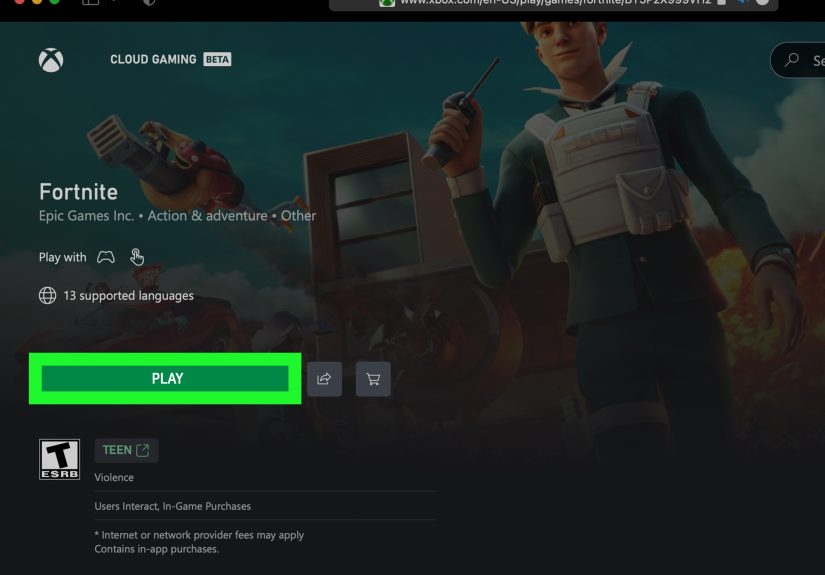
Step-by-step: How to launch Fortnite on Xbox Cloud Gaming (on Mac)
- Sign in to your Microsoft account (or create one if you don’t have it).
- Open your browser and go to the Xbox Cloud Gaming play site.
- Search for Fortnite and select it.
- Click Play.
- If prompted, connect a controller (Bluetooth is common on Macs) or confirm your control method.
- Let the stream load, then go full-screen and drop in.
Controller vs. keyboard and mouse: what feels best on Mac?
For many players, a controller is the smoothest experience on cloud gaming because it’s consistent across devices and easier to map reliably. If you’re coming from PC Fortnite and your muscle memory lives on keyboard and mouse, you’ll be happy to know that Fortnite can support mouse and keyboard in Xbox Cloud Gaming in some contextseven if it isn’t always labeled with a big flashy “KBM Supported” badge.
Tip: If your mouse feels floaty, that’s usually stream latency or browser-level smoothing. Lower your stream resolution (when available), close heavy background apps, and use Ethernet if you can.
How to make Xbox Cloud Fortnite feel less “laggy”
Cloud gaming can feel amazing… until it doesn’t. Most problems come down to latency (delay) and packet loss (your internet dropping bits like breadcrumbs). Here’s how to improve your odds of a clean match:
- Use Ethernet if possible. A cheap USB-C-to-Ethernet adapter can be a bigger upgrade than a new mousepad.
- Use 5 GHz Wi-Fi (or Wi-Fi 6/6E) instead of 2.4 GHz.
- Pause downloads and streaming video in the background (yes, even “just one” 4K YouTube tab).
- Play closer to the router or use a mesh node if your room is a Wi-Fi dead zone.
- Try a different browser if performance is weird. Sometimes Safari feels best; sometimes Chrome behaves better. Browsers are like that.
Troubleshooting Xbox Cloud Gaming on Mac
- Black screen or endless loading: Refresh the page, sign out/in, or switch browsers.
- Controller not detected: Re-pair Bluetooth, try a wired connection, or confirm macOS sees the controller in Bluetooth settings.
- Audio crackling: Close other audio apps, disable audio enhancements, and reduce other network usage.
- Input delay: Use Ethernet, reduce background apps, and avoid crowded Wi-Fi networks (public Wi-Fi is not your duo partner).
Where Epic Games Fits In: Your Account, Cosmetics, and Cross-Play
Even if you’re playing via Xbox Cloud Gaming, Epic Games is still centralFortnite is an Epic game, and your skins, V-Bucks purchases, and progression generally live through your Epic ecosystem (with platform rules affecting some purchases and wallet balances).
Do you need the Epic Games Launcher on Mac?
For Fortnite specifically, installing the Epic Games Launcher on macOS won’t give you a modern native Fortnite client right now. But the launcher can still be useful for:
- Managing your Epic account and security settings.
- Accessing other Mac-compatible Epic Games Store titles.
- Keeping your Epic login handy if you also play on Windows, console, or mobile.
Link your accounts (recommended)
If you bounce between platforms (Mac stream today, console tomorrow, friend’s PC on the weekend), account linking helps keep things consistent. In general, you’ll want your Epic account connected to the platform you’re using so your cosmetics and progression show up where they should.
Practical example: You start Fortnite on Xbox Cloud Gaming, then later install Fortnite on a Windows PC using the Epic Games Launcher. With the right linking, your locker should still feel like your locker, not “Who is this account and why does it own five identical pickaxes?”
Backup Cloud Options for Mac: GeForce NOW and Amazon Luna
Xbox Cloud Gaming is the main recommendation for this article, but it’s smart to have a Plan B. Epic itself points Mac players to multiple cloud-streaming services, including NVIDIA GeForce NOW and Amazon Luna.
Option A: Play Fortnite on Mac with NVIDIA GeForce NOW
GeForce NOW streams games from NVIDIA’s servers and can run on macOS through its supported apps or browser-based experience (depending on device and region). The big upside is that GeForce NOW often feels “PC-like” in how it handles performance and input.
Typical setup flow:
- Create or sign in to your GeForce NOW account.
- Link your Epic account when prompted.
- Search for Fortnite and hit Play.
- Pick your input method (controller or keyboard/mouse when supported).
Heads-up: Free tiers can involve queues, and peak hours can feel like waiting for a theme park rideexcept the ride is “getting eliminated by someone named xX_BuildLord_420_Xx.”
Option B: Play Fortnite on Mac with Amazon Luna
Amazon Luna is another cloud streaming option that supports macOS via browser. In the U.S., it can be especially appealing if you already have Amazon Prime, since Fortnite may be available to stream without an extra cost depending on current Luna offerings and availability.
Typical setup flow:
- Sign in to Luna (and Prime if applicable).
- Link or sign in to your Epic account.
- Launch Fortnite and play via stream.
The “Epic Games” Way on Mac (Sort Of): Install Windows on an Intel Mac and Play Fortnite Normally
If you have an Intel-based Mac, you can install Windows using Boot Camp and play the full Windows version of Fortnite like a regular PC playerupdates, performance settings, competitive tweaks, and all.
Important reality check: Boot Camp is for Intel Macs. Apple Silicon Macs (M1/M2/M3/M4) don’t use Boot Camp the same way, so this route is mainly for older MacBook Pros, iMacs, and Mac minis that still run Intel.
What you’ll need
- An Intel Mac with enough free storage (Fortnite + Windows is not a “16 GB free space” situation).
- A Windows installation (Boot Camp Assistant helps guide the setup).
- Time, patience, and the willingness to restart your Mac to switch operating systems.
Boot Camp + Fortnite: the basic steps
- Back up your Mac (because adulthood is mostly backups and receipts).
- Open Boot Camp Assistant and follow the prompts to install Windows.
- Once in Windows, install system updates and Boot Camp drivers.
- Download the Epic Games Launcher on Windows.
- Install Fortnite and sign into your Epic account.
- Adjust graphics settings for stable FPS (competitive Fortnite loves stability).
When Boot Camp is worth it: You want the most “native PC” feel, you play competitively, or your internet isn’t good enough for cloud streaming. If your Wi-Fi is unreliable, local play can be a lifesaver.
Quick FAQ: Playing Fortnite on a Mac in 2025
Can I play Fortnite natively on macOS?
Right now, the practical answer for most players is no. The recommended path is cloud streaming (Xbox Cloud Gaming, GeForce NOW, or Amazon Luna), or Windows on an Intel Mac.
Do I need Xbox Game Pass Ultimate for Fortnite on Xbox Cloud Gaming?
No. Fortnite is a free-to-play game on Xbox Cloud Gaming and can be played with a free Microsoft account.
Will my Epic cosmetics carry over?
In many cases, yesespecially when you’re properly signed in and linked on the platforms you use. However, certain purchases and wallet balances can be platform-specific, so don’t be shocked if “the same V-Bucks” doesn’t behave identically everywhere.
What’s the best controller for Fortnite on Mac?
Many modern Bluetooth controllers work well, including Xbox controllers and PlayStation controllers. The best one is the one your Mac recognizes reliably and doesn’t randomly disconnect mid-fight like it’s trying to protect your mental health.
Conclusion: Your Best Fortnite-on-Mac Game Plan
If you want the easiest, fastest route, go with Xbox Cloud Gaming in your Mac browser. It’s free to start (no paid subscription required for Fortnite), it works on modern Macsincluding Apple Siliconand you can be in a match faster than it takes to argue about which POI is “actually underrated.”
Use Epic Games as your anchor: keep your account secure, link platforms properly, and treat your Epic login like the key to your locker room. If cloud gaming doesn’t fit your internet situation, and you have an Intel Mac, Boot Camp + Windows is the most “traditional” way to run Fortnite with PC-like control and settings.
And if you like having options (you should), keep GeForce NOW and Amazon Luna in your back pocket. Fortnite on Mac is absolutely doableyou’re just doing it the 2025 way: streamed, flexible, and mildly dependent on whether your router is in a good mood.
Real-World Experiences: What Playing Fortnite on a Mac Feels Like (and What Mac Players Learn Fast)
Mac players who switch to cloud Fortnite often describe the first session as a mix of excitement and suspicionlike, “Wait, this is actually working?” The novelty is real: you open a browser tab, sign in, and suddenly you’re dropping into Battle Royale on a laptop that was previously used for school, work, and approximately 900 open tabs. The surprise isn’t that it runs. The surprise is that it runs well when your connection is solid.
One common experience is realizing that internet quality matters more than Mac specs. Players with a powerful MacBook Pro sometimes get worse results than someone on a basic MacBook Airsimply because the Air is plugged into Ethernet while the Pro is fighting for Wi-Fi in a crowded apartment building. People learn quickly that “fast internet” isn’t just the number your provider advertises. It’s stability, low latency, and not sharing bandwidth with three simultaneous video calls and a 4K movie stream.
Another recurring theme is controller convenience. Many Mac players try keyboard and mouse first because Fortnite “feels like a PC game,” but cloud input can be finicky depending on the service and browser. A controller often becomes the simplest way to get consistent input with minimal setup. Players describe the “aha moment” as the match where they stop fighting their controls and start fighting other people (which is the whole point). After that, they’ll keep a controller charged like it’s a sacred artifact.
Mac players also learn to build a little “pre-game ritual” to reduce lag: close heavy apps, pause downloads, and avoid peak Wi-Fi chaos. Some switch browsers if a stream feels blurry or stuttery. Others discover that playing at off-peak times can feel smoother because cloud servers and local networks are less congested. The vibe is: cloud gaming works best when you treat it like a performanceset the stage, then play.
There’s also a social side. Players who can’t install Fortnite locally still want to squad up, and cloud gaming makes that possible. A lot of Mac gamers report that it’s easier to say “Yes” to friends’ invites because there’s no huge download or update wait. You can jump in quickly, even if you only have 30–45 minutes. That changes Fortnite from “a big gaming session” into “a quick hangout,” which is kind of perfect.
Finally, Mac players tend to become surprisingly good troubleshooters. After a few sessions, they can tell the difference between “Fortnite lag” and “Wi-Fi lag.” They learn what happens when Bluetooth gets flaky, when a browser update changes behavior, or when their router is positioned like it’s intentionally hiding from them. The end result is confidence: once you’ve set up a reliable cloud routine, playing Fortnite on a Mac stops feeling like a workaround and starts feeling like a normal optionjust one that depends on a strong connection and a little setup savvy.