Table of Contents >> Show >> Hide
- Why Disable Animations in Windows 10?
- Method 1: Turn Off the Main Animation Toggle in Windows 10
- Method 2: Disable More Visual Effects Through Performance Options
- Which Method Is Better?
- What Happens After You Turn Off Animations?
- Common Reasons the Setting May Not Seem to Work
- Should You Disable Animations on Every Windows 10 PC?
- FAQ: How to Disable Animations in Windows 10
- Does turning off animations make Windows 10 faster?
- Will disabling animations improve gaming performance?
- Can I turn animations back on later?
- What is the difference between “Show animations in Windows” and “Adjust for best performance”?
- Will this change the way Windows looks?
- Should I keep font smoothing on?
- Does this help with accessibility?
- Is this still relevant if Windows 10 support has ended?
- Real-World Experiences: What Users Notice After Turning Off Animations
- Conclusion
Windows 10 loves a little drama. Menus glide in, windows whoosh around, and panels fade like they are auditioning for a tech-themed magic show. It looks polished, sure, but on older PCs or low-memory machines, those visual effects can make the system feel slower than it really is. The good news is that you can turn them off in just a few clicks.
This guide walks you through exactly how to disable animations in Windows 10, what changes after you do it, which settings matter most, and when the tweak is actually worth using. If you want a snappier desktop without buying new hardware, this is one of the easiest performance tweaks you can make.
Why Disable Animations in Windows 10?
Animations are part of Windows 10’s visual design. They make the interface feel smoother and more modern by adding motion when you open menus, minimize windows, switch views, or scroll through certain interface elements. The catch is simple: those effects still use system resources. On a newer PC, that overhead may be tiny. On an older laptop, budget desktop, or machine already juggling too many background tasks, it can add just enough lag to feel annoying.
Disabling animations can help if you notice any of the following:
- Windows open and close with a slight delay
- The Start menu feels sluggish
- Task switching looks choppy
- Your PC feels “heavy” even during light use
- You want a cleaner, less distracting interface
It is also a useful accessibility tweak. Some people simply prefer less motion on screen. Less movement can mean less visual clutter, less distraction, and a more straightforward desktop experience.
Method 1: Turn Off the Main Animation Toggle in Windows 10
If you want the quickest fix, start here. Windows 10 includes a simple setting called Show animations in Windows. Turn that off, and many interface animations disappear right away.
Steps
- Click the Start button and open Settings.
- Select Ease of Access.
- Click Display in the left sidebar.
- Scroll to the section called Simplify and personalize Windows.
- Find Show animations in Windows and switch it Off.
That is the easiest method, and for many users, it is enough. Menus and windows will feel more immediate, and the system often seems faster even if you have not changed any hardware at all.
Bonus detail: this setting can also reduce animation effects in some Microsoft apps, including Office, because those apps follow the broader Windows animation preference. So yes, one small toggle can calm down more than just the Start menu.
Method 2: Disable More Visual Effects Through Performance Options
If you want a deeper performance-focused tweak, head to Performance Options. This is where Windows 10 hides the more serious controls for animations, shadows, fades, and other visual flourishes.
Fast Route to Open It
- Click the search box on the taskbar.
- Type Adjust the appearance and performance of Windows.
- Open the result that appears.
You will now see the Performance Options window on the Visual Effects tab.
Option A: Turn Off Almost Everything
If your goal is maximum speed, select Adjust for best performance. This disables most visual effects in one shot.
This option is great for:
- Older laptops
- PCs with limited RAM
- Systems that feel slow in everyday use
- Users who do not care about interface polish
There is one small catch: text can look a bit rougher if every option gets disabled. If that bothers you, use the custom method below instead of the full performance preset.
Option B: Use a Custom Setup
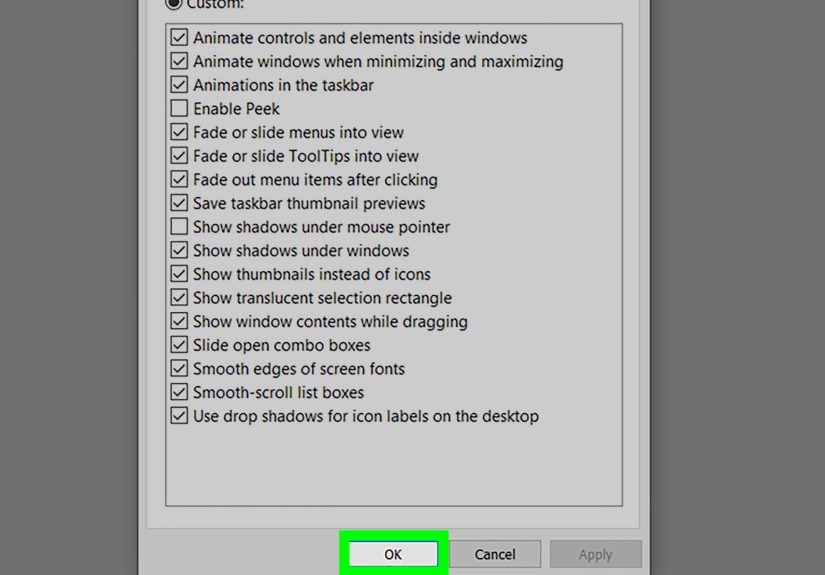
If you want Windows 10 to feel faster without looking like it time-traveled from an office basement in 2006, choose Custom and uncheck the biggest visual offenders while keeping the useful stuff.
A balanced custom setup often means turning off effects such as:
- Animate windows when minimizing and maximizing
- Animations in the taskbar
- Fade or slide menus into view
- Fade or slide ToolTips into view
- Fade out menu items after clicking
At the same time, many users prefer to leave Smooth edges of screen fonts enabled so text stays crisp and readable. That gives you better speed without making your desktop look harsh.
After choosing your settings, click Apply, then OK. If you do not notice the change immediately, sign out and back in or restart the PC.
Which Method Is Better?
Here is the simple answer:
- Use Method 1 if you want the fastest, easiest fix.
- Use Method 2 if you want more control or want to squeeze out more performance.
For most people, the best approach is to start with the main animation toggle in Settings. If the PC still feels sluggish, move on to Performance Options and disable more effects manually. Think of it like trimming a hedge before you bring out the chainsaw.
What Happens After You Turn Off Animations?
Windows 10 usually feels more immediate. Menus pop open faster, minimizing and maximizing happens without the extra swoop, and general navigation can feel a little lighter. The improvement is often more about responsiveness than raw benchmark numbers. In other words, the system may not become a superhero overnight, but it can stop acting like it just woke up from a nap.
You may notice:
- Faster-feeling window movement
- Less lag in older hardware
- Reduced visual distraction
- A more plain, stripped-down interface
You probably will not notice:
- Huge gaming performance gains
- Miraculous fixes for hardware problems
- Major speed boosts if your PC is already high-end
So yes, this tweak helps, but it is not magic. If your computer is slow because the drive is failing, startup apps are out of control, or RAM is maxed out, disabling animations helps only part of the problem.
Common Reasons the Setting May Not Seem to Work
If you turned off animations and Windows 10 still looks animated, a few things may be going on.
1. You Changed Only One Setting
The main Settings toggle removes many animations, but not always every visual effect. If you still see extra motion, check Performance Options too.
2. You Need to Sign Out or Restart
Some effects update immediately, while others may not fully change until you restart the shell session or reboot the PC.
3. A Specific App Has Its Own Visual Effects
Some apps use their own animations regardless of the general Windows style. That means Windows can be calm while one app still insists on being theatrical.
4. Your Slowness Has Another Cause
If the system is crawling because of malware, low storage, overheating, too many startup apps, or driver issues, animations are not the main villain.
Should You Disable Animations on Every Windows 10 PC?
Not necessarily. On a modern desktop with a solid-state drive, plenty of RAM, and a decent processor, animations usually do not hurt much. In fact, some people like the smoother look and do not want the interface to feel too abrupt.
But if you use an older PC, a low-cost laptop, a work machine with lots of background apps, or simply prefer a cleaner interface, turning off animations is absolutely worth trying. It is reversible, safe, and free. In the world of computer tweaks, that is basically the holy trinity.
FAQ: How to Disable Animations in Windows 10
Does turning off animations make Windows 10 faster?
It can make Windows 10 feel faster and more responsive, especially on older or lower-spec hardware. The biggest improvement is usually in how quickly the interface reacts, not in dramatic benchmark gains.
Will disabling animations improve gaming performance?
Usually not in a major way. This tweak mainly affects the desktop interface, menus, and general navigation. Games rely more on the GPU, CPU, drivers, and in-game settings than on desktop animations.
Can I turn animations back on later?
Yes. Just return to the same settings and switch them back on. Nothing here is permanent.
What is the difference between “Show animations in Windows” and “Adjust for best performance”?
The first option is a simpler on-off switch for many standard animations. The second is a broader performance preset that disables a wider range of visual effects, including animations, fades, and shadows.
Will this change the way Windows looks?
Yes, a little. The system may feel plainer, more immediate, and less glossy. If you disable too many effects, Windows 10 can look a bit more basic, but many users happily trade style for speed.
Should I keep font smoothing on?
In most cases, yes. If you use a custom visual effects setup, keeping Smooth edges of screen fonts enabled usually helps text stay comfortable to read.
Does this help with accessibility?
For some users, yes. Reducing motion can make the interface feel less distracting and more comfortable to use.
Is this still relevant if Windows 10 support has ended?
Yes. Many people still use Windows 10 on existing hardware, and these settings still work. That said, if your PC remains on Windows 10 after support has ended, you should think seriously about your long-term security plan.
Real-World Experiences: What Users Notice After Turning Off Animations
In real-world use, disabling animations in Windows 10 rarely feels like a dramatic makeover on a powerful machine. Instead, it feels like tiny delays vanish from all the places where you used to shrug and say, “That was weirdly slow.” A user clicks the Start menu and it opens instantly. A window minimizes without the extra slide. Task switching feels sharper. Nothing about the change is flashy, which is funny, because that is exactly the point.
People on older laptops tend to notice the biggest difference. On machines with modest processors, integrated graphics, and limited memory, the Windows interface often feels slower than the hardware should allow. It is not always a catastrophic slowdown. It is more like a constant layer of drag. You click, then wait half a beat. You open File Explorer, then watch it glide into existence like it is trying to be elegant for no reason. When animations are disabled, that little half-second hesitation can disappear across dozens of everyday actions. Over time, that makes the PC feel less frustrating.
Office users sometimes notice the change too, especially when jumping between documents, settings windows, and side panels all day. The effect is subtle, but subtle improvements matter when repeated hundreds of times. The computer starts to feel more obedient. You stop noticing the interface and spend more time on the task itself. That is not a glamorous review, but it is a useful one.
Another common experience is psychological. Even when the measurable performance gain is small, users often report that the computer feels faster. That is not fake. Perceived speed matters. If the interface responds instantly instead of performing a decorative little dance, the system feels more efficient. Human brains are wonderfully easy to impress when delays disappear.
There is also a split in preference. Some users love the stripped-down look because it feels clean and businesslike. Others turn the setting off, use it for a day, then switch animations back on because the desktop feels too abrupt or plain. That is completely normal. This tweak is not about right versus wrong. It is about which experience matches your hardware and your patience level.
On work PCs, school laptops, or family computers that are “not broken, just tired,” turning off animations is often one of the first tweaks that actually feels worth the effort. It is easy, safe, and reversible. No registry gymnastics. No weird third-party software. No ritual sacrifice to the technology gods. Just a simple settings change that can make Windows 10 feel more direct, less showy, and a little less determined to turn every click into a tiny theatrical performance.
Conclusion
If you want a faster-feeling desktop without spending money, disabling animations in Windows 10 is one of the smartest small tweaks you can make. Start with the simple Show animations in Windows toggle. If you want more improvement, go deeper into Performance Options and trim the visual effects that slow the interface down the most.
This is not a miracle cure for every slow computer, but it is a practical, low-risk upgrade to everyday usability. And honestly, if your PC has been overacting every time you open a menu, it might be time to cancel the performance.