Table of Contents >> Show >> Hide
- Quick reality check: Windows 7 and internet safety
- Before you start: what you’ll need
- Method 1: Use your Android as a Wi-Fi hotspot (easiest for most people)
- Method 2: USB tethering (fast, stable, and secretly the MVP)
- Method 3: Bluetooth tethering (slower, but useful when Wi-Fi is unavailable)
- Troubleshooting: when things go weird (and they will)
- Data & security: don’t melt your plan or your patience
- Wrap-up: pick the method that matches your situation
- Real-world experiences: what actually happens when you try this (and what you learn)
Got a Windows 7 computer that’s offline like it’s 2009 (because it is), and you need internet right now?
Good news: your Android phone can act like a tiny, pocket-sized internet provider. Bad news: Windows 7 can be…
let’s say “selective” about cooperating. The great news: you can still make this work with a few practical steps.
In this guide, you’ll learn three reliable methodsWi-Fi hotspot, USB tethering, and Bluetooth tetheringplus
troubleshooting for the classic “Connected… No Internet” drama. We’ll keep it clear, specific, and just funny
enough that you won’t fall asleep halfway through Device Manager.
Quick reality check: Windows 7 and internet safety
Windows 7 no longer receives security updates from Microsoft, which means connecting it to the internet is like
leaving your front door unlocked and taping a “Please be respectful” note to it. If you must go online, keep your
session short, avoid logging into sensitive accounts when possible, and consider using a modern, supported device
for banking and passwords. If upgrading isn’t an option today, at least use a reputable browser and keep your
Android phone locked down with a strong hotspot password.
Before you start: what you’ll need
- An Android phone with a working mobile data connection (or Wi-Fi, if you plan to “share Wi-Fi” via tethering).
- A Windows 7 PC with at least one of these: Wi-Fi adapter, USB port, or Bluetooth.
- Your phone’s charging cable (for USB tethering). Bonus: a stable cable that doesn’t disconnect if you breathe near it.
- Carrier plan that allows hotspot/tethering (some carriers require it and may throttle speeds).
- Admin access on Windows 7 for driver installs and network resets.
Method 1: Use your Android as a Wi-Fi hotspot (easiest for most people)
If your Windows 7 computer has Wi-Fi, this is usually the smoothest option. Your phone creates a Wi-Fi network,
your PC joins it, and the internet flows. Like magicexcept you’ll still need a password, because the year is 2026
and we’ve learned things.
Step A: Turn on the hotspot on Android
- Open Settings on your Android phone.
- Go to Network & Internet (or Connections) → Hotspot & tethering (wording varies by brand).
- Tap Wi-Fi hotspot (or Mobile hotspot) and turn it On.
- Set a network name (SSID) and a strong password (WPA2/WPA3 if available; WPA2 is the common safe choice for older devices).
- If your phone offers a band option, choose 2.4 GHz for best Windows 7 compatibility.
Step B: Connect Windows 7 to your phone’s Wi-Fi
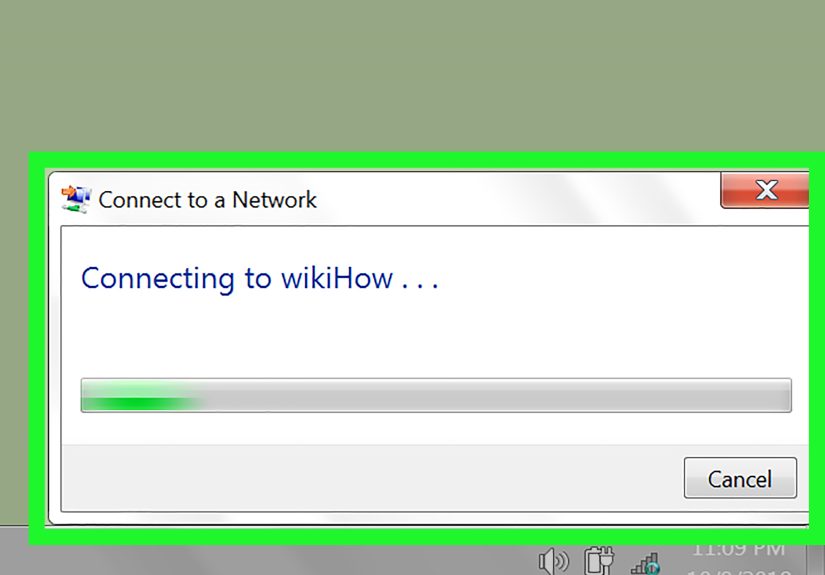
- Click the network icon in the system tray (bottom-right, near the clock).
- Find your hotspot name (SSID) in the list and click Connect.
- Enter the hotspot password and click OK.
- Open a browser and test a simple site you know loads fast (avoid judging your connection based on a page with 97 ads and a video auto-playing in 4K).
Compatibility tips (because Windows 7 has “preferences”)
- Use 2.4 GHz if the PC won’t even see the hotspot. Many older Wi-Fi adapters don’t support 5 GHz.
- Keep the hotspot close (same room, ideally a few feet away). Walls and distance can wreck signal quality.
- Rename the hotspot if the SSID has odd symbols. Windows 7 sometimes reacts like it just saw a ghost.
- Try a simpler password (still strong, just fewer exotic characters) if Windows 7 refuses to connect.
Method 2: USB tethering (fast, stable, and secretly the MVP)
USB tethering is often more stable than Wi-Fi, and it charges your phone while you use it. It’s the “two birds,
one cable” approach. On many systems, Windows detects your phone as a network adapter using RNDIS/Internet Sharing
drivers, then routes internet through it.
Step A: Enable USB tethering on Android
- Connect your Android phone to the Windows 7 PC using a USB cable.
- On the phone, open Settings → Hotspot & tethering.
- Turn on USB tethering.
- If the option is grayed out, try a different USB cable/port, and confirm your phone is unlocked.
Step B: Let Windows 7 install the network driver (and confirm it actually worked)
- Wait 30–90 seconds after enabling USB tethering. Windows may show “Installing device driver software.”
- Go to Control Panel → Network and Sharing Center → Change adapter settings.
- Look for a new adapter (often labeled something like Remote NDIS, USB Ethernet, or Internet Sharing).
- Open a browser and test the connection.
If USB tethering doesn’t work: fix the driver the Windows 7 way
Sometimes Windows 7 won’t automatically install the correct tethering driver, or it installs something “close
enough” that isn’t actually correct. Here’s how to nudge it into behaving:
- Right-click Computer → Manage → open Device Manager.
- Expand Network adapters. Also check Other devices for anything with a yellow warning icon.
- Look for entries like:
- Remote NDIS based Internet Sharing Device
- Android USB Ethernet/RNDIS
- Unknown device that appears when USB tethering is enabled
- Right-click the suspicious device → Update Driver Software…
- Choose Browse my computer → Let me pick from a list.
- If you see Remote NDIS based Internet Sharing Device, select it and finish installation.
- Unplug/replug the USB cable, toggle USB tethering off/on, and test again.
Important: If Windows insists it can’t find a driver, use your PC manufacturer’s driver page for your
network chipset and Windows 7 version, or install official OEM driver packages. Avoid random “driver download”
sites unless you really trust the sourcetethering is not worth accidental malware.
Quick command-line checks (when the browser says “nope”)
Open Command Prompt (Start → type cmd → right-click → Run as Administrator) and try:
If you’re connected but pages won’t load, flushing DNS can help. If things feel more broken than that, you can
also reset the network stack (this may require a reboot):
Method 3: Bluetooth tethering (slower, but useful when Wi-Fi is unavailable)
Bluetooth tethering is like using a spoon to move soup from one bowl to another: it works, but don’t expect speed.
It’s handy if your Windows 7 device has no Wi-Fi, you don’t want to deal with USB drivers, and you’re mostly doing
lightweight browsing or messaging.
Step A: Pair Android and Windows 7
- On Android: turn on Bluetooth and make the phone discoverable.
- On Windows 7: open Control Panel → Devices and Printers → Add a device.
- Select your phone and complete pairing (confirm the PIN on both devices if prompted).
Step B: Enable Bluetooth tethering on Android
- Android Settings → Hotspot & tethering.
- Turn on Bluetooth tethering.
Step C: Connect to the Bluetooth Personal Area Network (PAN) on Windows 7
- In Windows 7, click the Bluetooth icon in the system tray (or open Bluetooth settings from Control Panel).
- Choose something like Join a Personal Area Network (PAN).
- Select your phone and connect using Access point (wording varies by Bluetooth software/driver).
- Test the connection in a browser.
Note: Bluetooth behavior depends heavily on your PC’s Bluetooth chipset and drivers. Some older
Windows 7 Bluetooth stacks don’t expose PAN cleanly without OEM utilities. If PAN is missing, Wi-Fi hotspot or
USB tethering will save you time.
Troubleshooting: when things go weird (and they will)
Problem: “Connected” but there’s no internet
- Confirm the phone has internet. Open a site on the phone using mobile data.
- Toggle airplane mode on/off on the phone, then re-enable hotspot/tethering.
- Check carrier hotspot limits. Some plans block or throttle tethering.
- Disable VPN on the phone temporarily; some VPNs interfere with tethering.
- Restart both devices. Yes, it’s cliché. It’s also effective.
Problem: Windows 7 can’t see the hotspot network
- Switch hotspot band to 2.4 GHz.
- Move the phone closer to the PC.
- Rename SSID to something simple (letters + numbers).
- Update the PC’s Wi-Fi adapter driver from the laptop/adapter manufacturer if possible.
Problem: USB tethering option is grayed out on Android
- Use a different USB cable (some cables charge only, with no data lines).
- Try a different USB port (rear ports on desktops are often more reliable).
- Unlock the phone and keep it awake while connecting.
- Turn on mobile data; some phones won’t tether without it.
Problem: The tethering driver installs, then fails (or shows a yellow warning)
- Open Device Manager and update the device to Remote NDIS based Internet Sharing Device when available.
- Unplug the phone, reboot the PC, then reconnect and enable USB tethering again.
- Install official USB drivers/OEM utilities from the phone manufacturer if your model requires them.
Problem: It’s connected but painfully slow
- Check your phone’s signal strength (LTE/5G bars matter more than your feelings).
- Use USB tethering for stability and lower latency.
- Turn off background downloads on Windows 7 (cloud sync, update checks, auto-start apps).
- Move away from interference (microwaves, thick walls, and that one corner of the house where Wi-Fi goes to die).
Data & security: don’t melt your plan or your patience
- Set a strong hotspot password and turn the hotspot off when you’re done.
- Watch data usage on Android (Settings → Network/Connections → Data usage).
- Avoid massive updates while tethered. Windows 7 doesn’t have a modern “metered connection” toggle, so you’ll need to be intentional.
- Limit connected devices (one PC is usually enough) to keep speeds usable.
- Prefer USB tethering if you’re doing anything sensitiveit reduces the chance of random devices trying to connect.
Wrap-up: pick the method that matches your situation
If your Windows 7 PC has Wi-Fi, start with a Wi-Fi hotspot. If you need stability (or your Wi-Fi
adapter is ancient), use USB tethering. If you’re in “no Wi-Fi, no cable, only vibes” mode, try
Bluetooth tetheringjust keep expectations realistic.
And if Windows 7 throws a fit, remember: you’re not doing anything wrong. You’re simply asking a retired operating
system to participate in modern life. It’s like trying to get a flip phone to run a food delivery apppossible in
theory, emotionally expensive in practice.
Real-world experiences: what actually happens when you try this (and what you learn)
The first time I helped someone tether a Windows 7 laptop through an Android phone, everything looked perfect:
hotspot turned on, SSID visible, password accepted… and then the laptop sat there saying “Connected” with the quiet
confidence of a person who absolutely did not do the homework. We solved it by switching the hotspot from 5 GHz to
2.4 GHz. The laptop’s Wi-Fi adapter simply didn’t support 5 GHz, and Windows 7 wasn’t exactly eager to explain
that. Lesson one: if your PC can’t see the hotspot, don’t panicchange the band and try again.
USB tethering stories are usually either a fairy tale or a detective novel. On one desktop, USB tethering worked
instantly: plug in cable, toggle “USB tethering,” and boomnew network adapter, internet access, and the phone even
charged. On another machine, Windows 7 insisted it installed the driver, but Device Manager showed a yellow
exclamation mark like a tiny warning sign that read, “Good luck, hero.” The fix was to manually update the adapter
and select the Remote NDIS-based Internet Sharing device from the list. Lesson two: if Windows 7 installs “a”
driver but not “the” driver, you sometimes have to point it directly at the right one.
Bluetooth tethering is where expectations go to be gently lowered. It’s fine for email, light browsing, or sending
files when you don’t have Wi-Fi and you’re tired of cable drama. But when someone tried to stream video over
Bluetooth tethering, the buffering icon basically became the star of the show. The upside? Bluetooth can be a
lifesaver if your Windows 7 Wi-Fi driver is broken and USB tethering refuses to install. The downside? It’s not
meant for heavy lifting.
The most common “surprise problem” is not a technical issue at allit’s the mobile plan. People assume tethering is
automatically included, then discover their carrier treats hotspot data like a special guest with a strict curfew
(or extra charges). If your phone connects but the internet doesn’t route, or speeds suddenly collapse, checking
your hotspot allowance can save you hours of troubleshooting the wrong thing. Lesson three: sometimes the problem
isn’t Windows, Android, or your cableit’s the fine print.
Finally, there’s the “data evaporation” moment: you connect successfully, open a couple websites, and then wonder
where your gigabytes went. Older PCs tend to run background services you forgot existedcloud sync tools, software
updaters, antivirus definition downloads, even browser tabs refreshing themselves like needy houseplants. If you’re
tethering to get one task done (say, downloading a driver or sending a file), do that task first, then shut the
hotspot off. Lesson four: tethering is best treated like a mission, not a lifestyleespecially on limited data.
Put it all together and the real-world recipe is simple: start with Wi-Fi hotspot on 2.4 GHz, switch to USB
tethering if you need stability, keep Bluetooth as your emergency backup, and always assume Windows 7 will need one
extra nudge. When it works, it feels like you just taught an old computer a new trick. When it doesn’t, at least
you’ll know exactly which lever to pull nextwithout sacrificing your entire afternoon to the gods of networking.