Table of Contents >> Show >> Hide
- What You Need Before You Start
- Step 1: Install a JDK (Pick One and Commit… for Now)
- Step 2: Set JAVA_HOME and Add Java to PATH
- Step 3: Verify Java and Javac Are Working
- Step 4: Create Your First Java Program
- Step 5: Compile the Java Program with javac
- Step 6: Run the Program with java
- Common Project Layout That Saves Your Sanity
- Compiling and Running Programs That Use Packages
- Compiling Multiple Java Files at Once
- Running with External Libraries (JAR Files)
- Bonus: Create and Run a Runnable JAR
- Troubleshooting: The “Classic Hits” of Java Command-Line Errors
- Quality-of-Life Tips (Because You’ll Do This More Than Once)
- Real-World Experience: What It’s Actually Like Doing This (500+ Words)
- Conclusion
- SEO Tags
If you’ve ever stared at a Java file and thought, “Surely there’s a button for this,” I have good news:
there isit’s called the Command Prompt, and it’s been patiently waiting for you to stop clicking
random IDE icons and learn what’s actually happening under the hood.
In this guide, you’ll learn how to install a JDK, set up your environment variables, compile Java code with
javac, and run it with javaplus how to handle packages, multiple files, external JARs,
and the most common “why is my computer mad at me?” errors.
What You Need Before You Start
- Windows Command Prompt (built-in).
- A JDK (Java Development Kit) installed (not just a JRE).
- A text editor like Notepad, VS Code, or anything that doesn’t “helpfully” save your file as
.java.txt.
JDK vs. JRE (Quick Reality Check)
To compile Java, you need the JDK because it includes the compiler javac.
The JRE is mainly for running Java programs. If you only install a runtime, you’ll be able to run Java,
but you’ll be missing the part where your source code becomes runnable bytecode.
Step 1: Install a JDK (Pick One and Commit… for Now)
On Windows, you have several reputable choices. The important part is: install a JDK version you can keep consistent
for your projects (Java 17 or 21 are common “modern default” picks).
- Oracle JDK (official Oracle distribution).
- Microsoft Build of OpenJDK (solid Windows-friendly option).
- Eclipse Temurin (Adoptium) (popular OpenJDK distribution).
After installation, you’ll have a folder that looks something like:
C:Program FilesJavajdk-21 (your exact path/version may differ).
Step 2: Set JAVA_HOME and Add Java to PATH
This step is where most beginners accidentally summon the ancient error:
'javac' is not recognized as an internal or external command.
Let’s prevent that.
Option A: Set Variables Using Windows GUI
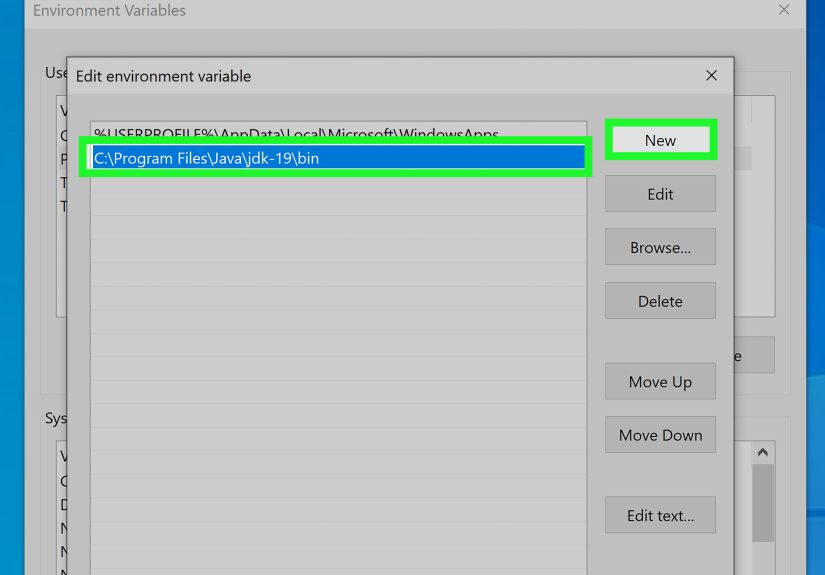
- Open Environment Variables (search “environment variables” in Windows).
- Create a new System variable:
JAVA_HOME= your JDK folder (example:C:Program FilesJavajdk-21)
- Edit the Path system variable and add:
%JAVA_HOME%bin
- Close and reopen Command Prompt so it reloads environment variables.
Option B: Set JAVA_HOME via Command Prompt (Admin)
You can set system variables from an elevated Command Prompt using setx.
Example (adjust the path to your JDK folder):
Then ensure PATH includes:
Important: After changing environment variables, open a new Command Prompt window.
The old one won’t magically “feel the vibes” and update itself.
Step 3: Verify Java and Javac Are Working
Open Command Prompt and run:
If both commands print versions, you’re in business. If java works but javac doesn’t,
you likely installed only a runtime or your PATH points to the wrong place.
Step 4: Create Your First Java Program
Make a folder for your projectlet’s keep things tidy. For example:
C:JavaProjectsHelloApp
Create a file named HelloWorld.java with this code:
Key rule: If you have a public class HelloWorld, the filename must be
HelloWorld.java. Java is very serious about this. Like “won’t compile” serious.
Step 5: Compile the Java Program with javac
In Command Prompt, go to your project folder:
Compile:
If compilation succeeds, you’ll see a new file: HelloWorld.class.
No fireworks, no confettijust silent success. The best kind.
What Did javac Actually Do?
javac turned your human-readable .java source into JVM bytecode in a .class file.
That bytecode is what the Java Virtual Machine knows how to run.
Step 6: Run the Program with java
Run the class (notice: no .class extension):
You should see:
Common Project Layout That Saves Your Sanity
Once you move past tiny demos, it helps to separate source files and compiled output.
Here’s a simple structure:
Compile source into out:
Run from out:
On Windows, classpath entries are separated with a semicolon (;), not a colon.
(That’s Linux/macOS territory.)
Compiling and Running Programs That Use Packages
Packages are where beginners often get blindsided. The trick is: the folder structure must match the package name.
Example: A Package Named com.example
Create folders:
Create this file: srccomexampleApp.java
Compile into out:
Run using the fully qualified class name:
Compiling Multiple Java Files at Once
If your program has multiple classes, compile them together (or compile the “main” one and let Java resolve dependencies
in the same source folderdepending on layout). A simple approach:
For packages and deeper folders, you can compile recursively by pointing javac at the right files.
Many developers use a build tool later (Maven/Gradle), but knowing the raw commands is still extremely useful.
Running with External Libraries (JAR Files)
The moment you add a library, you’ll meet -cp (or -classpath), which tells Java where to find classes and JARs.
Example: Using a JAR in a lib Folder
Project layout:
Compile with the library on the classpath:
Run with both out and the JAR on the classpath:
If you have multiple JARs, you can include them all:
Yes, it can get long. That’s one reason build tools exist. But for quick experiments, this works great.
Bonus: Create and Run a Runnable JAR
If you want a single file you can run, you can package compiled classes into a JAR. At minimum, you need a manifest
that declares the main class.
Step 1: Compile
Step 2: Create a manifest file
Create manifest.txt (note the blank line at the end is important in some setups):
Step 3: Build the JAR
Step 4: Run the JAR
Troubleshooting: The “Classic Hits” of Java Command-Line Errors
‘javac’ is not recognized…
- Confirm you installed a JDK, not just a JRE.
- Make sure
PATHincludes%JAVA_HOME%bin. - Reopen Command Prompt after changes.
Error: Could not find or load main class
- You’re likely running from the wrong folder or missing
-cp. - If you used packages, run with the fully qualified name (example:
com.example.App). - Make sure the compiled
.classfiles are actually where your classpath points.
Main method not found in class…
- Your program needs:
public static void main(String[] args) - Spelling and capitalization matter. Java does not do “close enough.”
Unsupported major.minor version (or class file version)
- You compiled with a newer JDK than the runtime you’re using to run it.
- Fix by running with the same (or newer) Java version, or compile with a target release:
File name or public class mismatch
- If your code says
public class App, the file must beApp.java.
Quality-of-Life Tips (Because You’ll Do This More Than Once)
Make a Simple Run Script
Create a run.bat in your project folder:
Now you can just type:
Keep One JDK “Active” at a Time
If you install multiple Java versions, keep JAVA_HOME pointing to the one you actually want to use.
It reduces mysterious “why is my version different today?” moments.
Real-World Experience: What It’s Actually Like Doing This (500+ Words)
The first time most people compile Java in Command Prompt, it feels like trying to operate a spaceship using only
three buttons and a warning label. You type javac HelloWorld.java, hit Enter, and… nothing happens.
No “success” message, no celebrationjust the cursor blinking like it’s judging you. That’s when you learn one of
the most valuable command-line lessons: silence is often success.
In real projects, the biggest “aha” moment usually comes when you stop treating the command line like a magical place
and start thinking in terms of folders and paths. Most errors are not “Java hates me” errorsthey’re “I am in the wrong
directory” errors. I’ve watched people spend 30 minutes debugging code that was perfectly fine, only to realize they were
compiling an older copy of the file sitting in a different folder. Command Prompt will happily do exactly what you asked,
even if what you asked was deeply unhelpful.
Packages are the next rite of passage. On day one, you write package com.example; because it looks professional.
On day two, you discover that Java expects your folder structure to match that package exactly, and now you’re reorganizing
files like you’re moving apartments. The good news is: once it clicks, it clicks forever. You learn to think of a package
name as a map to a folder, and suddenly “Could not find or load main class” stops being a terrifying prophecy and becomes a
solvable clue.
External libraries add another layer of “welcome to the real world.” The first time you use -cp, you will probably
forget the quotes, or use a colon instead of a semicolon, or point at the folder but not the JAR, or do everything right and
still run it from the wrong working directory. That’s normal. The command line is strict, but it’s also predictableonce you
understand the rule, it stops being personal.
One surprisingly useful habit is creating a tiny out folder and always compiling into it. It keeps your source clean,
and it makes it obvious what you’re running. Another is writing a quick .bat script for compile-and-run. People sometimes
feel like that’s “cheating,” but it’s actually the opposite: you’re documenting the exact steps your computer needs. That’s what build
tools dojust with more features and less sarcasm.
Finally, the most practical “experience-based” advice: whenever Java does something weird, run java -version and
javac -version first. Version mismatches cause a shocking number of headaches, especially on Windows systems that have
multiple JDKs installed (or an old Java lurking in PATH like a raccoon in your attic). If you can confirm what tools you’re actually
using, you can usually fix the rest in minutes instead of hours.
Conclusion
Compiling and running Java from Command Prompt is one of those skills that makes everything else easier: IDEs make more sense,
build tools feel less mysterious, and troubleshooting becomes faster because you know what the “basic machinery” looks like.
Once you can confidently use javac and java, you’re not just writing Javayou’re driving it.