Table of Contents >> Show >> Hide
- Why People Buy Books on Google Play
- What You Need Before You Buy
- Method 1: Buy Books on Google Play Using an Android Phone or Tablet
- Method 2: Buy Books on Google Play on a Computer
- Method 3: Buy Books on Google Play on iPhone or iPad
- How to Choose the Best Buying Method
- Smart Buying Tips Before You Tap the Price
- Common Problems and Easy Fixes
- Bonus: Can You Gift a Google Play Book?
- Real-World Experiences With Buying Books on Google Play
- Final Thoughts
- SEO Tags
Buying books on Google Play is one of those things that sounds like it should take three seconds, one thumb, and maybe half a cup of coffee. Most of the time, it does. But depending on whether you are using an Android phone, a computer, or an iPhone or iPad, the purchase steps look a little different. That is where people get tripped up, start poking random buttons, and end up staring at a sample chapter like it personally offended them.
The good news is that Google Play Books makes the process pretty straightforward once you know where checkout actually happens. In this guide, you will learn the three easiest methods to buy books on Google Play, how to set up payment, what to do before tapping the price, and how to avoid the most common mistakes. We will also cover useful extras like samples, pre-orders, gift options, Family Library, and a few smart tips that can save you money and frustration.
Why People Buy Books on Google Play
Google Play Books is a convenient option for readers who want to buy an ebook and start reading almost immediately. It works well for people who already use Android, rely on a Google account for everything, or want their library synced across devices. You can shop on a phone, tablet, or computer and then read on multiple devices without playing a game of digital hide-and-seek with your purchases.
It also appeals to readers who like flexibility. In many cases, you can preview a sample before buying, use Google Play balance or gift cards, and keep an eye out for free titles, discounts, and pre-orders. For families, eligible purchases may also be shared through Family Library, which is a nice bonus if your household burns through books like popcorn at a movie marathon.
What You Need Before You Buy
Before you start shopping, make sure you have the basics ready:
- A Google account signed in on the device you plan to use
- The Google Play Books app if you are on mobile
- A payment method linked to your Google Play account, such as a credit card, debit card, PayPal, Cash App Pay, or Google Play balance where available
- A stable internet connection for purchase and initial sync
If you are in the United States, Google Play supports several payment options for digital purchases. That means you usually do not need to abandon your cart and dramatically whisper, “Why is technology like this?” You just need the payment method added correctly.
Method 1: Buy Books on Google Play Using an Android Phone or Tablet
This is the easiest and most direct way for most people. If you use Android, the Google Play Books app is the smoothest path from “I want that book” to “I am already on chapter three and ignoring my chores.”
Step-by-Step on Android
- Open the Google Play Books app.
- Search for the title, author, or keyword.
- Tap the book you want.
- Check the price and details.
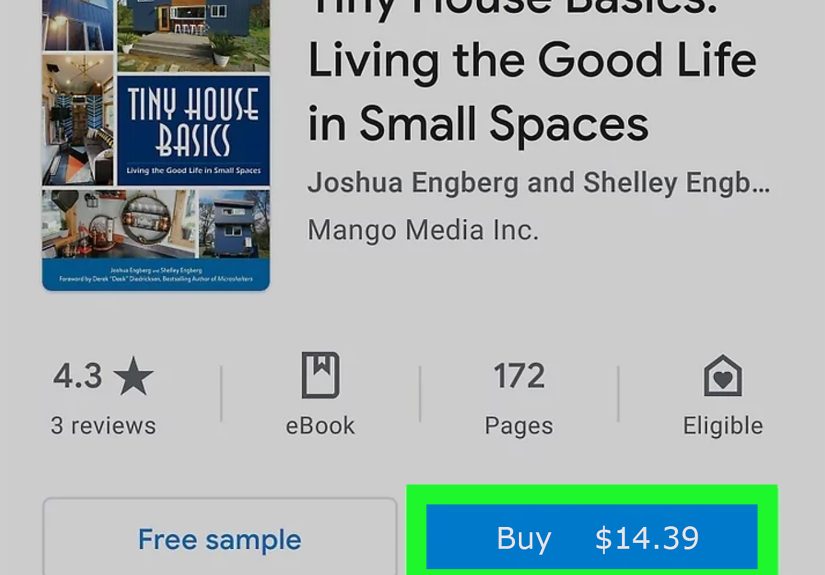
- Tap the price button to buy the ebook.
- Follow the prompts to confirm payment.
- Start reading in your library once the purchase is complete.
Google also lets you read a sample for many books before you commit. That is useful when the cover looks incredible, the description sounds life-changing, and then page one reads like a toaster manual. Previewing helps.
Why Android Is the Fastest Method
Everything happens in one place. You search, preview, buy, and read without hopping between apps or browser tabs. It is ideal for commuters, students, and casual readers who buy books on impulse after seeing a recommendation online, hearing an interview with an author, or falling into a midnight rabbit hole about Roman history, productivity, or sourdough.
Best Android Buying Tips
- Use the sample feature before purchasing
- Check the book details page for reading information
- Make sure your preferred payment method is updated before checkout
- Look for discounts, free books, and special offers
Method 2: Buy Books on Google Play on a Computer
If you prefer shopping on a bigger screen, this method is perfect. Buying books on a desktop or laptop gives you more room to compare titles, read descriptions carefully, and avoid accidental taps from sleepy fingers.
How to Buy on a Computer
- Go to Google Play Books on the web.
- Search or browse for the book you want.
- Open the book page.
- Review the details, including pricing and reading information.
- Click the price button.
- Choose your payment method and complete the purchase.
- Open your library to read in the browser or on another synced device.
This method works especially well if you are already researching books online. Maybe you are reading reviews, comparing editions, or hunting down a business book everyone on LinkedIn suddenly discovered at the same time. The desktop experience makes that process easier.
Why the Web Method Is So Useful
The browser version is often the cleanest option for managing payment settings, checking your library, and handling extras. It is also helpful if you want to download exported files for supported titles or review your purchases from a full-size interface. In other words, it is the “I like control and visible menus” method.
When Desktop Is Better Than Mobile
- When you want to compare several books side by side
- When you need to add or fix a payment method
- When PayPal setup needs to happen through a computer or mobile web browser
- When you want to manage your library more comfortably
Method 3: Buy Books on Google Play on iPhone or iPad
This is the method that confuses people most, mostly because the purchase flow is not exactly the same as Android. On iPhone and iPad, you can browse books in the Google Play Books app, but the actual purchase is completed on the web through a secure link.
So no, you are not doing it wrong. The app is simply guiding you to the web checkout flow.
How to Buy on iPhone or iPad
- Open the Google Play Books app.
- Select the book you want to buy.
- Tap Manage account.
- Tap the link that takes you to the Google Play Books website.
- Continue to the web page and complete the purchase there.
- Return to your library and start reading after the purchase syncs.
Why This Method Still Works Well
Once you know the trick, it is simple. You browse in the app, buy on the web, and read back in the app. It is one extra step, but it still gives iPhone and iPad users access to the same Google Play Books library. If you already use Google services across devices, that convenience can outweigh the slightly quirky purchase path.
A Helpful iPhone Tip
Make sure you are signed in with the same Google account in both the app and the browser. That avoids the classic “I bought the book but where did it go?” moment that makes people doubt all modern civilization.
How to Choose the Best Buying Method
The best method depends on your device and habits:
- Use Android if you want the fastest all-in-one experience
- Use desktop if you want a larger screen and easier payment management
- Use iPhone or iPad if you already read on Apple devices and do not mind web checkout
There is no universal winner. The “best” option is simply the one that feels easiest on the device already in your hand.
Smart Buying Tips Before You Tap the Price
Read the Sample First
A sample can save you from buyer’s remorse. It helps you test the writing style, formatting, and whether the author seems brilliant or just deeply committed to writing 300 pages that could have been a podcast episode.
Check Payment Before Checkout
If a payment method is expired, mismatched, or not fully set up, checkout can fail. Update your card or wallet before you begin shopping if you know your account details have changed.
Use Google Play Balance or Gift Cards
Google Play balance can be used for books in the United States, and gift cards are a practical option for readers who want to control spending or give someone a book-related present without guessing their exact taste in fiction, nonfiction, or suspiciously specific dragon romance.
Look for Family Library Eligibility
Some books can be shared with up to five family members through Google Play Family Library. If you buy a lot of children’s books, educational titles, or shared-interest reads, this can stretch your budget and reduce duplicate purchases.
Watch for Pre-Orders
If a new title is coming soon, Google Play also supports pre-orders for books. That is handy for bestsellers, sequels, and those titles people start talking about months before release like they are awaiting the moon landing.
Common Problems and Easy Fixes
The Book Is Still Showing as a Sample
First, confirm the purchase was completed under the correct Google account. Then refresh your library, remove the download if needed, and download again. In many cases, the issue is a sync delay rather than a missing purchase.
Payment Keeps Failing
Check whether your saved payment method is current. Try updating the card, switching to another method, or completing setup on the web if you are using PayPal.
You Cannot Find the Book in Your Library
Make sure you are signed in to the correct Google account. This is the digital reading version of checking whether the keys were in your other jacket all along.
You Want Offline Reading
After purchase, download the book in Google Play Books for offline reading. On desktop, Google also provides export options for supported books through the library menu.
Bonus: Can You Gift a Google Play Book?
In some countries, Google Play Books can be sent as digital gifts by email, and physical Google Play gift cards are also available in many places. If direct book gifting is unavailable where you are, a Google Play gift card is often the simplest workaround.
Real-World Experiences With Buying Books on Google Play
For many readers, buying books on Google Play feels less like a grand event and more like a practical habit that slips neatly into daily life. That is part of the appeal. A student might hear a professor mention a title during class, search for it on an Android phone before lunch, download a sample, and buy it by the afternoon. A parent may grab a children’s book on a tablet while waiting in the school pickup line. A business traveler can buy a nonfiction title on a laptop at the airport and have it ready on a phone before boarding. The experience is not flashy. It is efficient, which is often better.
Android users usually report the smoothest experience because the process stays inside the Google ecosystem from start to finish. Search, tap, buy, read. It is wonderfully boring in the best possible way. There is no puzzle to solve, no confusing detour, and no feeling that the store is hiding the checkout button behind a hedge maze. If you already use Gmail, Google Drive, and Android, Google Play Books feels like another natural extension of tools you already trust.
Desktop buyers often like the sense of control. On a computer, it is easier to compare editions, inspect pricing, review book descriptions, and manage payment methods without tiny-screen gymnastics. This method feels especially useful for people who buy more thoughtfully rather than impulsively. They may browse several books, read reviews in other tabs, and only then commit. The larger screen turns the buying process into a cleaner research experience.
iPhone and iPad users often have the opposite reaction at first: confusion, followed by relief. The app lets you browse, but checkout happens on the web, which can feel odd until you do it once. After that, most people realize it is not difficult, just different. The best description is probably “mildly annoying for about thirty seconds, then perfectly fine forever after.” Once readers understand the flow, they tend to stop thinking about it.
Another common experience is discovering how useful samples are. Readers who buy a lot of ebooks often use the sample feature like a dressing room for books. You can test the tone, see whether the formatting looks clean, and decide whether a title is worth the money. That matters more than people expect. A catchy blurb can sell almost anything, but three pages of clunky prose can end the romance immediately.
Many users also appreciate how fast purchased books appear across devices. Buy on a laptop, read on a phone. Browse on an iPad, finish on an Android tablet. That flexibility is one of Google Play Books’ quiet strengths. It fits messy, real-life reading habits, where people switch devices depending on where they are, what battery is left, and whether they are pretending to work while actually reading chapter twelve.
Final Thoughts
If you want a simple answer to how to buy books on Google Play, here it is: use the method that matches your device, make sure your payment setup is ready, and always preview a sample when possible. Android gives you the smoothest all-in-one purchase flow, desktop gives you the most control, and iPhone or iPad works well once you know the checkout happens on the web.
Google Play Books is not complicated once the layout clicks. Learn the three methods once, and future purchases become quick, easy, and pleasantly uneventful. Which is exactly how buying a good book should be.