Table of Contents >> Show >> Hide
- Before You Delete Anything: A 60-Second “Don’t Lose Your Progress” Check
- Way 1: The Fast Method (Long-Press the Icon)
- Way 2: The “I Want Control” Method (Settings or Google Play)
- Way 3: When a Game Won’t Leave (Disable, Archive, or “Remove for This User”)
- Common Questions (Because Android Loves a Plot Twist)
- Experiences From Real-World Cleanup Missions (About )
Your Android phone is basically a tiny spaceship. Sleek. Powerful. Capable of launching you into productivity… until it’s also hosting
seventeen games you downloaded “just to try,” including one where you farm turnips to buy a bigger turnip farm. (No judgment. I’ve seen things.)
If you want to remove mobile games on Androidwhether to free up storage, reduce distractions, or stop your phone from suggesting
you “continue your streak” like it’s a life-or-death missionthis guide walks you through three reliable ways to do it. You’ll also learn what to do
when a game refuses to leave, how to keep your save data when you actually like the game (just not right now), and how to avoid the classic mistake:
removing an icon and thinking the game is gone… while it’s still lurking in your app drawer like a raccoon in a pantry.
Before You Delete Anything: A 60-Second “Don’t Lose Your Progress” Check
Most people remove games because they want space or peacenot because they want to permanently erase a 200-hour save file.
Before you uninstall, do this quick prep:
- Confirm cloud saving: Many games sync progress through Google Play Games, a developer account, or a social login.
Open the game’s settings and look for “Cloud Save,” “Account,” or “Sync.” - Screenshot your player ID or account info: If customer support ever needs to restore progress, this is gold.
- Check subscriptions: Uninstalling a game usually doesn’t cancel an active subscription. If you pay for perks,
cancel it in Google Play first (we’ll cover where). - Know what “remove” means: On Android, “Remove” often means “remove the shortcut/icon,” not “uninstall the game.”
Way 1: The Fast Method (Long-Press the Icon)
This is the quickest way to delete a game you can see on your home screenor in your app drawer. It’s perfect for the “I’m done with this
game and I’m done right now” mood.
Option 1: Uninstall from the Home Screen
- Find the game icon on your home screen.
- Press and hold the icon until a menu pops up.
- Tap Uninstall (or tap App info → Uninstall).
- Confirm when prompted.
If you see Remove but not Uninstall, your phone may be offering to remove the icon only. In that case,
choose App info (if available) to reach the real uninstall button.
Option 2: Uninstall from the App Drawer
Many Android phones let you uninstall directly from the app drawer (the “all apps” list). The steps look almost identical:
- Open the app drawer (usually by swiping up on the home screen).
- Press and hold the game’s icon.
- Tap Uninstall (or App info → Uninstall).
Quick Reality Check: “Removing” Isn’t Always Removing
Here’s the sneaky part: Removing an icon often just removes the shortcut from your home screen. The game can still be installed,
still taking storage, and still capable of sending notifications like “Your crops are ready!” (Sir, it’s 2 a.m.)
If you removed the icon and the game still shows up in the app drawer or Settings, you didn’t uninstall ityou just redecorated.
Which is fine! But if your goal is to free storage, use Way 2.
Way 2: The “I Want Control” Method (Settings or Google Play)
When you want certaintylike “yes, this game is truly gone,” or “I want to remove three games and keep one”use your phone’s Settings
or the Google Play Store. This method is also great when you can’t find the icon (because you hid it, moved it, or your launcher is playing hide-and-seek).
Option 1: Uninstall Games from Android Settings
This route works on basically every Android phone, even if the game icon is missing:
- Open Settings.
- Tap Apps (sometimes “Apps & notifications”).
- Tap See all apps (wording varies).
- Select the game you want to remove.
- Tap Uninstall → confirm.
If you don’t see “Uninstall”: the game may be preinstalled, part of a bundle, managed by a work/school profile, or set up with device admin permissions.
In that case, Way 3 is your friend.
Option 2: Uninstall Games from the Google Play Store
This is especially useful if you want to remove games you installed from Play, and it doubles as a quick “what did I even download?” reality check.
- Open the Google Play Store.
- Tap your profile icon (top right).
- Tap Manage apps & device → Manage.
- Select the game.
- Tap Uninstall → confirm.
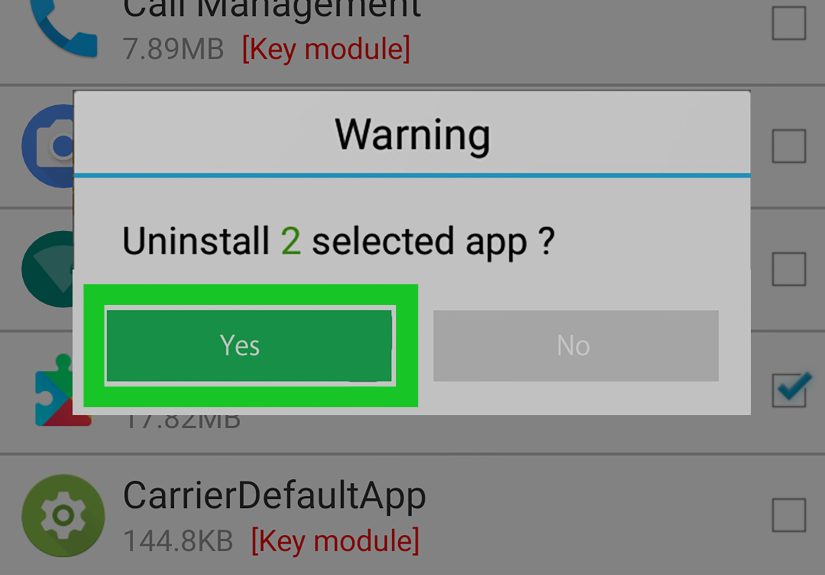
Bonus: Bulk Uninstall Multiple Games (One Cleanup Session, No Regrets)
If you’re doing a “spring cleaning” and want to uninstall a bunch of games at once, the Play Store’s Manage screen can help:
- Play Store → profile icon → Manage apps & device → Manage.
- Use the checkboxes to select multiple games.
- Tap the trash/delete icon (or the uninstall option) and confirm.
This is the closest thing Android has to a “remove all my impulse downloads” buttonand honestly, it deserves a medal.
Clean-Up Tips After Uninstalling (Optional, But Satisfying)
Uninstalling a game usually removes most of its files, but depending on the game and your device, you may still have leftovers like downloads,
screenshots, or big “additional data” folders. If you’re removing mobile games on Android to reclaim space, try:
- Check Downloads: Some games store installers, updates, or extra content in your Downloads folder.
- Review media folders: Game recordings and screenshots can quietly grow into a storage monster.
- Use Storage settings: Settings → Storage can highlight “Large files” or categories that are easy wins.
Way 3: When a Game Won’t Leave (Disable, Archive, or “Remove for This User”)
Some games (or game hubs, trial versions, or carrier “bonus” apps) act like they came with a lease. You tap Uninstall… and Android says,
“Best I can do is Disable.” That’s not Android being rudeit’s Android protecting system partitions and bundled software.
Luckily, you still have options.
Option A: Disable a Preinstalled Game (The “Sit Down and Be Quiet” Button)
Disabling an app typically removes it from your app drawer, stops it from running, and prevents updateswithout fully deleting the core system package.
It’s the safest approach for preinstalled apps you don’t want.
- Open Settings → Apps.
- Select the game (or related app).
- Tap Disable → confirm.
- If available, also tap Storage → Clear storage (or “Clear data”) to remove its local data.
Tip: If you see Uninstall updates, you can remove updates first and then disable the app.
That often shrinks its footprint and stops it from reintroducing itself at the worst possible time.
Option B: Archive the Game (Free Space, Keep Your Progress)
If you’re not sure you’re done foreveror you just want your storage backarchiving can be a perfect middle ground.
Archiving removes the core app software and temporary files but keeps the icon and personal data so you can restore the game later
without starting from zero (assuming the game is still available in Google Play).
You can archive unused apps manually or let Android/Google Play suggest it when space is tight. When you’re ready to play again,
you tap the icon and the game re-downloads.
Option C (Advanced): Remove a Stubborn Preloaded Game “for This User” Using ADB
This is the “I know what I’m doing” option. It can remove certain preloaded apps for your user profile without rooting the device.
It’s also the easiest way to create accidental chaos if you remove something importantso stick to obvious bloatware or preloaded games only.
- Enable Developer Options: Settings → About phone → tap Build number 7 times (varies by device).
- In Settings, open Developer options and enable USB debugging.
- On a computer, install Android platform tools (ADB), connect your phone via USB, and approve the debugging prompt on your phone.
- In a terminal/command prompt, confirm the device is detected (example):
adb devices - List packages (example):
adb shell pm list packagesand identify the game’s package name. - Remove it for the main user (example):
adb shell pm uninstall --user 0 com.example.game
If you’re unsure what a package does, don’t remove it. And never remove core services. For most people,
disabling or archiving is plenty.
Common Questions (Because Android Loves a Plot Twist)
“If I uninstall a game, will I lose my purchases?”
You generally won’t lose purchases tied to your Google account, but you may lose local progress if the game doesn’t use cloud saves.
That’s why it’s worth checking the game’s account/sync settings before uninstalling.
“Why does the game come back after an update?”
Some devices reinstall or re-enable bundled apps during system updates. If that happens, disabling the app again usually works.
In rare cases, carrier or manufacturer software may push recommended appscheck Settings for “App recommendations” or setup helpers.
“I uninstalled it. Why do I still get notifications?”
If you’re still getting notifications, it’s often from a different app (like a game hub, store, or ad-supported launcher) that’s promoting the game.
Search Settings → Notifications and look for anything game-related that’s still enabled.
“How do I cancel a game subscription?”
In Google Play: profile icon → Payments & subscriptions → Subscriptions. Cancel there first,
then uninstall the game. (Otherwise, the charges can keep going while the app is gonerude.)
Experiences From Real-World Cleanup Missions (About )
Most people don’t remove mobile games on Android because they woke up feeling minimalist. It’s usually a moment of truth:
your phone flashes “Storage almost full,” your camera refuses to take a photo, and suddenly that “quick puzzle game” you installed in 2023
feels like a squatter who never paid rent.
One common experience is the home screen illusion. Someone drags a game icon to “Remove,” feels victorious,
and thendays laterfinds the same game sitting comfortably in the app drawer, still updated, still ready to steal 45 minutes.
That’s when you learn the difference between removing a shortcut and actually uninstalling the app. It’s not a failure; it’s an Android rite of passage.
Another classic: the “Why is this game 9 GB?” discovery. You uninstall the game and only free up a tiny amount of space,
because the real storage hog is the extra downloadable content, recorded clips, or giant “data” files saved elsewhere. This is why the
cleanup feels so satisfying when you pair uninstalling with a quick check of Downloads and media folders. It’s like cleaning your closet and
finding shoes you forgot you ownedexcept the shoes are 4K screen recordings of you losing a boss fight.
A lot of people also run into the “Disable” wall with preinstalled games or carrier extras. The uninstall button disappears,
and the phone offers Disable like it’s a compromise in a negotiation. The good news: disabling usually works extremely well in practice.
The app stops running, stops updating, and stops popping up. For many users, it feels functionally “gone,” which is the real goal.
The only downside is psychological: you know it’s still technically on the phone, like a ghost living in the walls.
Then there’s the progress panic. People uninstall a game and later realize their save wasn’t synced. That’s why experienced
“game removers” do a quick two-step: confirm cloud sync or account login, then uninstall. If the game supports cloud saves, archiving becomes
a fan favoritefree space now, resume later without heartbreak. It’s basically the adult version of putting something in a labeled storage bin
instead of throwing it away.
Finally, some users go full superhero mode and try advanced removal tools like ADB for truly stubborn bloatware. When it works, it feels amazing
like you just reclaimed your own device. But the best “experienced” advice is also the simplest: if you’re unsure, don’t delete system-looking stuff.
Stick to obvious games, and prefer Disable or Archive. Your phone will run better, your storage will breathe again, and you’ll spend less time
fighting with settingsand more time doing literally anything else you enjoy.