Table of Contents >> Show >> Hide
- First, a Quick Reality Check: “Outlook Account” Can Mean Two Things
- Way #1 (Fastest): Create a New Outlook Email Account in Your Web Browser
- Way #2 (Best for Windows Users): Create One Through Outlook for Windows
- Way #3 (Most Convenient): Create a New Outlook Account on Your Phone
- Quick Troubleshooting: The Most Common Signup Problems
- After You Create Your Account: The 10-Minute Setup Checklist
- Conclusion: Pick the Method That Matches Your Device (and Your Patience)
- Real-World “Experience” Section: What People Usually Run Into (and What Works)
Need a fresh email address for job hunting, side projects, family stuff, or that one hobby you swear is “totally not becoming a full-time personality”? Creating a new Outlook email account is one of those rare internet tasks that’s actually (1) free, (2) fast, and (3) doesn’t require a degree in Password Engineering. The only real danger is spending 12 minutes trying to pick a username that isn’t already taken by someone born in 2006.
In this guide, you’ll learn three simple ways to create a brand-new @outlook.com email address (and, in many cases, @hotmail.com too), plus practical tips to avoid signup hiccups, strengthen account security, and get your inbox “real-life ready” in under 10 minutes.
First, a Quick Reality Check: “Outlook Account” Can Mean Two Things
People say “Outlook account” the way people say “Kleenex” for tissues. Sometimes they mean the email address (like [email protected]). Sometimes they mean the Outlook app on Windows, Mac, iPhone, or Android.
This article is about creating a new Outlook email addresswhich is also a Microsoft account. That single login can also be used across Microsoft services (like OneDrive, Microsoft 365 web apps, Xbox, and more). So yes: you’re making an email account, but you’re also getting a “keys to the ecosystem” login. Use your powers wisely.
Way #1 (Fastest): Create a New Outlook Email Account in Your Web Browser
If you want the simplest, most universal methodthis is it. A browser signup works on Windows, Mac, Chromebook, and even your phone. It’s also the best option if you want to carefully choose your new email name without a mobile keyboard trying to sabotage you.
Step-by-step: Sign up for a new @outlook.com address
- Open the Outlook/Microsoft signup flow and choose the option to create a free account. You’ll be prompted to create a new email address (not just use an existing one).
- Pick your email name. Type the username you want, then choose the domain (often @outlook.com, and sometimes @hotmail.com depending on what’s offered).
- Create a strong password. Use a password manager if you can. If you can’t, at least avoid the classics like Outlook123 and Password! (Yes, those are classics. Hackers also enjoy classics.)
- Enter basic info (name, country/region, birthdate). This helps with compliance and account recovery.
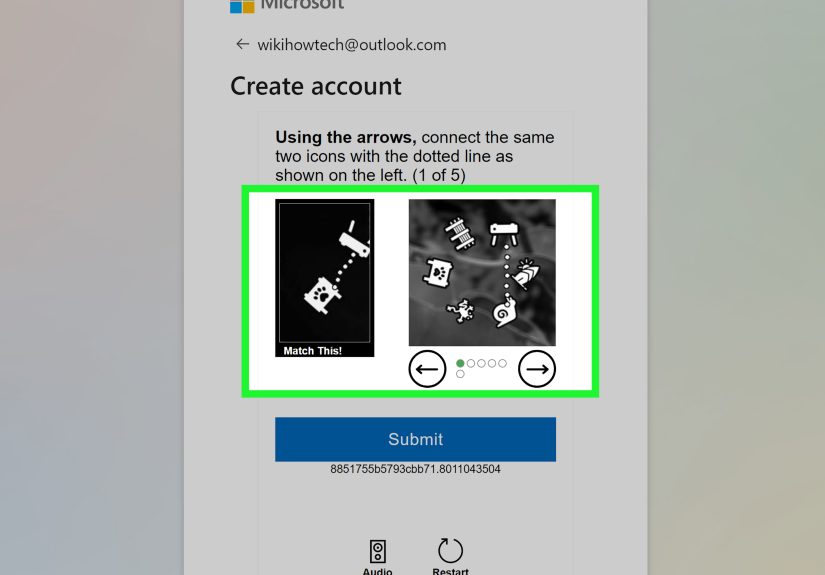
- Verify you’re you. Microsoft may ask for a verification code (via SMS or alternate email) and/or a CAPTCHA.
- Finish setup and land in your new inbox.
Username strategy: How to win the “Already Taken” battle
Let’s be honest: the hardest part is choosing an address that doesn’t already belong to a retired gamer tag from 2011. Try these tactics:
- Add a middle initial ([email protected]) or a short keyword ([email protected]).
- Use a role-based address for projects ([email protected]) instead of your exact name.
- Avoid punctuation chaos. Periods and underscores are fine, but “john__smith..real.final2” is a cry for help.
- Think long-term. If this will go on resumes, keep it simple and professional.
Make it secure (without turning your life into a cybersecurity podcast)
Right after signup, do these two things. They take minutes and save you hours of panic later:
- Add recovery options (phone number and/or backup email). This is the difference between “I forgot my password” and “I lost my account.”
- Turn on two-step verification (2FA) if available in your security settings. It’s the seatbelt of email accounts.
Bonus tip: If you’re creating this email mainly for newsletters, signups, or public-facing use, consider setting up an alias later to reduce spam exposure while keeping one inbox.
Way #2 (Best for Windows Users): Create One Through Outlook for Windows
If you’re on Windows and already using Outlookor Windows keeps nudging you toward the “new Outlook”you can start account creation from there. This can feel more seamless because you’re creating the account and connecting it to the app in one flow.
Option A: Use the “new Outlook” app on Windows
- Open Outlook (new Outlook for Windows).
- Go to Settings or Accounts, then choose Add account.
- When asked for an email, look for an option like Create one or Create new account (wording can vary). This usually opens the Microsoft account signup process.
- Complete the signup: choose your new email address, set a password, verify your identity, and finish.
- Outlook will then sync your new inbox automatically (you’ll see messages, folders, and settings start to populate).
Option B: Use “classic” Outlook desktop (Microsoft 365/Office)
If you have the classic Outlook desktop app (often from Microsoft 365), the flow is similar: you add an account, and if you don’t have one, the sign-in window typically offers a path to create a new Microsoft account.
- Open classic Outlook.
- Go to File → Add Account.
- Enter your desired new email or choose the option to create a new one (if prompted).
- Finish setup and wait for sync.
Why this method is getting more popular
Microsoft has been pushing users away from older built-in mail apps on Windows and toward the newer Outlook experience. So if Windows is already steering you into Outlook, creating your account right inside that ecosystem can reduce setup friction later.
Common hiccups (and how to fix them)
- It keeps asking for an existing email. Look closely for “Get a new email address” or “Create one.” Sometimes it’s a small link.
- Outlook won’t sync after signup. Confirm you can sign into your inbox on the web first. If yes, remove and re-add the account in Outlook.
- Corporate device restrictions. If you’re on a work-managed PC, IT policies may block personal account creation. Use a personal device instead.
Way #3 (Most Convenient): Create a New Outlook Account on Your Phone
Want to create a new Outlook email while waiting for coffee, sitting in a rideshare, or avoiding eye contact in an elevator? The Outlook mobile app lets you create a new Microsoft account directly from your phone, which is great because you can also verify via SMS quickly.
On iPhone (Outlook app)
- Install and open the Outlook app on your iPhone.
- Tap your profile icon / the Outlook icon, then go to Settings.
- Select Add Account, then choose Create New Account.
- Pick your new email address (like [email protected]), set a password, and complete verification.
- Finish setup and you’re inyour new inbox will load in the app.
On Android (Outlook app)
Android steps are similar: open Outlook → add account → choose/create a new Microsoft account → complete signup. The labels may be slightly different, but the flow is the same: create an address, set a password, verify, done.
Bonus: You can also add Outlook to the built-in Mail app
If you prefer Apple’s Mail app (or you’re setting up email for someone who refuses to download “yet another app”), you can add an Outlook account there too. But note: this is typically for adding an existing accountyou’ll still want to create the account first using Way #1 or the Outlook app.
Quick Troubleshooting: The Most Common Signup Problems
“That username is taken”
This is normal. Try adding a short word, a middle initial, or a role-based label. If it’s for professional use, keep it clean and readable.
Verification code not arriving
- Double-check the phone number or backup email for typos.
- Wait a minute and request another code (don’t spam it; systems may rate-limit you).
- Try a different verification method if offered.
Signup page keeps looping or freezing
- Try an incognito/private window.
- Disable aggressive ad blockers or privacy extensions temporarily.
- Switch browsers (Chrome/Edge/Firefox) or use your phone.
“Your account has been temporarily locked”
Too many attempts, suspicious activity flags, or repeated verification requests can trigger a lock. Wait, then try again using a stable internet connection, and make sure your recovery info is valid.
After You Create Your Account: The 10-Minute Setup Checklist
Creating the account is step one. Making it actually usable is step two (the fun part, because it makes you feel like an organized adult). Here’s the quick checklist:
- Add a display name that looks professional (especially if you’ll email recruiters or clients).
- Create a signature (name, role, phone, websitekeep it tidy).
- Turn on Focused Inbox if you want Outlook to prioritize important messages.
- Set up rules for newsletters and receipts (future-you will send you a thank-you note).
- Review security settings: recovery email/phone, sign-in alerts, 2FA.
- Test-send an email to another account to confirm everything works.
Conclusion: Pick the Method That Matches Your Device (and Your Patience)
If you want the quickest, most universal approach, use Way #1 (browser signup). If you’re already living in Windows and Outlook, Way #2 can be a smooth one-stop setup. And if you want the easiest verification experience (and you enjoy tapping buttons with confidence), Way #3 (mobile) is incredibly convenient.
However you create your new Outlook email account, remember: the “secret sauce” isn’t the signupit’s the security setup. Add recovery options, enable stronger sign-in protection, and you’ll have an inbox that’s ready for real life.
Real-World “Experience” Section: What People Usually Run Into (and What Works)
You asked for experiencesso here’s the most helpful kind: the patterns people typically run into when they create a new Outlook email account, plus the practical fixes that keep the process painless. No fairy tales, no “it worked perfectly for everyone,” and definitely no pretending usernames are infinite.
1) The “I just need a professional email” moment
A common scenario: someone’s current email is cooldude2009 and they suddenly need to apply for jobs. The signup part is easy, but the decision paralysis hits hard: should it be first.last? firstlast? first.m.last? The best real-world solution is usually clarity over creativity. A clean name format (or name + middle initial) looks professional, is easy to say out loud, and doesn’t make people wonder if they’re emailing a parody account. If the obvious option is taken, adding one short descriptor like “work” or “career” is often the least painful compromise.
2) The “Why is every username taken?” spiral
This happens constantly. People try 15 variations and start questioning reality. The trick that works most often is to stop trying to “win” with the exact name and instead switch to a role-based address. For example, if you’re creating an email for freelance work, name.studio, name.creative, or name.consulting can be both available and brand-friendly. If you’re creating an email for a club, family, or household, something like smith.family or household.smith can reduce long-term chaos. It’s also easier to share when needed.
3) The “Verification code won’t show up, so now I’m mad at technology” phase
Verification issues are usually boring, not catastrophic. The most common causes are (a) a typo in the phone number/email, (b) spotty connection, or (c) requesting too many codes too quickly. The approach that works is slow and methodical: confirm the number/email, request one code, wait a moment, then try again. If you have both options (phone and backup email), pick the one you can access instantly. On mobile, SMS verification is often smoother because you can copy/paste codes without switching devices.
4) The “I made the account… now what?” reality check
Many people create the address and immediately forget the password (because they were rushing). In real life, the best move is to treat the first 10 minutes like a setup ritual: add recovery methods, enable stronger sign-in protection, and send a test message. People who do this rarely lose access later. People who skip it often end up in a future standoff with account recovery screens at 2:00 a.m.
5) The “I need separate inboxes for sanity” upgrade
A surprisingly common “experience” is that a new Outlook email isn’t about switchingit’s about separation. People create one inbox for bills and banking, one for shopping and newsletters, and one for work or school. Outlook works well for this because you can use apps across devices, organize with folders and rules, and keep everything in one ecosystem. The best practice is to name the address according to its purpose and set up rules immediately. When the inbox stays organized from day one, it rarely becomes a junk drawer later.
The big takeaway from all these scenarios is simple: creating a new Outlook email account is easy, but creating one that stays useful is about smart naming, fast security setup, and basic organization. Do those three things and you’ll have an inbox you don’t hatean achievement worthy of a small celebration and a snack.




